The Aomago Voice Recorder Pen V82 is a sophisticated and discreet recording device designed for various applications, from learning and recording to general note-taking. It combines the functionality of a writing pen with advanced voice recording capabilities, making it a versatile tool for professionals and students alike.
Function Description:
The primary function of the Aomago V82 is voice recording, utilizing an all-directional microphone and a professional DSP chip with built-in digital noise reduction technology for clear audio capture. It supports both continuous recording and VOR (Voice Activated Recording) mode, which helps save power and memory space by only recording when sound is detected. The device also supports MP3 music playback, allowing it to double as a portable audio player. Files are stored in a classification system, separating VOR and ordinary recording files for easier searching. The pen features a single-key operation for starting and saving recordings, ensuring quick and convenient use. It also includes a time setting function (time stamp) for recordings, which is particularly useful for organizing files.
Important Technical Specifications:
- Product Name: Pen-type recording pen
- Storage: Built-in 16GB memory
- Recording Storage Period: Can record continuously for 10800 minutes (180 hours)
- Power Supply: Built-in Lithium Battery, 3.7V, 110mAh
- Microphone: Built-in Omnidirectional Microphone
- Signal to Noise Ratio: ≥80dB
- Support Audio Play Format: WAV (32Kbps~192Kbps), MP3 (32Kbps~384Kbps), WMA (32Kbps~192Kbps)
- Recording Quality: 192Kbps
- Recording Format: WAV
- Headphone Output: Two-channel output
- Recording Sampling Rate: 48KHz
- File System: FAT32
- Operating Temperature: -5°C ~ 40°C
- Connection Method: 3.5MMUSB Interface
- Transmission Interface: USB 2.0
- Supported System: WINDOWS XP/VISTA/WINDOWS 10
- Dimension (L×H): 145mm × 12mm
- Continuous Recording Time: About 8 hours
- Play Time: About 5 hours
- Net Weight: 40 grams (actual product weight may vary)
Usage Features:
- Recording: To start recording, press the top button to the low position. After a few seconds, recording begins with a flashing red light. To stop and save, press the top button to rebound to the high position.
- Voice Activated Recording (VOR): Turn the toggle switch to the VOR position. The red and orange lights will flash alternately, indicating that voice control is active. The system will automatically start recording when the sound reaches -60DB and save the file if the sound is less than -60DB for 20 seconds.
- Playback: Insert headphones into the recorder pen. Press the top button to the low position to start playback. Press the top button to the high position to pause, and press it to the low position again to resume. If no operation is performed within 30 seconds while paused, the pen will turn off automatically.
- Volume Adjustment: During headphone playback, long press the "+" key to increase volume and the "-" key to decrease volume.
- Navigation: During headphone playback, short press the "+" key to go to the next track and the "-" key to go to the previous track.
- Fast Forward: While playing files via headset, press and hold the "+" button. First, the volume will adjust to maximum, then continue holding "+" for fast forward.
- Switching Between Music and Recording Files: While headphones are plugged in and playing, press the spring at the top to rebound to the high level, then press "-" continuously twice to switch between MP3 Play and recording files.
- Time Setting: Connect the pen to a PC via the dedicated USB cable. In USB disk mode, run "Time.exe" to synchronize the device's clock with the computer's.
- File Management (Deletion): While playing with earphones, press the top spring switch to rebound to high level (pause state). Press the "+" key twice to enter delete state. Press "+" twice to delete the current file, or three times to delete all files in the current mode.
- Connecting to Computer: Connect the pen to a PC using the supplied USB cable. The device will power on automatically. The computer will recognize it as a removable storage device, allowing for file upload and download.
- Disconnecting from Computer: After file transfer, close Explorer and unplug the cable. For Windows 2000 and above, use the "Safely Remove Hardware" option (green arrow in the lower right corner, then "Stop USB Disk -driver").
Maintenance Features:
- Charging: The device has a built-in lithium battery. Connect it to a computer via USB cable for charging. A flashing red light indicates charging, and the red light turns off when fully charged. Full charge takes approximately 3 hours. If using an adapter, choose a 5V, 1A charger. The charging indicator shows remaining power in 25%, 50%, 75%, and 100% stages.
- Battery Management: If the product is unused for a long period, charge it every 3 months and then discharge it once to maintain battery health. The device features intelligent power detection, automatically saving the current recording file before the battery is depleted.
- Memory Full: When the 16GB memory is full, the recording state indicator will blink red 10 times. Users should back up recording files to a computer and format the recorder to free up space.
- Troubleshooting:
- No Indicator Light: Charge the lithium battery.
- No Sound During Playback: Adjust volume, ensure music files are present, or switch to the correct playback mode (MP3/recording) by pressing the top spring switch to high position and then "-" key twice.
- Cannot Transfer Files: Motherboard USB interface may need driver upgrade.
- Abnormal Computer Behavior When Plugged In: Avoid disconnecting during file transfer.
- Memory Display Mismatch: Some memory space is reserved for the program and font display, so the total usable memory is slightly less than the nominal value.
- MP3 Playback Issues: Incompatible MP3 song formats may occur. Remove incompatible songs or re-encode them using MPEG I Layer 3.
- Cannot Find Recording: The file may not have been saved properly. Connect to a computer to search for the recording.
- No Recording When Pressing Top Button: Check battery level and ensure VOR mode is off if not intended.
- Noise During Recording: Avoid recording near computers, electric fans, or air conditioners, as these can introduce static noise.
The Aomago V82 is designed with durability in mind, featuring an all-metal construction using stainless steel and CNC machining with a paint process design, providing a perfect feel and long-lasting quality. It also includes a hidden indicator function with independent color indications for play, record, and open sound control. Recording files can be deleted directly from the unit.

 Need help?
 General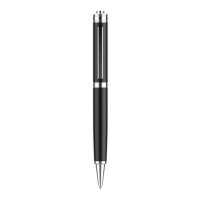

 To Next Page