Apogee ClipMic digital 2 - User’s Guide
Working with macOS
No software is required when using ClipMic digital on macOS computers. To select DSP Processing,
connect ClipMic digital to an iOS device, select the processing in the Apogee Maestro app, then
connect to the macOS computer.
To set Input Gain:
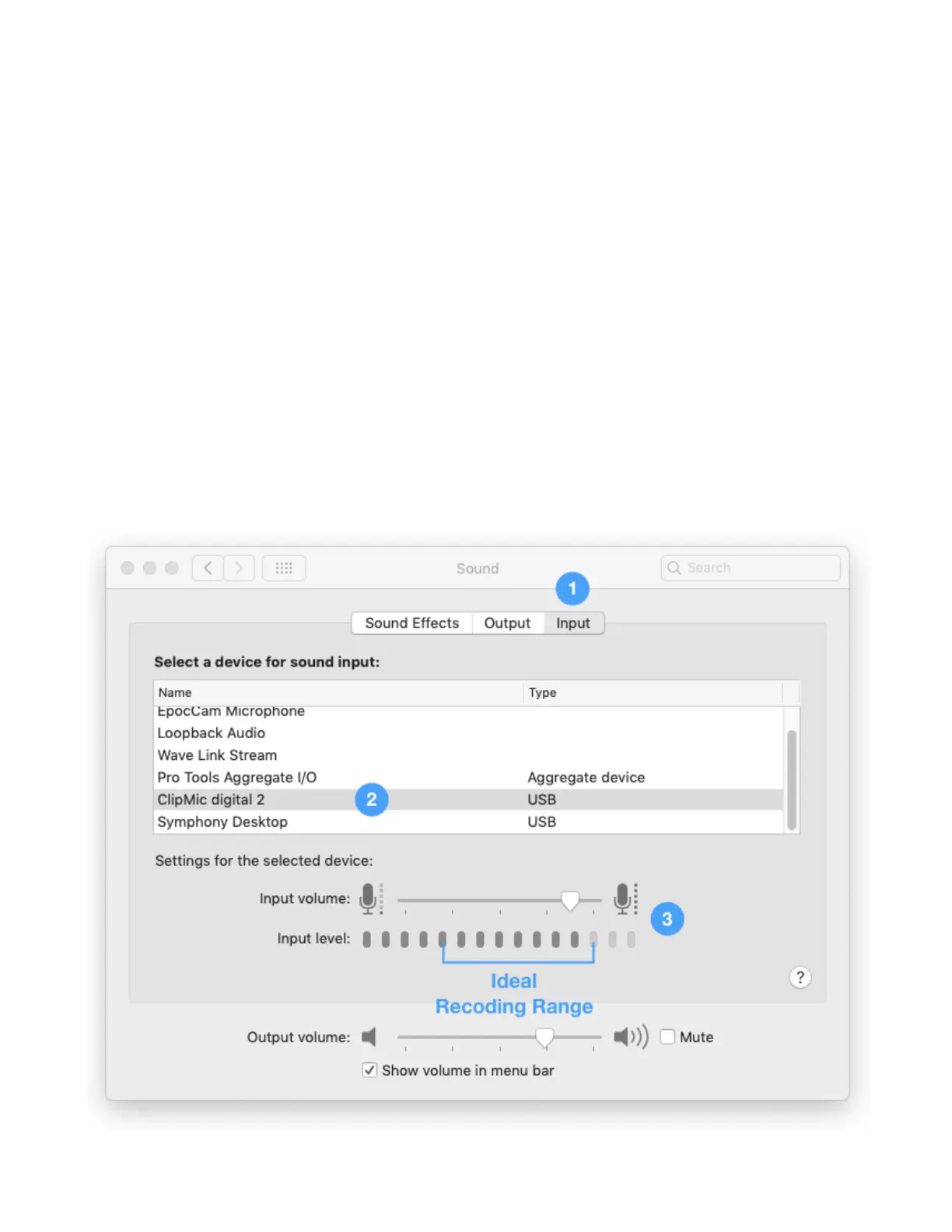
1. Open System Preferences > Sound, then choose the Input tab.
2. Select ClipMic digital 2 in the “Select a device for sound input:” list.
3. Speak into the mic at the volume you plan to record at, then adjust the Input volume so the
audio level falls within the ideal recording range on the level meter as shown below.
4. It may be possible to adjust Input Gain directly in your audio application; see Configuring Audio
Applications.



 To Next Page