Apogee ClipMic digital 2 - User’s Guide
Configuring Audio Applications
Ableton Live & ASIO4All
For the best results when using ClipMic digital with DAWs on a Windows 10 computer, install the
ASIO4All driver available from https://www.asio4all.org.
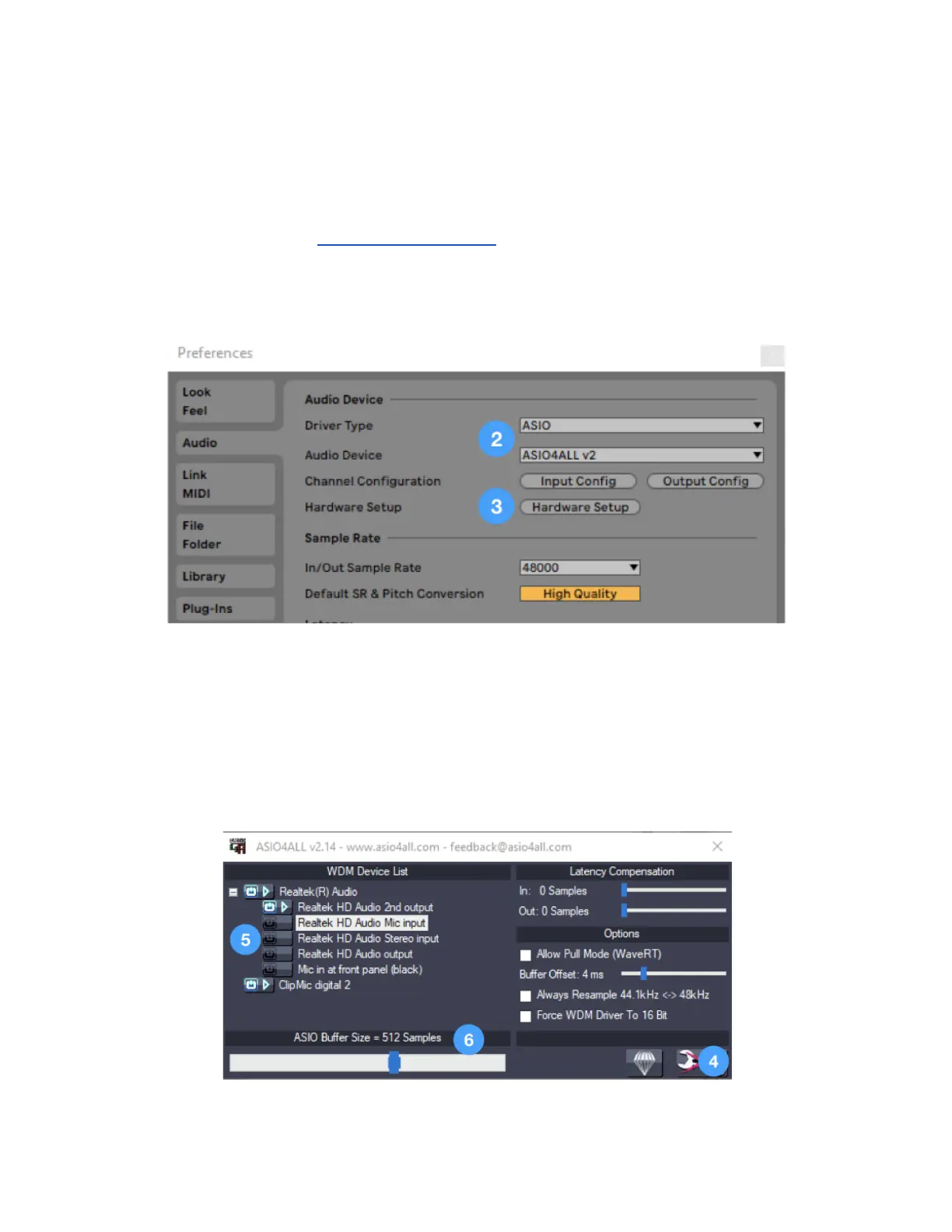
1. In Ableton, select Options > Preferences, then click the Audio tab.
2. Under Audio Device, set Driver Type to ASIO and Audio Device to ASIO4ALL v2.
3. Click Hardware Setup to display the ASIO4ALL control panel.
4. In the ASIO4All control panel, click the Advanced button in the lower right corner.
5. In the WDM Device List, select the built-in output device (speakers or headphones), then select
ClipMic digital 2. The output devices available on your computer may differ from the image
shown below.
6. Adjust the ASIO Buffer Size - a larger buffer helps avoid clicks and pops but also results in
longer latency.



 To Next Page