iMac (21.5-inch, Late 2009) Symptom Charts — Communications 75
2010-11-18
Deep Dive
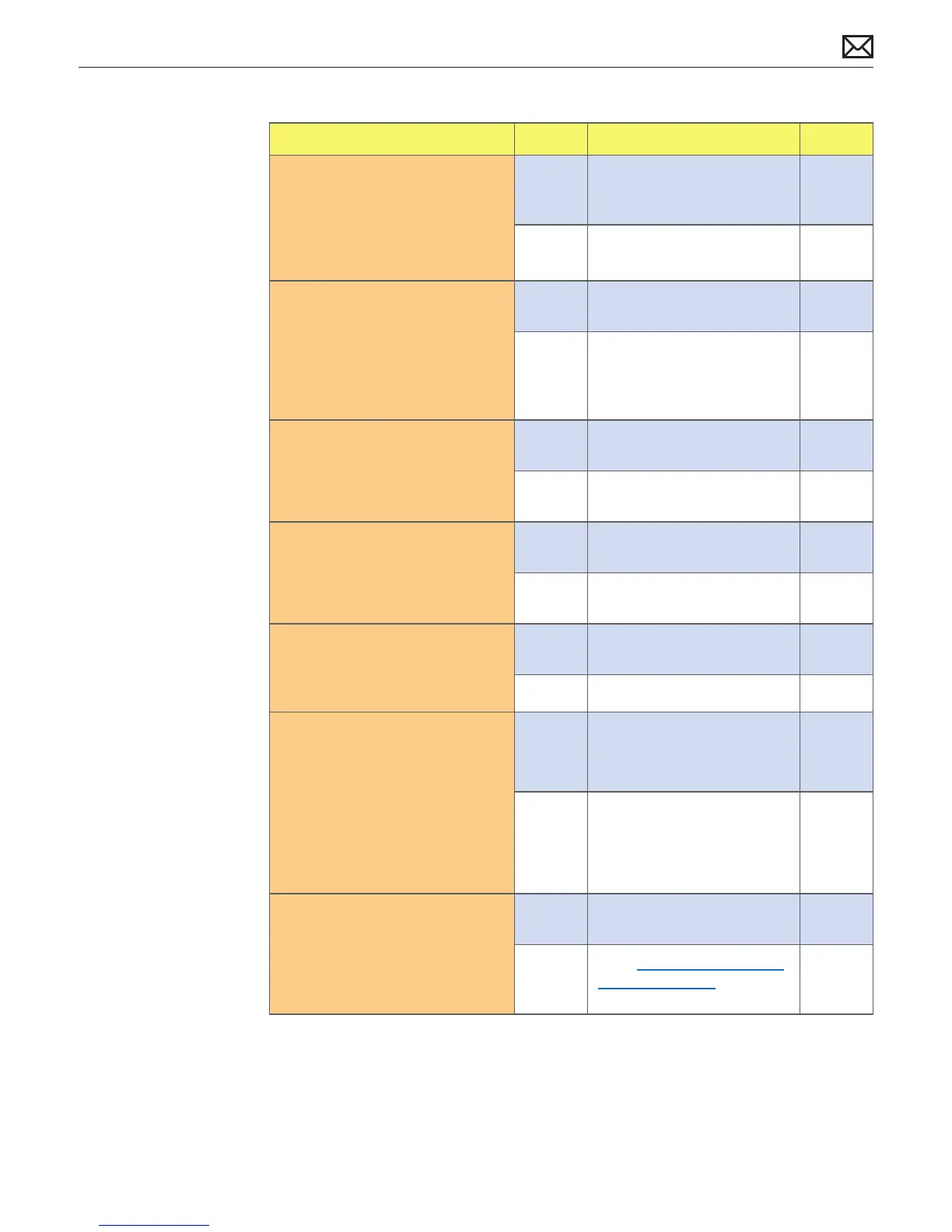
Check Result Action Code
1. Without any wired input
devices connected, and with a
wireless mouse in discoverable
mode, startup computer. Verify
if computer shows Bluetooth
Mouse Setup Assistant.
Yes Bluetooth hardware is active.
Go to step 6.
No Go to step 2.
2. Connect a wired mouse and
run System Proler. Verify if
Bluetooth interface is listed
under USB in System Proler.
Yes Bluetooth hardware is
present. Go to step 6.
No Remove glass and LCD panel,
reseat both ends of cable
between Bluetooth board and
logic board. Go to step 3.
3. Use an external monitor.
Run System Proler. Verify if
Bluetooth interface is listed
under USB in System Proler.
Yes Bluetooth hardware is now
present. Go to step 6.
No Replace Bluetooth cable.
Go to step 4.
X03
4. Run System Proler. Verify if
Bluetooth interface is listed
under USB in System Proler.
Yes Bluetooth hardware is now
present. Go to step 6.
No Replace Bluetooth board.
Go to step 5.
M11
5. Run System Proler. Verify if
Bluetooth interface is listed
under USB in System Proler.
Yes Bluetooth hardware is now
present. Go to step 6.
No Replace logic board. M11
6. Run Software Update and
apply any available Bluetooth
updates. Activate Bluetooth
in System Preferences (or
Apple menu icon) then select
“Congure a new Bluetooth
device” (or run Bluetooth
Mouse Setup Assistant). Verify if
Bluetooth mouse is seen.
Yes Bluetooth discovery is now
active. Go to step 7.
No Replace Bluetooth antenna. X03
7. With a wireless mouse on, and
in discoverable mode, verify
if you can successfully pair
mouse with the assistant.
Yes Check for stability.
Go to step 8.
No
Go to Wireless Input Device
Loses Connection symptom
ow.



 To Next Page