EasyManua.ls Logo

Apple Macintosh - Page 154

Apple Macintosh
321 pages
Print Icon
To Next Page IconTo Next Page
To Previous Page IconTo Previous Page
Loading...
156 Macintosh
User's
Handbook
Select
th
e
Find
Next
block.
The
first occurrence
of
the
word after the inse
rtion
point
is highlighted. To edit the
word,
place the
do
c
um
e
nt
window
on
t
op
and
follow
norm
al
e
dit
procedures. Re
turn
to
the
Find
window
by
reselecting Find, or
move the
document
window
out
of
the way and access it.
Continue
to
search
throu
gh
the
document
until
the
end
is
reached.
lfth
e
characters
do
n
ot
appe
ar
between the in
sertion
point
and
th
e
end,
the
Mac
will
display
a
box
to th
at
ef
fect.
Select
OK
from
it
and
proc
eed
to
the n
ext
operation.
The
Find
box
can
be
altered
at
any
time. Notice
that
th
e
form
of
the
word
is
not
important.
It
can
be
capitalized
or
not,
and
it
can
appear
in
any
font,
or
style with the
same
results.
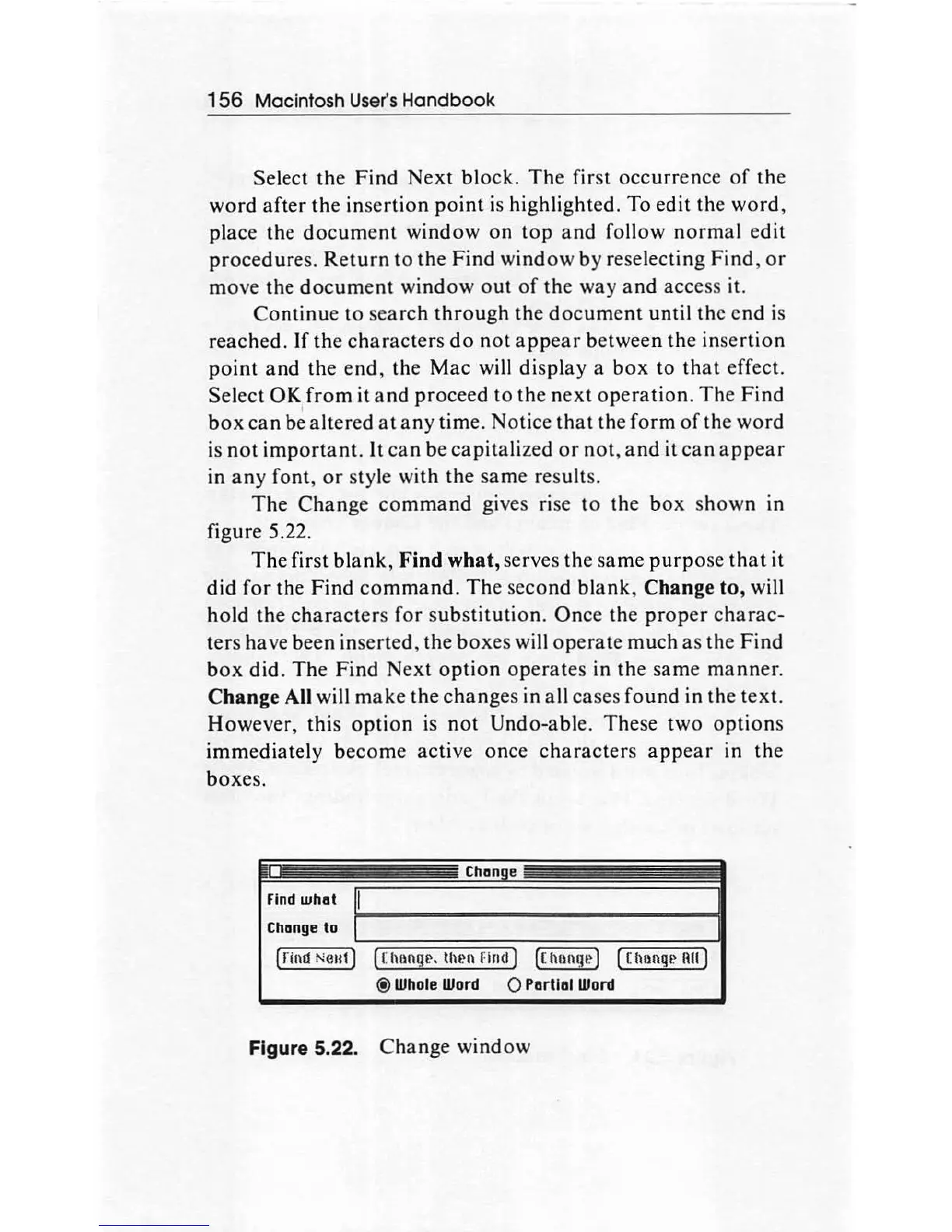
The
Change
command
gives rise to
th
e box
shown
in
figure 5.22.
The
first
blank
,
Find
what,
serves the same
purp
ose
that
it
did
for
the
Find
co
mmand
.
The
secon
d
blank,
Change
to
, will
hold
the
charac
ter
s
for
substituti
on
.
Once
th
e
proper
charac-
ters have been inserted, the
boxes
will
opera
te much
as
the
Find
box
did
.
The
Find
Next
option
operate
s in the
same
manner.
Change
All will
make
the
changes
in all cases found in the t
ext.
However, this
option
is
not
Undo-able. These two
optio
ns
immediately b
eco
me
ac
tive once
characters
appear
in
the
boxe
s .
. .
-=-
-
Chan e
Find
what
I
~----------~------------~
Change to
[
rit\11
Ne
nl]
[
£hong!.'
. thl.'ll
fi
nd
I ([ honge I ( [ hnnqe
nul
®
Whole
Word
0 Partial
Word
Figure 5.22.
Change
window

Other manuals for Apple Macintosh

Related product manuals