Connecting and Starting
Step 1
Adjust all regulators in 0 dBu and 0 dB positions before connecting.
Step 2
Adjust output level of signal source in the minimum position.
Remark 1
If a value of source output level is not known, then the safest method is to adjust the Input Sensitivity Switch in 30 dBu
position.
Step 3
Bass Controller Switch should be adjusted in the switch-on position, with GROUND LIFT Switch in the switch-off
position.
Step 4
Adjust the Power Switch adjustment in the switch-off position.
Step 5
Put XLR connector of the cable connected to symmetrical signal source (e.g. mixer console) into the XLR Symmetrical
Input of AEON.
Remark 2
It is possible to make use of the Big Jack Symmetrical Input using the big jack symmetrical connector or other
applying a suitable inter-connector.
Remark 3
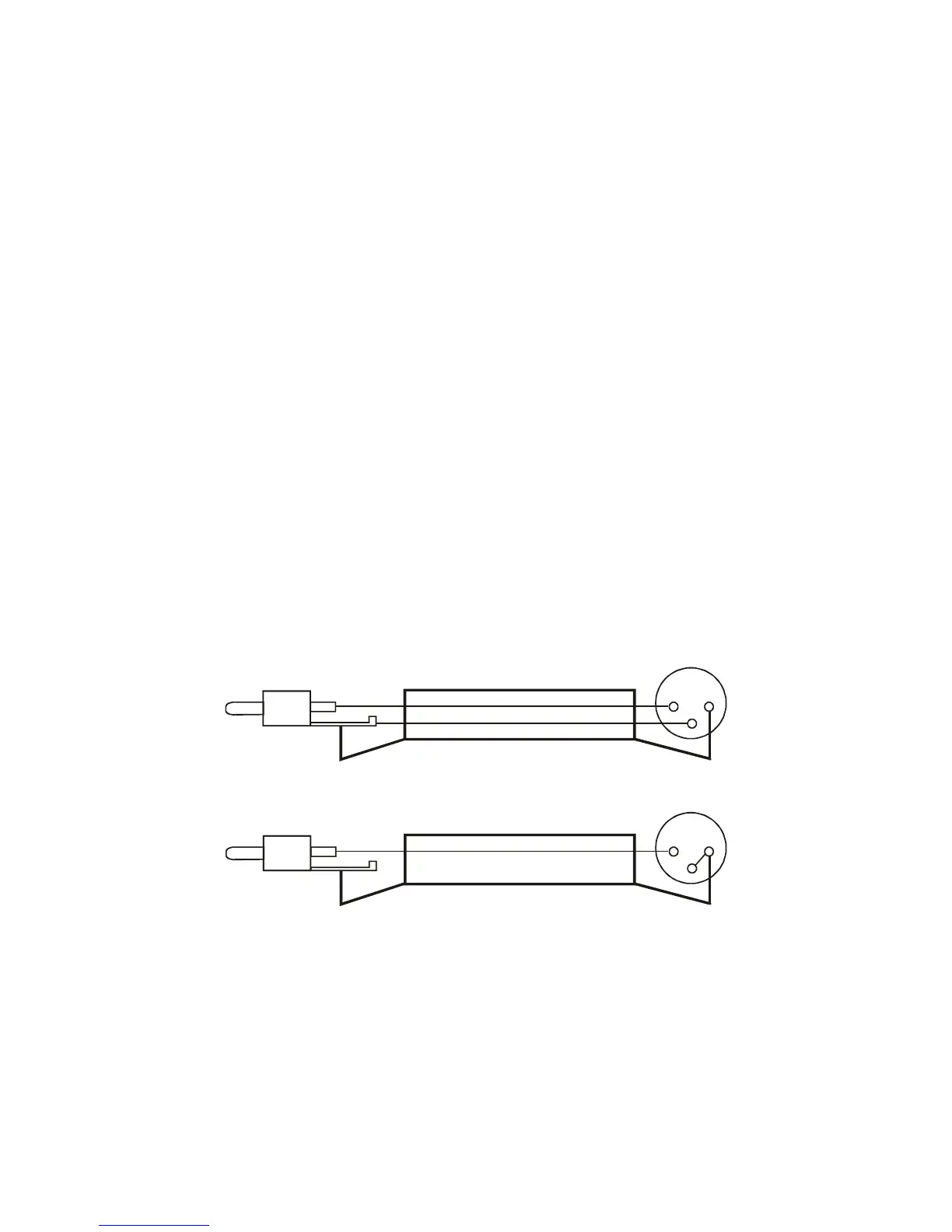
It is also possible to connect your AEON monitor to an asymmetrical signal source. In this case one should use a
suitable inter-connector, whose connection diagrams are shown below (RCA and XLR standards).
Connection in case of cable having one wire in screen
Remark 4
The use of high quality signal connectors and cables is recommended. Solid signal connectors are a must if you want
to get the best sound performance.
Step 6
Connect the power cable to the Power Cable Socket and switch on power by means of AEON Power Switch.
Remark 5
Connecting your monitors via computer power cords is not recommended. Similarly don’t use low quality power
conditioners, etc. Using the power conditioners is not required.


 To Next Page