* Studio Mode is active as the factory default.
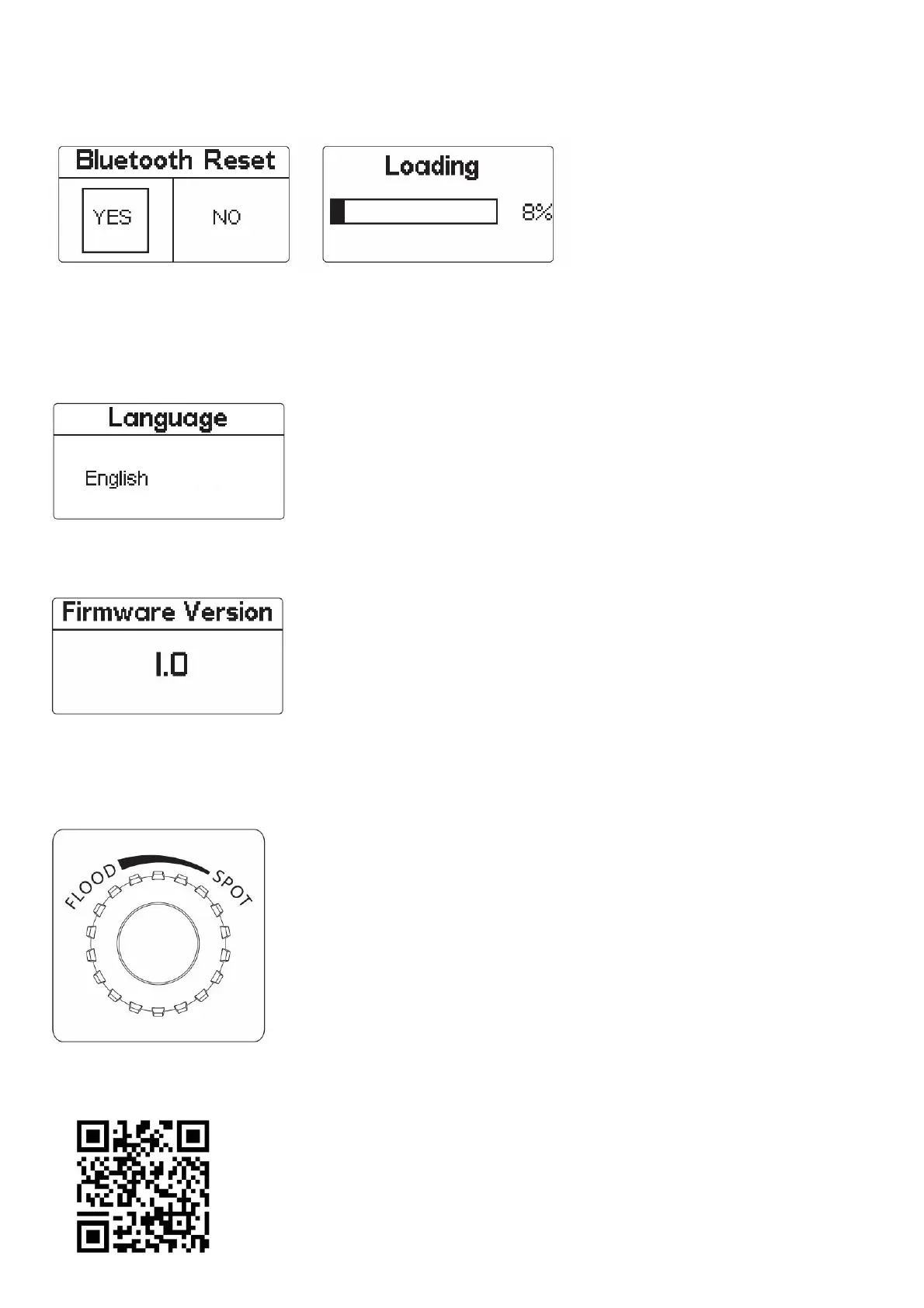
8) Bluetooth reset
(1) Press “MENU” key to enter MENU mode, rotate “MENU” key to select Bluetooth reset, click “MENU” key to enter Bluetooth Reset mode, then rotate “OK” key to select “Yes” and press
“OK” key short to reset Bluetooth (the current reset progress will be displayed on the pop-up interface, and the progress will be displayed within 5 seconds); Select “NO” to return to the
previous menu.
(2) After resetting the light’s Bluetooth connection, your mobile phone or tablet will be able to connect to and control the LS 60d.
(3) If the Bluetooth Reset fails, a [Reset Failed] screen will pop-up, and the light will return to Bluetooth mode after 2 seconds.
* The light must be connected to your mobile device using the Sidus Link mobile application, and not via your device’s typical Bluetooth connection menu.
9) Language
Press “MENU” key to enter MENU mode, rotate “MENU” key to select Language, click “MENU” key to enter Language MENU, rotate “OK” key to select English or Chinese, and then click
“OK “key to confirm the selection.
10) Firmware version
Press the “MENU” key to enter the MENU mode, rotate the “MENU” key to select the firmware version number, click the key to enter the “Firmware version Number” interface, and then you
can see the version information of the firmware.
11) OTA mode
Firmware updates can be updated online via the Sidus Link app for OTA updates.
3. Focusing
Optical “wide Angle” and “focus” can be achieved by rotating the focusing knob, clockwise rotation of the focusing knob to achieve “focus”, counterclockwise rotation of the focusing knob to
achieve “wide Angle”.
4. Using the Sidus Link APP
You can download the Sidus Link app from the iOS App Store or Google Play Store for enhancing the functionality of the light. Please visit sidus.link/app/help for more details regarding how
to use the app to control your Aputure lights.



 To Next Page