WiFi Connection
Enabling WiFi
Before launching an Internet application such as the web browser, see if you are connected to an WiFi access point.
The icon in the right side of the system bar is blue when your device is connected to a WiFi network and grey when you are
not connected.
From the system bar, you can set up the WiFi connection quickly.
1. Touch the time in the system bar.
2. Touch the status icons. The status details is displayed below.
3. Touch WiFi to open the WiFi settings.
4. If the WiFi is off, tap on the WiFi line to turn it on.
Getting familiar with Android
TM
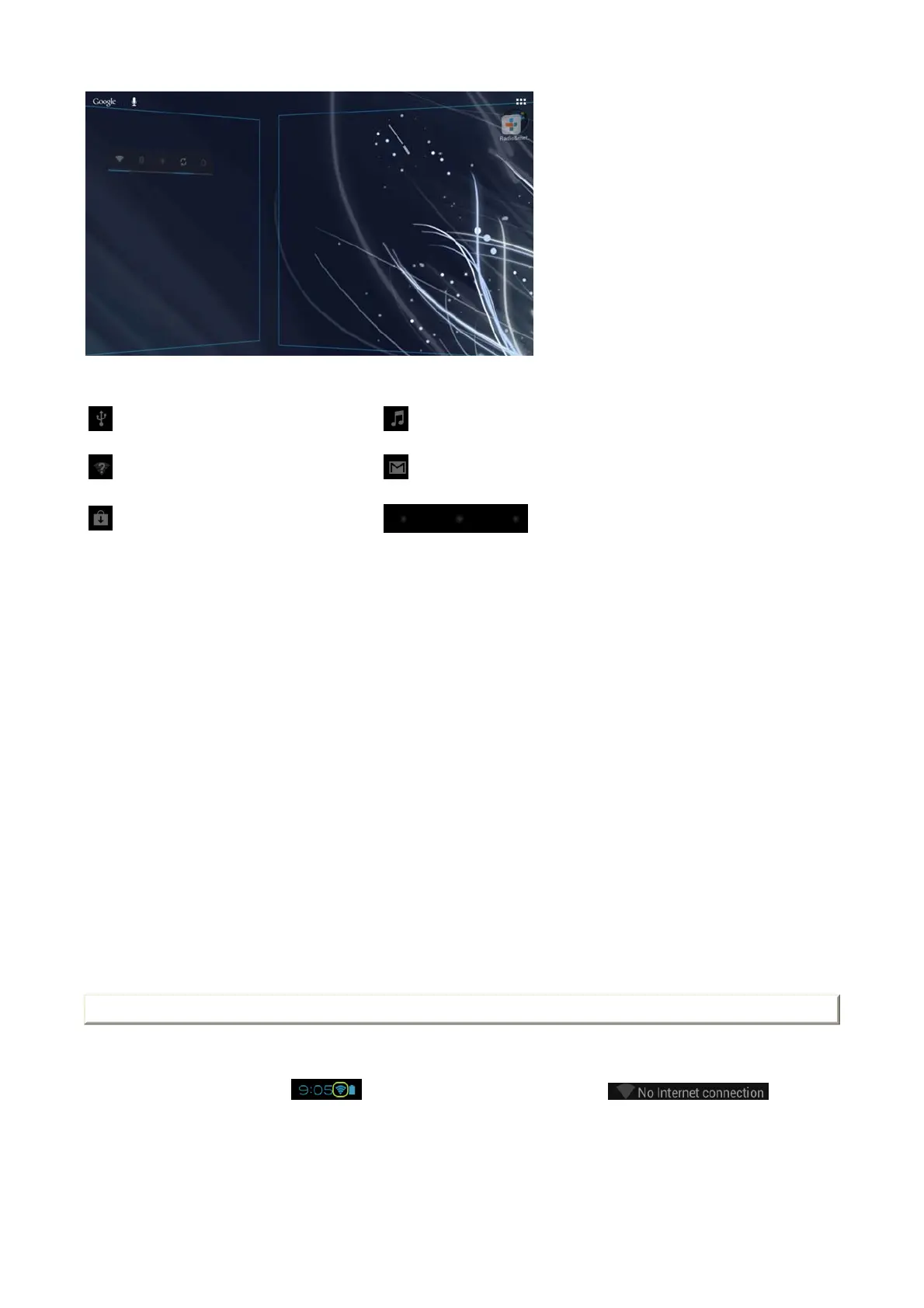
The extended home screen:
Navigate between different home screen panels by swiping left and right.
Moving a home screen item:
Touch and hold your finger onto it until the positioning gridlines appear, then slide it to the desired location, and release your finger.
Removing a home screen item:
Touch and hold it, slide your finger towards the top of the screen and drop it over the Remove icon.
Uninstalling an item:
From the All apps screens, touch and hold it, slide your finger towards the top of the screen and drop it over Uninstall bin.
Creating application folders:
Drop one app icon over another on a home screen and the two icons will be combined.
Widgets:
Touch the All Apps icon on your home screen. Touch Widgets at the top of the screen. From the main Widgets screen, you can move around widgets just as you do for app icons.
Changing your wallpaper:
Hold your finger on a home screen at an empty location, then choose from the list.
Locking the touchscreen:
From the quick settings dashboard in the status bar, touch settings. In Settings, scroll down and touch security. Touch Screen lock. Touch the type of lock you would like to use. After
you set a lock, a lock screen is displayed whenever your screen wakes up, requesting the pattern, PIN or other specified key.
Common Android Icons
USB connected Access the music player
Wifi network(s) available. Check if you can connect. You have new message(s) from Google mail.
Updates available for app(s).
Back, Home and Recent apps buttons are
hidden in some apps. Touch to display.
Page 6 of 14ARCHOS 97 Carbon English
2012-11-19http://www.archos.com/manuals/A97Carbon
EN.htm



 To Next Page