z Try temporarily shutting off the encryption system of your WiFi router/modem to see if the problem has to do with the encryption system you are using. The preferred
encryption system is the WPA2.
z Contact your WiFi connection provider.
Internet Navigation
Before launching any application that needs to make a connection to the Internet, make sure that you are connected to a WiFi network.
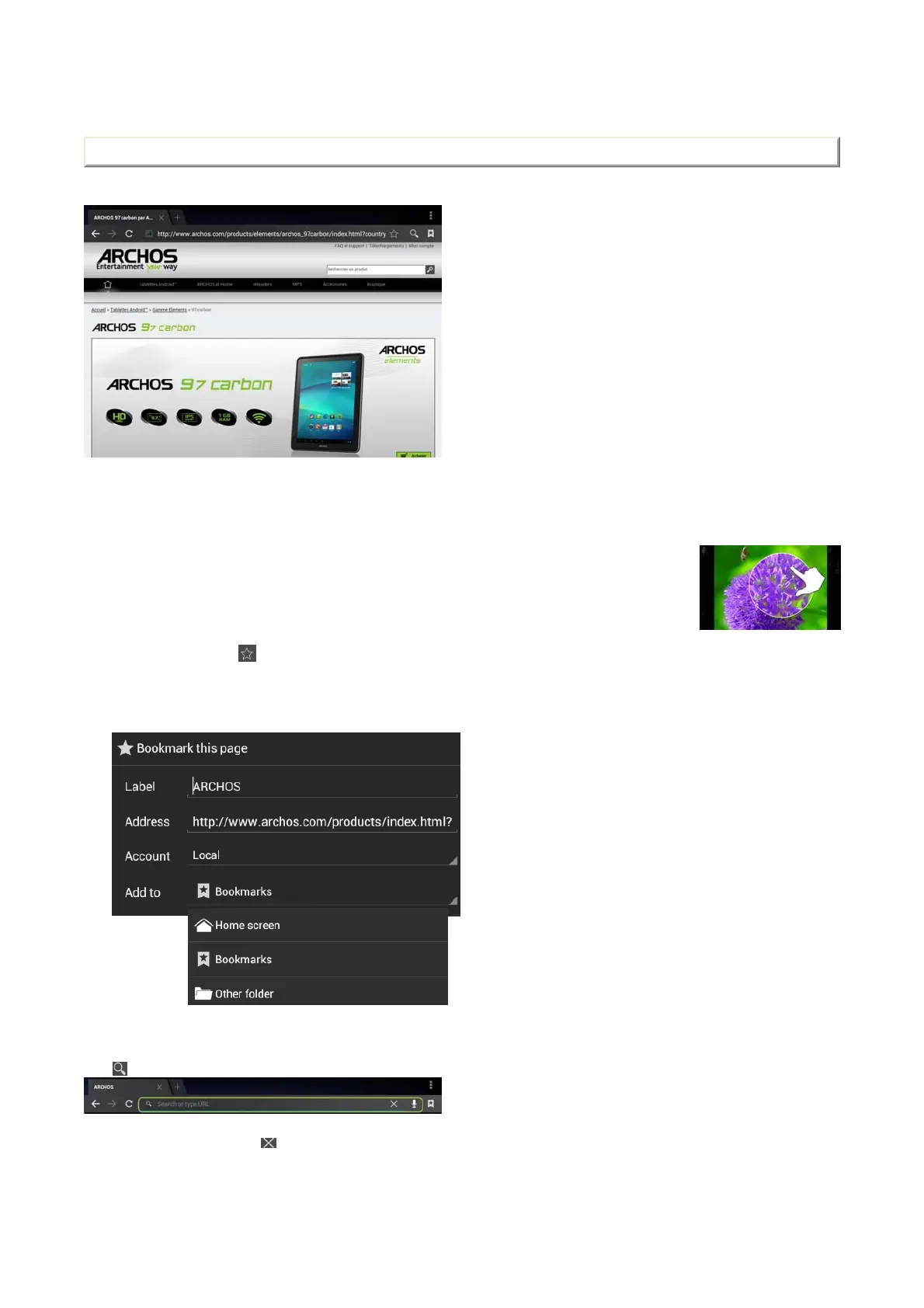
Navigating in a Web page
z You can use your finger to scroll the current web page horizontally or vertically.
z To open a link, tap it.
z To enter a web address, just scroll to the top of the current page and tap in the address field, enter the address and tap on Enter.
z Double-tap on the screen to zoom in and zoom out or Pinch.
z Depending on where you are in the web browser, holding down on an item will give you access to more options.
For example, by holding your finger on an image, you can save the image file to your device.
z To fill in a text field, tap in the field, then use the virtual keyboard to type the required information.
z To go back to the previous page that you browsed, tap the Back button.
z To go back directly to your Android™ home screen, tap the Home button.
Creating a Bookmark
1. To bookmark a Web page, tap .
1.
Launching a Search
Touch to launch a search.
OR
1. Touch the address bar directly, then .
Enter the required information and select the desired options.
You can place a bookmark on your homepage for an easy access.
In the Add to field, select Home screen.
Page 8 of 14ARCHOS 97 Carbon English
2012-11-19http://www.archos.com/manuals/A97Carbon
EN.htm



 To Next Page