17WiFi Setup and Connections
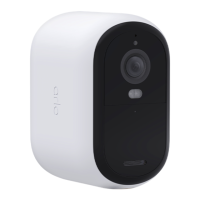
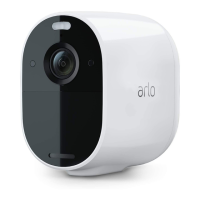
Arlo Essential Series Wire-Free Camera
User Manual
3. Follow the Arlo app instructions to set up your SmartHub or base station and connect it to
the Internet.
4. Tap Settings > My Devices.
5. Select your camera.
6. Scroll down and tap Remove Device.
Your device is reset and removed from your account.
7. From My Devices, tap Add New Device > Cameras > Essential.
8. Follow the Arlo app instructions to add the camera.
9. When the Arlo app detects your SmartHub or base station, follow the instructions to
connect your camera to your SmartHub or base station.
Move your camera’s WiFi connection to a direct
router connection
You can change your camera’s WiFi connection from a VMB5000, VMB4540, VMB4500, or
VMB4000 SmartHub or base station, and connect the camera directly to your router’s 2.4 GHz
WiFi network.
To move your camera’s WiFi connection directly to your router:
1. Open the Arlo app and log into the same Arlo account that your camera is connected to.
If you are using an Arlo Smart trial associated with this account, doing this keeps the trial
active so you don’t lose it.
2. Make sure that your mobile device is connected to your router’s 2.4 GHz WiFi network.
For more information, see Connect your mobile device to a 2.4 GHz WiFi network during
setup on page 15.
3. Tap Settings > My Devices.
4. Select your camera.
5. Scroll down and tap Remove Device.
Your device is reset and removed from your account.
6. Tap Devices, and then tap Add New Device.
7. Follow the Arlo app instructions to connect your camera directly to a 2.4 GHz WiFi
network.


 To Next Page