43Change Your Settings
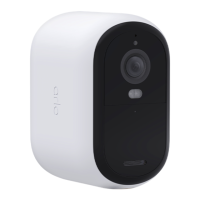
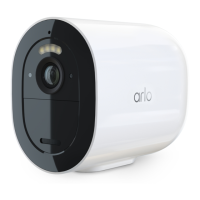
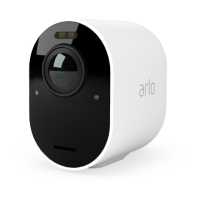
Arlo Essential Series Wire-Free Camera
User Manual
6. Tap Yes.
Change the time zone
1. Open the Arlo app.
2. Tap Settings > My Devices.
3. Tap the camera.
4. Tap Time Zone.
5. Tap a time zone.
If you’re using a mobile device, your settings are saved.
6. If you’re using a computer, click Save.
Camera settings
You can view or change the settings for each camera using either of these methods:
• Tap Settings > My Devices and select the camera
• Tap the Menu icon
or the Device Settings icon below the camera feed.
Change the camera name
1. Open the Arlo app.
2. Tap Settings > My Devices.
3. Tap the camera.
4. Tap Edit
next to the camera name.
5. Enter a new name that reminds you of the camera’s location, such as Garage or Front
Door.
Camera names are limited to 32 characters.
6. Tap Save.
Turn o the camera LED
The LED on the camera lights in dierent colors. (See Check the LED on page 10.) You can
turn o this LED.
1. Open the Arlo app.


 To Next Page