64Troubleshooting
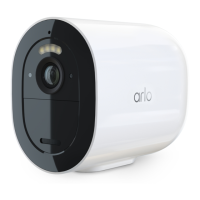
Arlo Essential Series Wire-Free Camera
User Manual
Check the Arlo app notication settings on an Android device
Make sure that you allow the Arlo app to receive push notications. The Arlo app push
notications can be disabled on iOS and Android devices.
1. Tap the Settings icon for your Android device.
2. Tap Application Manager > Arlo.
3. Make sure that the Show Notications setting is selected.
If you said no to push notications at installation
When you install the Arlo app for the rst time, to receive alerts, you must select Allow when
asked if you want Arlo to send you push notications. For iOS apps, aer you respond to this
alert, it isn’t presented again unless the device is restored to factory settings or the app is
uninstalled for at least a day.
If you said no on an iOS device, uninstall the app, wait for a day, and then reinstall it, and
allow notications. If you don’t want to wait a day before you reinstall the app, you can use
the system clock on your device to simulate a day. Set the system clock forward a day or
more, turn your device o, and then turn the device back on. Aer you reinstall the app, return
the system clock to the correct setting.
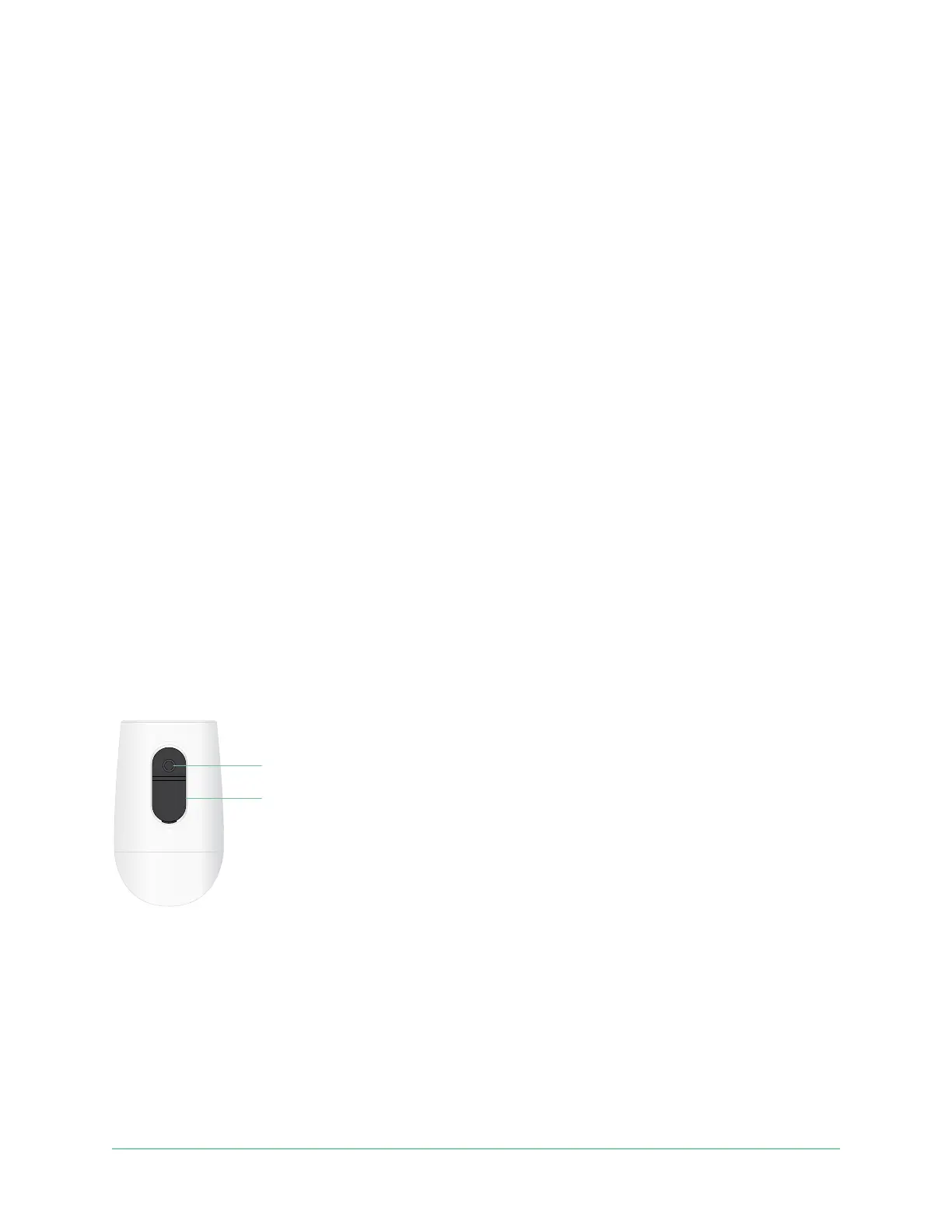
Use the sync button to reset the camera
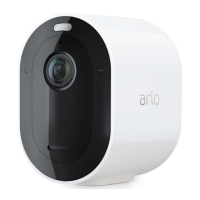
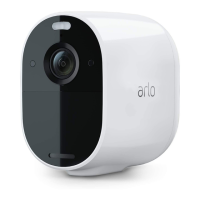
The button on the bottom of your camera is the sync button.
You can use the sync button for either of these types of resets:
• Reset your camera to its factory settings. See Reset the camera to its factory settings.
• Power cycle and reset your camera to its factory settings. See Power cycle and reset the
camera to its factory settings on page 65.
Note: The sync button is also used to wake the camera when it is shut down and to pair the
camera with a WiFi network. We recommend that you follow the instructions in the Arlo app
to wake and pair your camera.
Sync button
Charging port cover


 To Next Page