Settings
61
5. If you are using a computer, click Save.
Your settings are saved.
Change the Video Resolution
The default video resolution is 720P. You can change this setting to a higher or
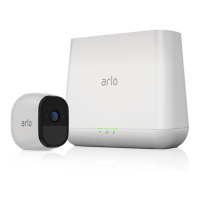
lower resolution. Decreasing the resolution of Arlo Pro videos reduces the required
WiFi bandwidth.
¾ To change the video resolution:
1. Tap the Arlo icon on your mobile device.
If you are using a computer, enter arlo.netgear.com in the address bar of a
browser.
The Devices page displays.
2. Tap or click Settings > My Devices.
A list of devices displays.
3. Tap or click the camera.
The camera settings display.
4. If you are using the Arlo App on a mobile device, tap Video Settings.
The Video Settings page displays.
5. Tap or click Video Resolution.
The Video Resolution page displays.
6. Tap or click a setting.
7. Tap or click Done.
If you are using a mobile device, your settings are saved.
8. If you are using a computer, click Save.
Your settings are saved.


 To Next Page