23Arlo Ultra Basics
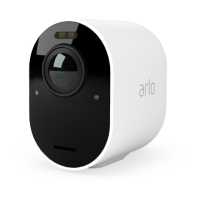
Ultra Series 4K UHD Wire-Free Security Camera System
User Manual
View your camera feeds
1. Open the Arlo app.
2. Tap the camera feed.
The camera feed updates and camera feed icons display.
3. To stop viewing and listening to the live feed, tap the Stop icon
.
Local live 4K streaming
You can live stream in 4K from Arlo Ultra if you use the Arlo app on a mobile device that’s on
the same local network as the Arlo SmartHub. If you enable 4K live streaming in your Arlo
Ultra video settings, 4K live video streams when you tap Play
on the camera stream in the
Arlo app.
To enable local live 4K streaming:
1. Open the Arlo app.
2. Tap Settings > My Devices.
3. Select the camera.
4. Tap Video Settings.
5. Tap Local 4K Live Streaming to toggle live streaming on and o.
Pan and zoom video
Pan and zoom video
You can pan and zoom your video feed.
1. Open the Arlo app.
2. Tap Play
on the camera feed.
On a mobile device, use the pinch gesture to zoom, and touch and drag to move around
the zoomed-in frame.
On a computer, double-click to zoom. Le-click and hold and drag to move around the
zoomed-in frame.
Aer zooming in, the image stops and buers for about ve seconds to improve the quality
of video. When the buering stops, your zoomed-in video renders in high quality.


 To Next Page