Monitoring & Manual Testing Remotely Through PC Software
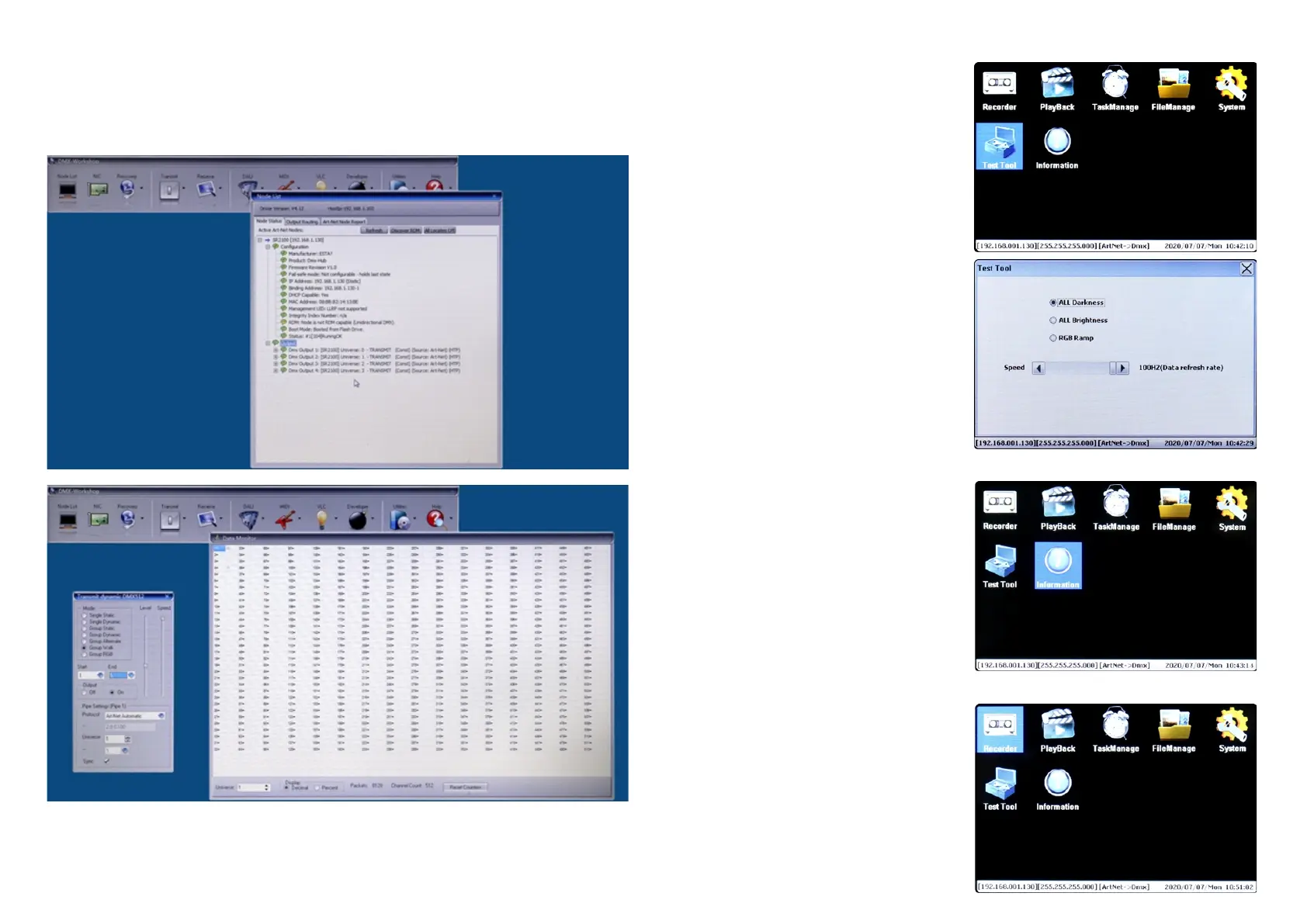
The Converter can be remotely monitored & manual tested through Art-Net™ supported PC software including Sunlite,
DMX workshop, Luminair, Madrix, etc. The computer should be on the same network as the Converter.
Following is an example using DMX workshop to monitor and manually test the Converter after completing the System
Configuration (Work mode is configured as ArtNet->DMX) :
Speed: Data refresh rate
ALL Darkness: All controlled lights turn off
ALL Brightness: All controlled lights turn on
On the LCD screen home page, touch the “Test Tool” icon
to enter into Test Tool configuration page. You will get 3
choices, default is “ALL Darkness”, which means all DMX
controlled lights are all off. Touch to select an effect to test
the lights, then close the window to confirm and save the
setting:
RGB Ramp: RGB lights dynamic change
2. Test Tool
On the LCD screen home page, touch the “Information”
icon to enter into information page. It is about the product’s
model, manufacturer, hardware and firmware information.
The model number and manufacturer information can be
OEM modified by factory setting.
3. Information
4.Recorder
AutoStart_3SecStop: press the “START” button at the
bottom, when signal is detected, recording starts, when no
On the LCD screen home page, touch the “Recorder” icon
to enter into Recorder configuration page. The Recorder
function is to record programs such as color sequences
that are programmed and played by the Art-Net supported
PC software or DMX console, total 999 programs can be
recorded. On the Recorder configuration page, status box
and time box are on the left side, 3 kinds of trigger method
are on the right side:


 To Next Page
 Loading...