o Double Click Speed: Move the slider toward “Slow” if you want more time in-between double
tapping the pen tip. Move the slider toward “Fast” if you want less time in-between double
tapping the pen tip.
o Pen Pressure Setting: Move the slider in the sensitivity bar to adjust pen pressure response.
Light means your ARTISUL pen display will recognize the slightest nuance of pressure, while
heavy means it will take more pressure for the pen tip to register.
o Left Hand/Right Hand: If you’re left-handed, choose Left Hand. If you’re right handed, choose
Right Hand.
o Reset to Default: Return all Pen Settings to default by tapping Reset to Default.
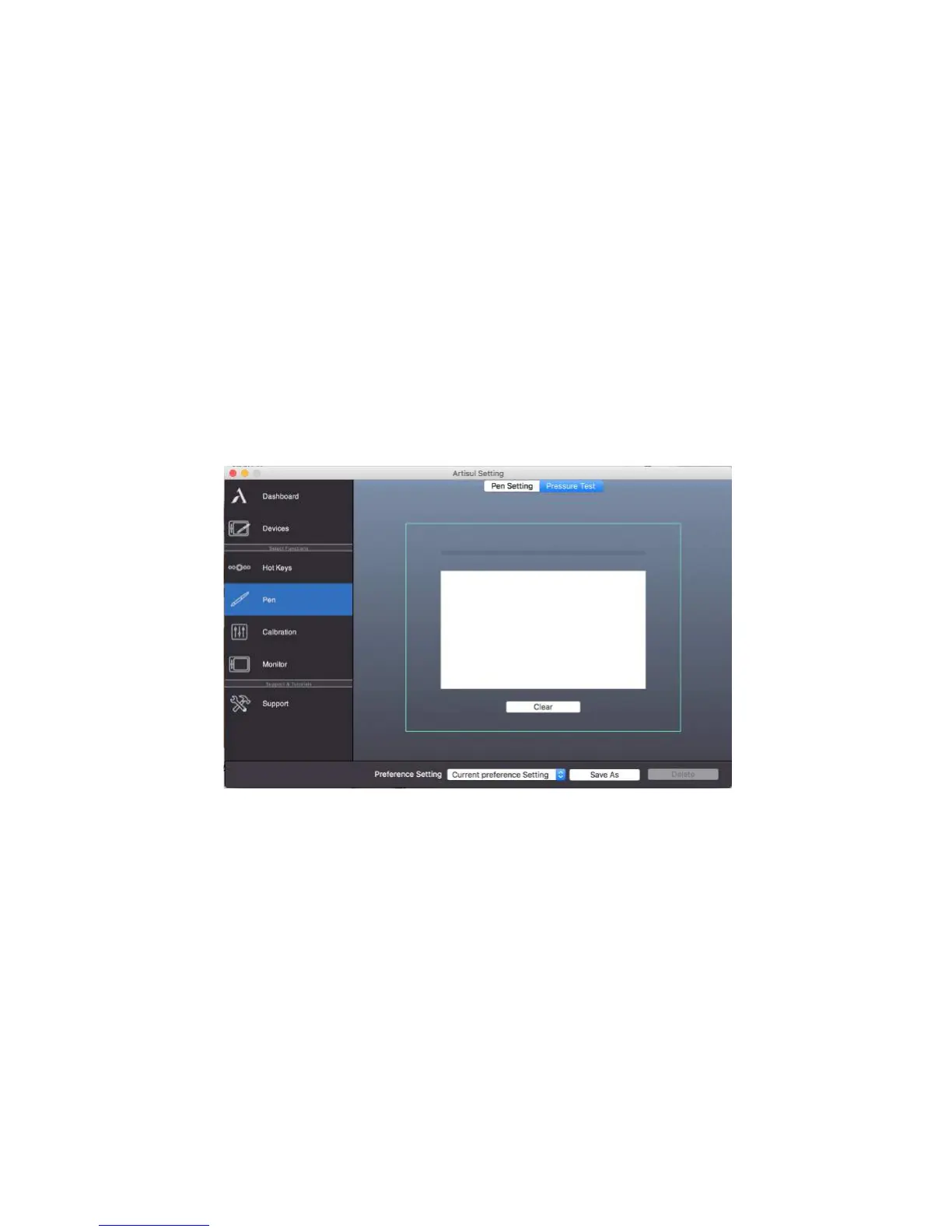
o Pen Pressure: Using the digital pen, press down in the white rectangle. Use different levels of
pressure to test if pen pressure sensitivity is working on your computer.


 To Next Page