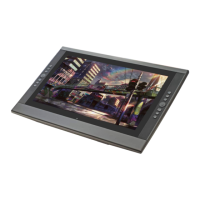
The Artisul D22S graphics display is a new generation of portable, desktop-level professional drawing display designed to significantly enhance work efficiency for painting and creative tasks, while also providing an enjoyable user experience. This device allows for free painting and writing, enabling users to depict various lines and colors with the natural feel of a pen on paper, offering a truly immersive experience.
Function Description:
The Artisul D22S functions as a pen display, integrating a screen with pen input capabilities. It supports both Windows (7 or later) and macOS (10.12 or later) operating systems. The display connects to a computer via a power adapter, HDMI cable, and USB cable, allowing it to act as an extended or mirrored display.
The core functionality revolves around the digital pen, which enables precise cursor positioning, clicking, and dragging actions directly on the screen. The pen features side buttons that can be customized for two different functions, active when the pen tip is within 10mm of the display's active area. The display also includes On-Screen Display (OSD) buttons for power control, menu navigation, and adjustments.
Usage Features:
- Ergonomic Adjustable Stand: The display comes with an adjustable stand that allows users to set the viewing angle from 20° to 80°, promoting comfort during long creative sessions. The stand angle is adjusted by dragging a switch.
- Multi-Monitor Support: When used with multiple monitors, the D22S can be configured in either mirrored or extended display modes. In extended mode, users can define which portion of the display screen the Artisul D22S will map to, offering flexibility for different workflows.
- Working Area Customization: The driver software allows users to define the working area on the display. Options include "Full Area" (the entire active area), "Screen Ratio" (maintaining aspect ratio), and "Custom Area" (user-defined coordinates). The display can also be rotated by 0°, 90°, 180°, or 270° to suit various preferences.
- Pen Button Function Setting: The two side buttons on the digital pen are customizable. Users can assign specific functions to these buttons through the driver software, enhancing workflow efficiency.
- Pressure Sensitivity Adjustment: The pen's pressure sensitivity can be adjusted via a slider in the driver settings. A smaller value indicates greater sensitivity, allowing artists to fine-tune the pen's response to their touch. A "Pen Pressure Testing" feature is available to test the pressure level by applying pressure to the stylus on the screen.
- Calibration: The display offers a calibration feature to ensure accurate pen-to-cursor alignment. Users click red points on the screen to complete the calibration. There's also an option to "Restore Default" settings or "Cancel Calibration."
- Windows Ink Feature: The D22S supports Microsoft Windows Ink, which provides extensive support for pen input in various applications such as Microsoft Office, Windows Journal, Adobe Photoshop CC, and SketchBook 6. This feature can be enabled or disabled in the driver settings.
- Data Export and Import: The driver software allows users to export and import customized configuration data. This feature is useful for transferring settings between different software applications or devices, avoiding the need to repeatedly configure settings.
Maintenance Features:
- Cleaning: The display should be cleaned by unplugging the USB cable and wiping it with a soft, damp cloth. Detergents should not be used.
- Pen Nib Replacement: The digital pen's nib will wear out over time and can be replaced. The manual provides instructions on how to perform this replacement.
- Troubleshooting Guide: The manual includes a comprehensive troubleshooting section addressing common issues related to both the display and its functions. This includes problems like the power indicator not flashing, no display on the screen, blurred images, lack of colors, chromatic aberration, image jitter, pen not working, and abnormal cursor movement. Solutions range from checking connections and power to reinstalling drivers and performing calibration.
- Driver Installation and Management: Before installing the Artisul driver, users are advised to uninstall any other similar product drivers, including older versions of the Artisul driver. All graphics software and anti-virus software should be closed during installation to prevent conflicts.
- General Precautions: The manual outlines several precautions to ensure the longevity and safe operation of the device. These include avoiding water sources, unstable surfaces, magnetic fields, and obstructed ventilation. It also advises against overloading power sockets, using damaged power wires, or attempting self-repair. In case of breakdown or specific issues (e.g., damaged power wire, liquid splash, physical damage, obvious abnormalities), users are instructed to unplug the power adapter and seek professional service. When replacing components, it is crucial to use manufacturer-specified substitutes to prevent hazards.



 To Next Page
 General