7
EN
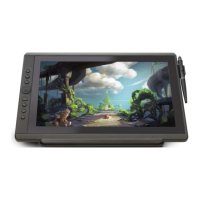
1.3.3 Connect to a phone via a full-featured USB-C to USB-C cable
1. Plug the red USB-A connector of the 2-in-1 cable to the power adapter and insert the Type-c
end to your pen display. Then connect the display to your phone via a full-featured USB-C to
USB-C cable.
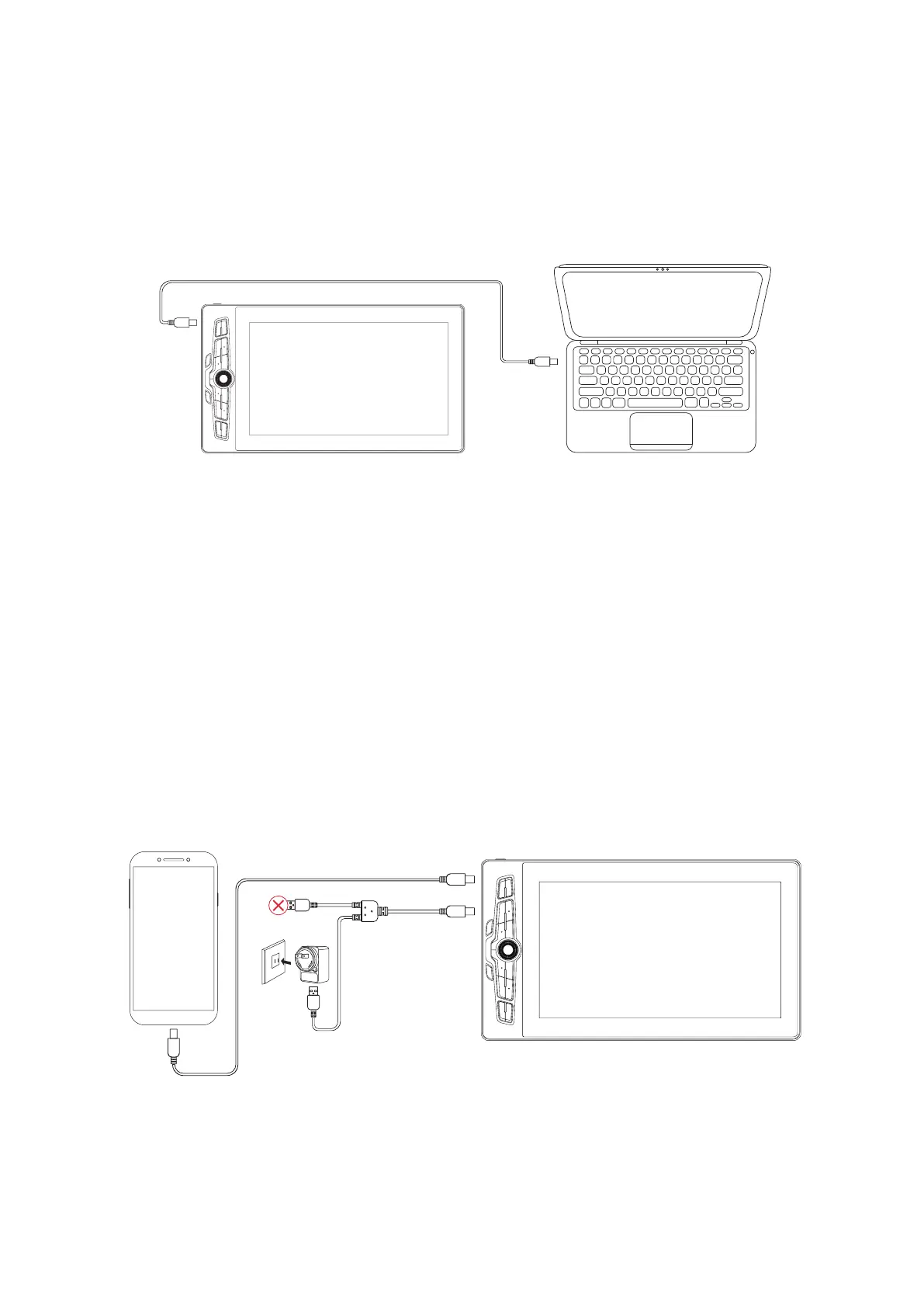
2. You can also use a Type-c cable with a USB-C PD adapter to provide power for the display
instead of the 2-in-1 cable.
Note: The pen display may restart because the output voltage of the full-featured Type-c port
in the computer is low. In this case please connect your display to the power supply via a 2-in-1
cable first, then connect the display to your computer via a full featured USB-C to USB-C cable (You
only need to plug the red USB-A connector to the power adapter and let the black one alone,
otherwise the pen display can not be detected).
*The full-featured USB-C to USB-C cable is not included in the package. Users can buy one
separately.
*The full-featured USB-C to USB-C cable and USB-C PD adapter are not included in the
package. Users can buy them separately.
Type-C
Type-C
Type-C
Type-C
USB-A
USB-A
Type-C


 To Next Page