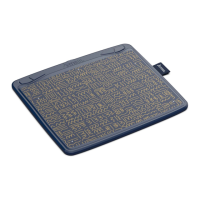
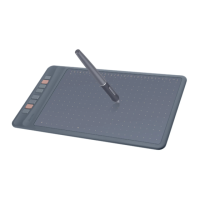
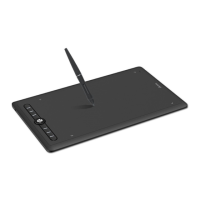
The Artisul Pen Tablet A601 is a professional battery-free pen tablet designed to provide a pen-on-paper experience for writing and drawing, enabling vivid brushstroke effects and colors. It aims to enhance work efficiency and facilitate creative tasks.
Function Description
The Artisul A601 pen tablet functions as an input device for computers and Android phones/tablets, allowing users to draw, write, and navigate with a digital pen. It supports both Windows (7 or later) and macOS (10.12 or later) systems, as well as Android (6.0 or later) devices with OTG function.
Key components and their functions:
- Graphics Tablet: The main device with an active working area, express keys, and an LED indicator.
- Digital Pen (P62-G): A battery-free pen used for interacting with the tablet. It has two programmable buttons and a pressure-sensitive tip.
- Express Keys: Four programmable keys on the tablet that can be customized to perform various functions, improving workflow efficiency.
- LED Indicator: Displays the tablet's status, showing high brightness when a key is pressed or the pen touches the tablet, and low-light mode when idle.
Basic Operation:
- Cursor Position: Moving the pen tip slightly above the active area moves the cursor. Pressing the pen tip on the tablet makes a selection.
- Tap: Tapping the pen tip once highlights or selects an item; double-tapping opens it.
- Move: Selecting an item and sliding the pen tip on the tablet moves its position on the computer.
- Pen Buttons: The two buttons on the pen are programmable and function when the pen tip is within 10mm of the active area, even without touching the tablet.
Connectivity:
The tablet connects to a computer via a Micro USB cable. For Android devices, it connects via USB and automatically enters phone mode, where the pen operates within a specific left gray area (58.8 x 94.2mm). If automatic recognition fails, pressing K1 and K3 buttons simultaneously for 3 seconds activates phone mode. Note that express keys and pen buttons are not supported in phone mode.
Important Technical Specifications
Tablet (A601):
- Touch Technology: Battery-free EMR (Electromagnetic Resonance)
- Working Area: 150.7 x 94.2mm (diagonal 7 inches)
- Dimension: 206.5 x 176.8 x 6.7mm
- Net Weight: 213.7g
- Touch Resolution: 5080LPI (Lines Per Inch)
- Report Rate: 266PPS (Points Per Second)
- Accuracy: ±0.3mm
- Pen Sensing Height: 10mm
- Interface: Micro USB
- Express Keys: 4 Programmable Press Keys
- OS Support: Windows 7 or later, macOS 10.12 or later, Android 6.0 or later
Digital Pen (P62-G):
- Dimension: 149 x Φ14mm
- Weight: 12.5g
- Pressure Sensitivity: 8192 Levels
Usage Features
Driver Installation and Settings:
- Driver Download: Drivers are available from the official Artisul website (https://www.artisul.com/downloads/).
- Installation: After successful installation, a colored icon in the system tray indicates the tablet is recognized and ready for use.
- Mac Whitelist Settings: For macOS, specific steps are required to enable the driver through "Security & Privacy" settings, involving moving the driver to "Applications," opening it, and granting "Accessibility Access."
Customization and Configuration:
- Working Area Setting:
- Multiple Monitors: Users can define the relationship between pen movement on the tablet and cursor movement on the monitor screen. In extended mode, a specific monitor can be selected for mapping. In mirror mode, the tablet maps to the entire space on all monitors.
- Tablet Area: Users can choose "Full Area" (default) or "Custom Area" by dragging corners of a graphic to define the mapped screen area.
- Rotate Working Area: The tablet's working area can be rotated (0°, 90°, 180°, 270°) to accommodate left-handed or right-handed operation.
- Shortcuts Keys Function Setting: Express keys can be customized by selecting functions from a pop-up dialog box. Users can enable or disable press keys.
- Pen Buttons Function Setting: The two pen buttons can be programmed to different functions (e.g., mouse clicks, multimedia controls, program launches) via a pop-up dialog box.
- Pressure Sensitivity Setting: The pressure sensitivity of the pen can be adjusted by dragging points on a pressure curve. Dragging to the upper left increases sensitivity, while dragging to the lower right decreases it.
- Pen Pressure Testing: A dedicated feature allows users to test the pressure level by gradually applying pressure to the stylus on the screen.
- Windows Ink Feature: The tablet supports Windows Ink, enabling pen features in applications like Microsoft Office, Windows Journal, Adobe Photoshop CC, and SketchBook 6.
- Mouse Mode: This mode allows the cursor to move relative to pen movement, similar to a mouse, enabling interaction with icons at the screen's edge without moving the pen to the working area's edge.
- Customize Press Keys and Pressure Curve for Different Programs: Users can customize press key functions and pressure curves for specific applications, with settings automatically saved.
- Data Export and Import: The driver supports exporting and importing custom configuration data, which is useful for transferring settings between different software or computers and avoiding repetitive setup.
Maintenance Features
Pen Nib Replacement:
The pen nib will wear out over time and needs to be replaced. The manual provides a visual guide for replacing the nib.
Precautions for Product Longevity:
- Cleaning: Unplug the power cord and wipe with a soft damp cloth; avoid detergents.
- Liquid Exposure: Do not expose the product to water or other liquids to prevent damage or electric shock.
- Stability: Avoid placing the tablet on unstable surfaces or within easy reach of children.
- Electronic Interference: Turn off the tablet in areas where electronic device use is restricted (e.g., airplanes) to prevent malfunction of other devices.
- Disassembly/Modification: Do not disassemble or modify the tablet or pen, as this can cause damage and invalidate the warranty.
- Component Replacement: Use only manufacturer-specified substitute components to avoid fire, electric shocks, or other dangers.
- USB Port/Openings: Do not insert foreign objects into the USB port or other openings to prevent malfunction, burns, or electric shocks.
Troubleshooting:
The manual includes a troubleshooting section addressing common issues such as:
- No pressure in graphics software but cursor moves (often due to conflicting drivers or open drawing software during installation).
- Pen not working (check if the correct pen is used and driver is installed).
- Press keys not working (check if enabled and correctly defined in the driver).
- Computer not entering sleep mode (ensure the pen is not on the tablet surface).
- Side button of the pen not working (ensure the nib is not touching the tablet surface and is more than 10mm away).
- Computer not recognizing the tablet (check USB port functionality).
For further assistance, users can contact Artisul support via their website (www.artisul.com) or email (service@artisul.com).

 Need help?

 To Next Page
 General