GTLT2 USER MANUAL
Page 11 of 21
Date: 2008-04-25
Time: 16:39:45
BS: 25ee0dff
Fix: V
ID: 353686009002030
STATE: SMS
Note: If in the cold start and GPS no position, it will return to the void of information:
eg: ERROR GPS GPRMC FRAME DATA
BS: 27971054”
ID: 353686009002030
STATE: SMS
Track on Demand
-Google Link
669**** 6690000
Remarks: Send this command to the tracker and then you receive an SMS with an http link. Click on the link then the location can be shown directly
on Google Map on your mobile phone. For example:
http://maps.google.com/maps?f=q&hl=en&q=22.622448,114.034057&ie=UTF8&z=16&iwloc=addr&om=1E
Google Earth and Google Map
Download Google Earth from http://earth.google.com/.
Start Google Earth (For more information about Google Earth please refer to http://earth.google.com/) or go to http://maps.google.com in your
Internet Explorer.
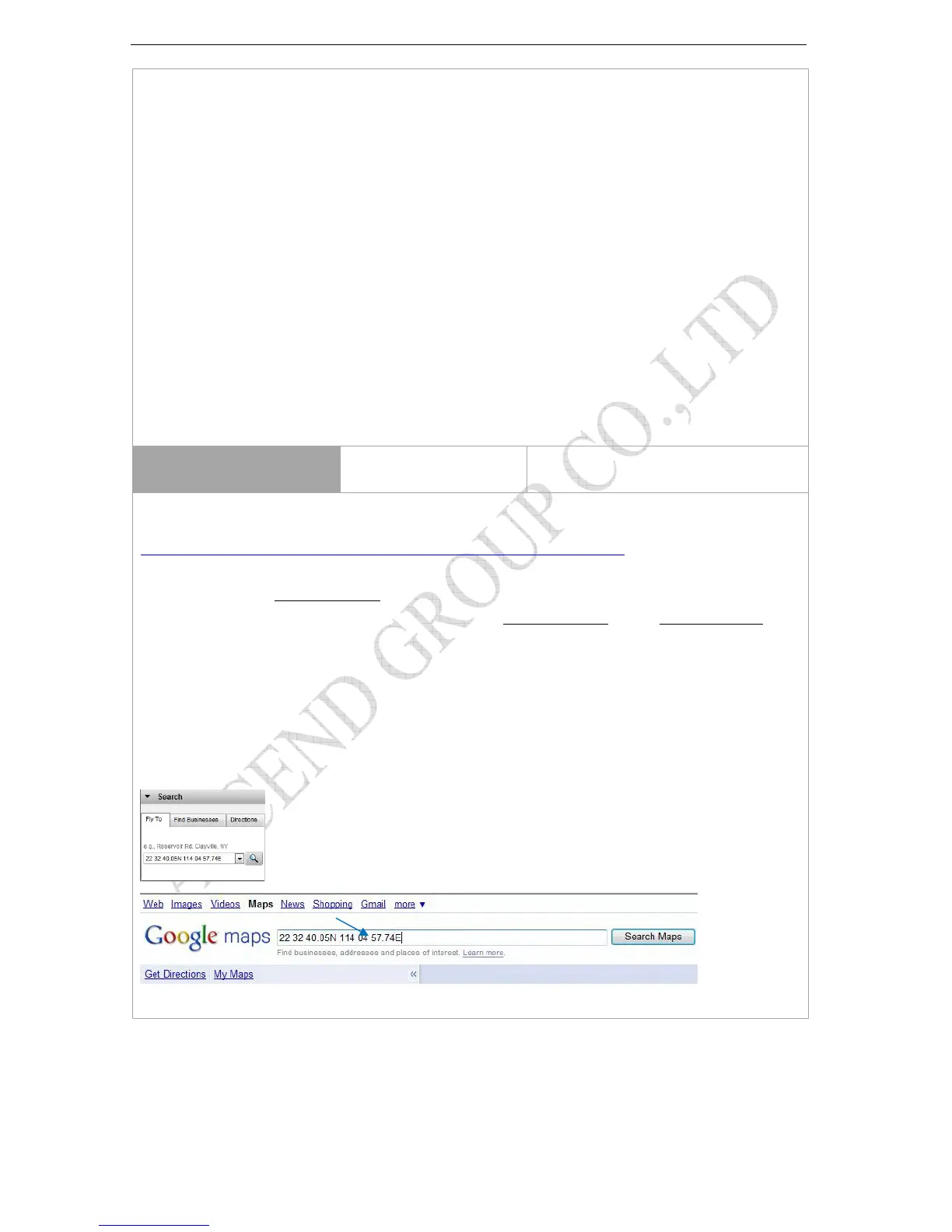
Input the latitude and longitude that you receive from the tracker by SMS and click the search button. Google Earth or Google Maps will display the
location for you.
Example:
When you receive: Latitude = 22 32 40.05N Longitude = 114 04 57.74E
Type as the following picture shows:
(Note: you should input the latitude and longitude as: 22 32 40.05N 114 04 57.74E)
And then you can find the location of your tracker:



 To Next Page