ASUS Desktop PC 63
ENGLISH
ENGLISH
Chapter 3
Other Windows
®
7 / Windows
®
8.1 functions
Removing a USB storage device
Windows
®
7
To remove a USB storage device on Windows
®
7:
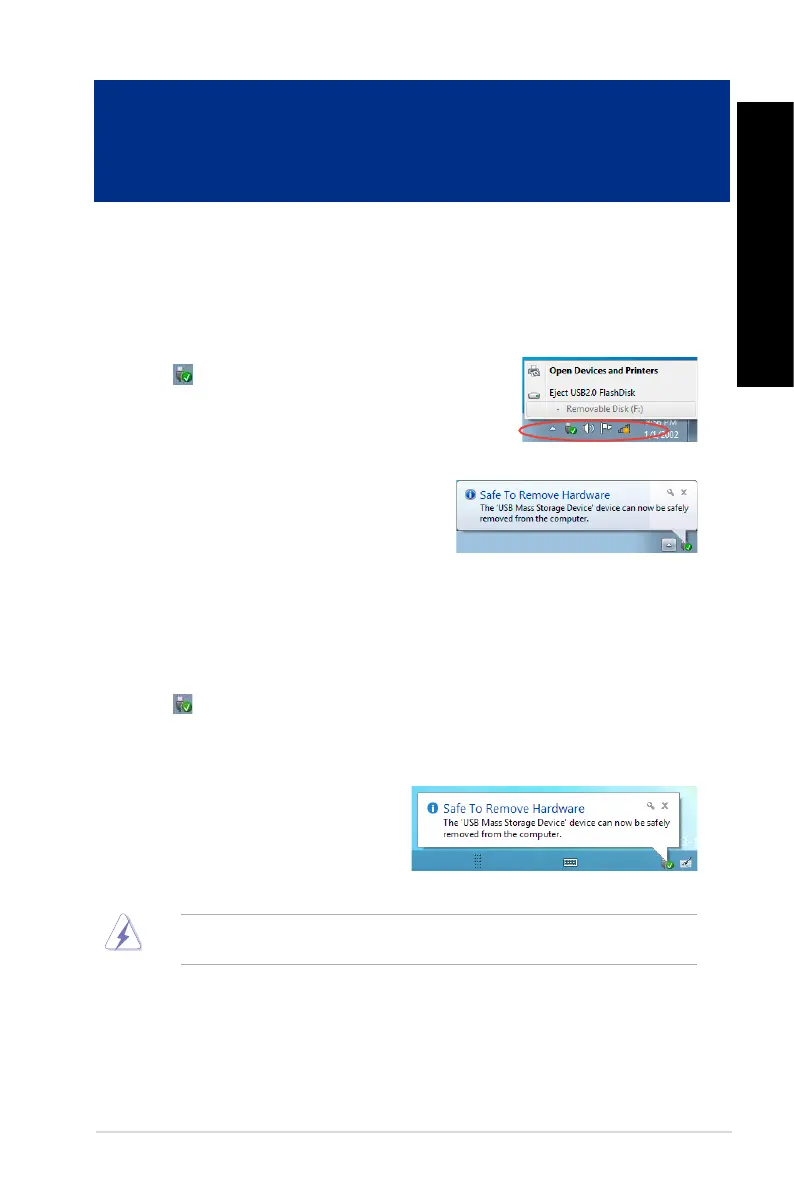
1. Click
from the Windows notification area on your
computer, then click Eject USB2.0 FlashDisk or Eject USB3.0
FlashDisk if you are using the USB3.0 flash drive or USB3.0-
compatible devices.
2. When the Safe to Remove Hardware message
pops up, remove the USB storage device from your
computer.
DONOTremoveaUSBstoragedevicewhendatatransferisinprogress.Doingsomaycausedata
loss or damage the USB storage device.
Windows
®
8.1
To remove a USB storage device on Windows
®
8.1:
1. From the Start screen, click Desktop to launch the Desktop Mode.
2. Click
from the taskbar, then click Eject [Name of USB Drive].
3. When the Safe to Remove Hardware message pops up, remove the USB storage device
from your computer.



 To Next Page