Configuring the USB ports using the BIOS
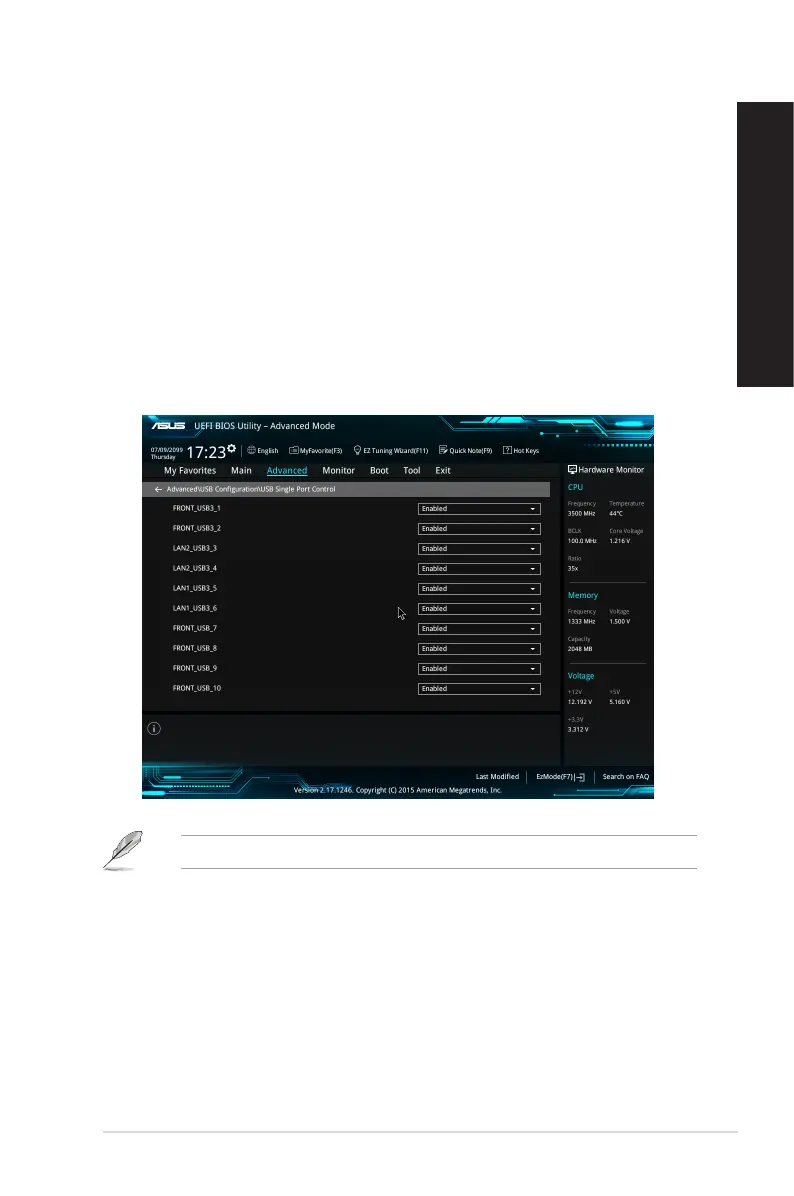
You can enable or disable the front and rear USB 2.0, USB 3.0 and USB 3.1 ports from the
BIOS Setup.
To disable or enable the front and rear USB 2.0, USB 3.0 and USB 3.1 ports:
1. Press <Delete> to enter the BIOS Setup at startup.
2. From the BIOS Setup screen, click Advanced > USB Configuration > USB Single
Port Control.
3. Select the USB port that you want to enable or disable.
4. Press <Enter> to enable or disable the selected USB port.
5. Click Exit and select Save Changes & Reset to save the changes made.
Refer to Chapter 1 for the location of the USB ports.
ASUS Desktop PC
43
ENGLISH
ENGLISH



 To Next Page