English
34 All-in-one PC ET2012 Series
Calibrating the screen
All-in-one PC comes with the following software tool that allows you to adjust touch screen
precision.
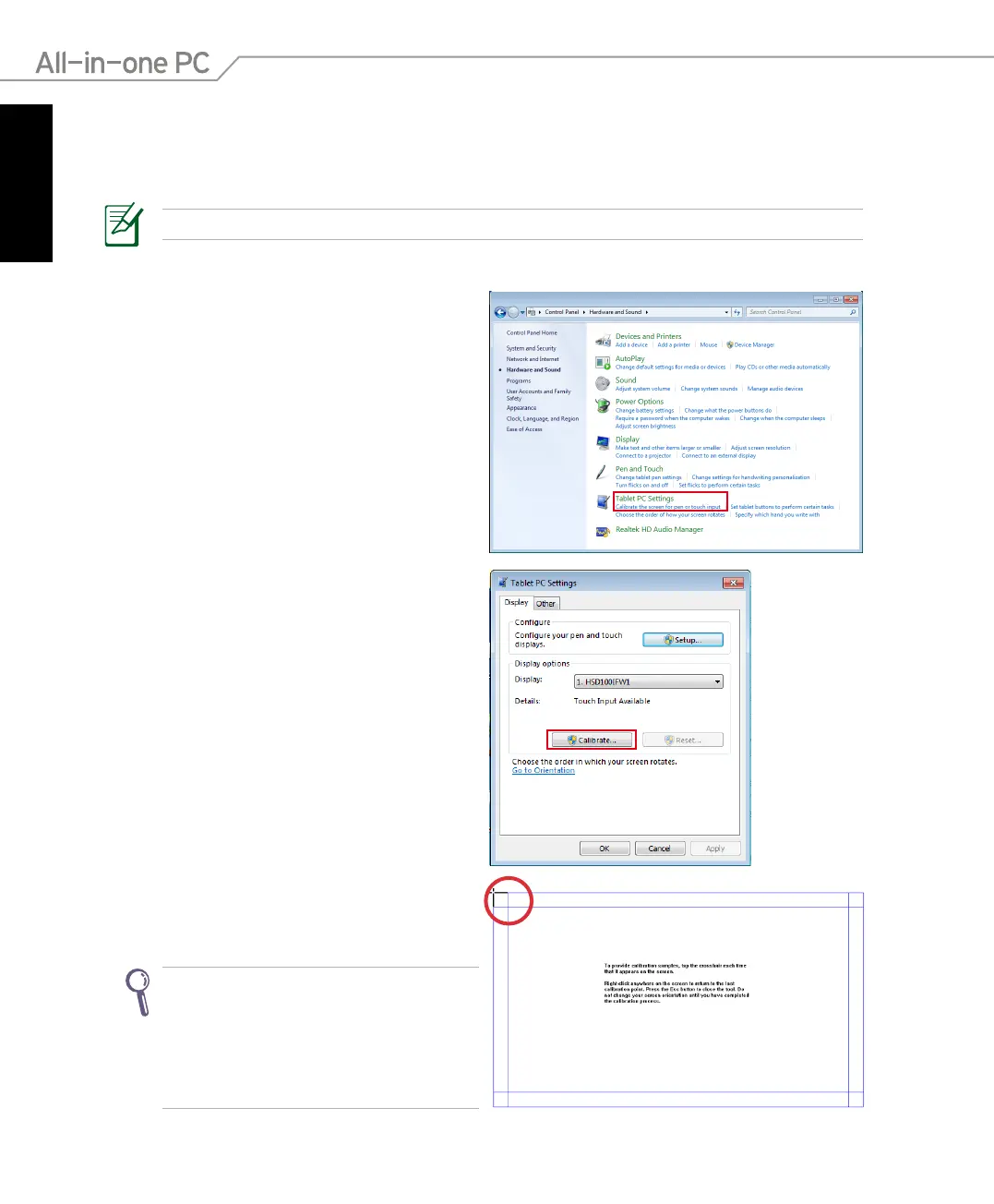
1. From the Windows® desktop, click Start
> Control Panel > Hardware and Sound
> Tablet PC Settings and click Calibrate
the screen for pen or touch input.
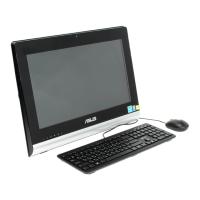
3. To provide calibration samples, tap the
crosshair each time that it appears on the
screen.
Right-click anywhere on the screen to
return to the last calibration point. Press
the Esc key on the keyboard to close
the tool. Do not change your screen
orientation until you have completed the
calibration process.
The touch-enabled screen is available on selected models.
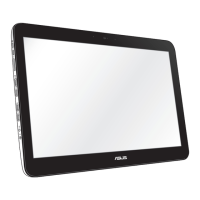
2. From the Display tab, click Calibrate.



 To Next Page