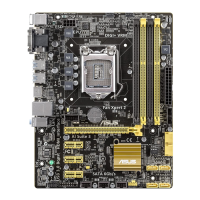
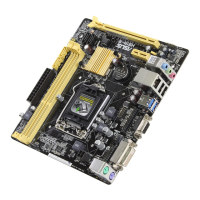
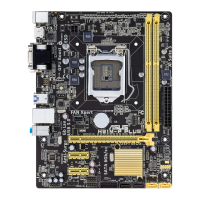
ASUS H87M-PLUS
3-49
Chapter 3
• NTFS is not supported under DOS environment. Do not save the BIOS le and BIOS
Updater to a hard disk drive or USB ash drive in NTFS format.
• Do not save the BIOS le to a oppy disk due to low disk capacity.
3. Turn off the computer and disconnect all SATA hard disk drives (optional).
Booting the system in DOS environment
1. Insert the DOS-bootable USB ash drive with the latest BIOS le and BIOS Updater to
your computer’s USB port.
2. Boot your computer. When the ASUS Logo appears, press <F8> to show the
BIOS
Boot Device Menu.
Please select boot device:
SATA: XXXXXXXXXXXXXXXX
USB XXXXXXXXXXXXXXXXX
UEFI: XXXXXXXXXXXXXXXX
Enter Setup
↑ and ↓ to move selection
ENTER to select boot device
ESC to boot using defaults
4. Select the USB ash drive as the boot device. The DOS screen appears.
Updating the BIOS le
To update the BIOS le using BIOS Updater:
1. At the FreeDOS prompt, type
bupdater /pc /g and press <Enter>.
Welcome to FreeDOS (http://www.freedos.org)!
C:\>
D:\>bupdater /pc /g


 To Next Page