Notebook PC User Manual
A-15
Software Problem - BIOS
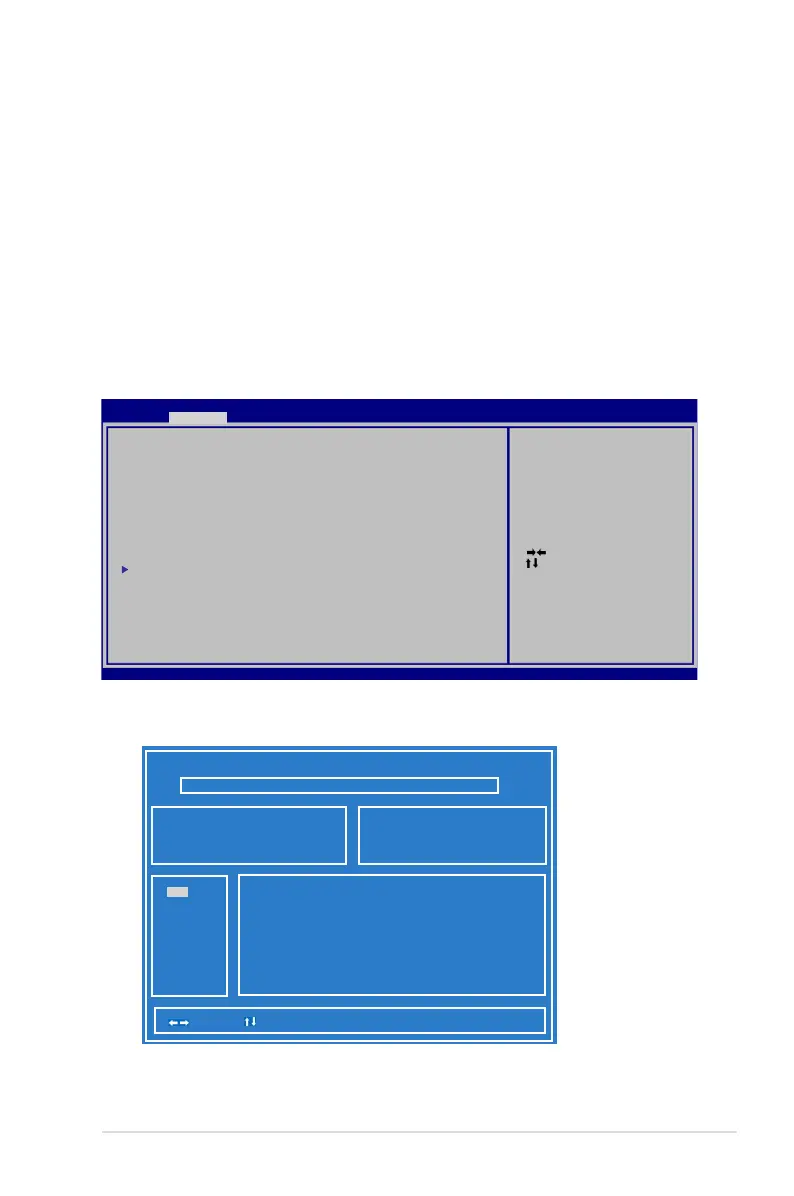
Updating the BIOS.
1. Please verify the Notebook PC’s exact model and download the
latest BIOS file for your model from the ASUS website and save
it in your flash disk drive.
2. Connect your flash disk drive to the Notebook PC and power on
the Notebook PC.
3. Use the Start Easy Flash function on the Advanced page of the
BIOS Setup Utility. Follow the instructions shown.
4. Locate the latest BIOS file and start updating (flashing) the BIOS.
ASUS Tek. Easy F l a s h Utility
[ ]: Switch [ ] : Choose [q] : Exit
FLASH TYPE: Ge n e r i c F lash Type
N e w P latform
Platform: Unk o w n
Version: Un k o w n
Build Date: Unko w n
5. You must Restore Defaults on the Exit page after updating
(flashing) the BIOS.
: Select Scree n
: Select Item
Enter: Select
+/—: C h ange Opt.
F1: General Help
F9: Optimized Defa u l t s
F10: S a v e ESC: Exit
Version 2.01.12 0 4 . C o pyright (C) 2010 American Megatre n d s , I nc.
Aptio Setup Utility - C o p y r i g ht (C) 2010 American Megatrends, I n c .
Main A d v a n c e d Chipset Boot Security S a v e & Exit
Start Easy F l a s h
ASUS FancySt a r t [Disabled]
POST Logo Ty p e [Static]
Play POST So u n d [No]
Speaker Volu m e [4]
ASUS EASY O V E R - C L OCK [Turbo]
Internal Poi n t i n g Device [Enabled]
Intel Virtua l i z a t i on Technology [Enabled]
Legacy USB S u p p o r t [Enabled]
USB3.0 Contr o l l e r Switch [XHCI Mode]
SATA Configura t i o n
TDT [Enabled]
Press ENTER to r u n t h e utility
to select and u p d a t e BIOS.
FS0
FS1
C u r r e n t Platform
Platform: K95
Version: 20 0
Build Date: Dec 6 2 0 1 0



 To Next Page