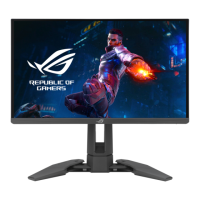
1-3ASUS ROG Swift Pro PG248QP Series LCD Monitor
• To change the shortcut function, go to the Shortcut > Shortcut 2
menu.
• Turns on the OSD menu when the monitor enters standby mode or
displays the “NO SIGNAL“ message.
5. Power button/power indicator
• Turns the monitor on/off.
• The color definition of the power indicator is as the below table.
Status Description
White ON
OFF OFF
Yellow ULMB/ ULMB+HDR
Amber ashing Entering standby mode
Amber Standby mode/No signal
Green HDR/HDR+G-SYNC
Red G-SYNC
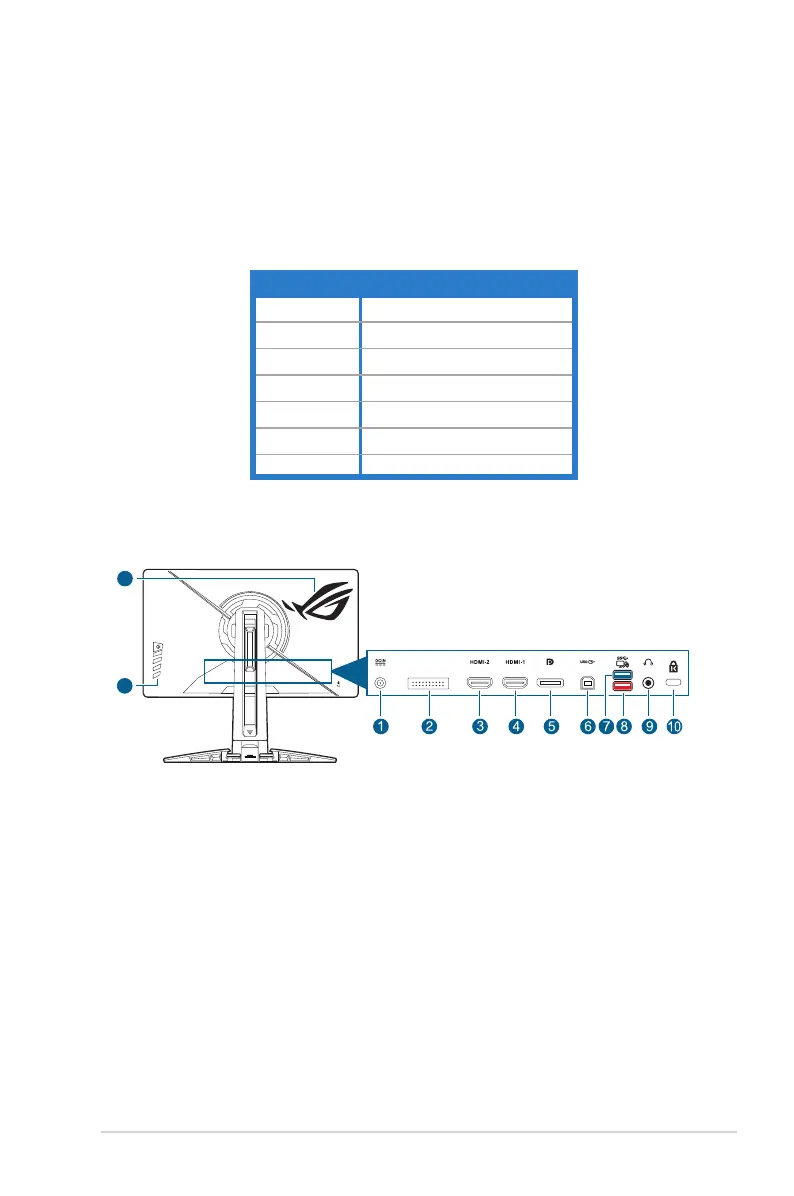
1.3.2 Back view
12
11
1. DC IN port. This port connects the power cord.
2. For service personnel only.
3. HDMI-2 port. This port is for connection with an HDMI compatible
device.
4. HDMI-1 port. This port is for connection with an HDMI compatible
device.
5. DisplayPort. This port is for connection for a DisplayPort compatible
device.
6. USB 3.2 Gen 1 Type-B. This port is for connection with a USB upstream
cable. The connection enables the USB ports on the monitor.
7. USB 3.2 Gen 1 Type-A. These ports are for connection with USB devices,
such as USB keyboard/mouse, USB flash drive, etc.


 To Next Page
 Loading...