EasyManua.ls Logo

Asus TPM-M R2.0 - User Manual

Asus TPM-M R2.0
8 pages
Print Icon
To Next Page IconTo Next Page
Loading...
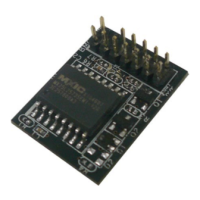
TPM-M R2.0 (14-1)
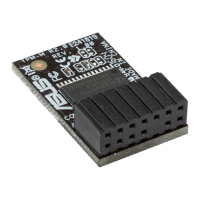
TPM-L R2.0 (20-1)
Quick Start Guide
E14029
Using the TPM-M R2.0 / TPM-L R2.0 card
The TPM-M R2.0 / TPM-L R2.0 card securely store keys, digital certicates, passwords, and
data. It helps enhance the network security, protects digital identities, and ensures platform
integrity.
The TPM-M R2.0 / TPM-L R2.0 card only supports the following OS:
64-bit Windows
®
7, UEFI OS, with KB2920188 Windows hotx installed
NOTE: You have to set the Launch CSM item in the BIOS to Enabled, the OS Type item
to Other OS. Refer to the user guide of your motherboard on how to change the BIOS
settings.
64-bit Windows
®
8.1, UEFI OS
64-bit Windows
®
10, UEFI OS
To use the TPM-M R2.0 / TPM-L R2.0 card:
1. Insert the TPM-M R2.0 card to the TPM connector on your motherboard.
PIN 1
+3VSB
S_PCIRST#_TBD
GND
C_PCICLK_TPM
+3V
+3V
LPCPD#
F_SERIRQ
F_FRAME#
F_LAD3
F_LAD2
F_LAD1
F_LAD0
Pin denition:
• TPM-L R2.0 (20-1)
• TPM-M R2.0 (14-1)
PIN 1
LPCPD#
GND
+3VSB
NC
LAD0
+3V
LAD3
LREST#
LFRAME#
LCLK
NC
CLKRUN#
SERIRQ
NC
GND
LAD1
LAD2
NC
GND
Question and Answer IconNeed help?

Do you have a question about the Asus TPM-M R2.0 and is the answer not in the manual?

Summary

Using the TPM-M R2.0; TPM-L R2.0 Card

TPM Pin Definitions

Details the pin assignments for TPM-M R2.0 (14-1) and TPM-L R2.0 (20-1) modules.

Accessing and Navigating BIOS Settings

Guide to entering BIOS, switching to Advanced Mode, and locating the Trusted Computing section.

Enabling TPM in BIOS Settings

Instructions to set Security Device Support and TPM State to Enabled for proper function.

Saving BIOS Changes and Rebooting

Steps to save BIOS configurations and reboot the system to apply changes.

Clearing the TPM Security Hardware

Clearing TPM from BIOS

Procedure to clear TPM security hardware using BIOS settings, primarily for Windows 7.

Clearing TPM from Operating System

Method for clearing TPM security hardware via the OS, supported on Windows 8.1 and 10.

Initiating TPM Clear via OS Prompt

Instructions to restart the PC and use the F12 prompt to clear the TPM.

Completing TPM Initialization

Wait for the computer to boot and the OS to complete TPM initialization after clearing.

Updating the TPM Firmware

Downloading and Preparing Firmware Update

Steps to download the latest firmware package and extract it to a USB drive.

Configuring BIOS for Firmware Update

Guide to enter BIOS, navigate to Trusted Computing, and set Security Device Support to Disable.

Disabling CSM for Secure Boot

Instructions to set Launch CSM to Disabled under Boot > CSM for secure update.

Setting OS Type for Secure Boot

How to set the OS Type to Other OS under Boot > Secure Boot for the update process.

Saving BIOS and Entering EFI Shell

Save BIOS settings, reboot, and proceed to the EFI Shell prompt for firmware update.

Navigating to Firmware Files in EFI Shell

Access the USB drive in EFI Shell and navigate to the directory containing update files.

Executing Firmware Update Command

Run the TPMFactoryUpd command with specific parameters to update the TPM firmware.

Summary

Using the TPM-M R2.0; TPM-L R2.0 Card

TPM Pin Definitions

Details the pin assignments for TPM-M R2.0 (14-1) and TPM-L R2.0 (20-1) modules.

Accessing and Navigating BIOS Settings

Guide to entering BIOS, switching to Advanced Mode, and locating the Trusted Computing section.

Enabling TPM in BIOS Settings

Instructions to set Security Device Support and TPM State to Enabled for proper function.

Saving BIOS Changes and Rebooting

Steps to save BIOS configurations and reboot the system to apply changes.

Clearing the TPM Security Hardware

Clearing TPM from BIOS

Procedure to clear TPM security hardware using BIOS settings, primarily for Windows 7.

Clearing TPM from Operating System

Method for clearing TPM security hardware via the OS, supported on Windows 8.1 and 10.

Initiating TPM Clear via OS Prompt

Instructions to restart the PC and use the F12 prompt to clear the TPM.

Completing TPM Initialization

Wait for the computer to boot and the OS to complete TPM initialization after clearing.

Updating the TPM Firmware

Downloading and Preparing Firmware Update

Steps to download the latest firmware package and extract it to a USB drive.

Configuring BIOS for Firmware Update

Guide to enter BIOS, navigate to Trusted Computing, and set Security Device Support to Disable.

Disabling CSM for Secure Boot

Instructions to set Launch CSM to Disabled under Boot > CSM for secure update.

Setting OS Type for Secure Boot

How to set the OS Type to Other OS under Boot > Secure Boot for the update process.

Saving BIOS and Entering EFI Shell

Save BIOS settings, reboot, and proceed to the EFI Shell prompt for firmware update.

Navigating to Firmware Files in EFI Shell

Access the USB drive in EFI Shell and navigate to the directory containing update files.

Executing Firmware Update Command

Run the TPMFactoryUpd command with specific parameters to update the TPM firmware.

Asus TPM-M R2.0 Specifications

General IconGeneral
Form factorInternal
Plug and PlayYes
Product colorBlack
SmartCard slotNo
Security algorithms-
Windows operating systems supportedWindows 10, Windows 7, Windows 8
Quantity per pack1 pc(s)
Weight and Dimensions IconWeight and Dimensions
Width15 mm
Height25 mm

Related product manuals