94
4.9 Smart Connect
Smart Connect is designed to automatically steer clients to one of
three radios (one 2.4 GHz, one lowband 5 GHz, one high-band 5
GHz) to maximize total wireless throughput use.
4.9.1 Setting up Smart Connect
You can enable Smart Connect from the Web GUI through the
following two ways:
• Via the Wireless screen
1. On your web browser, manually key in the wireless router’s
default IP address: http://router.asus.com.
2. On the login page, key in the default user name (admin)
and password (admin) and click OK. The QIS page launches
automatically.
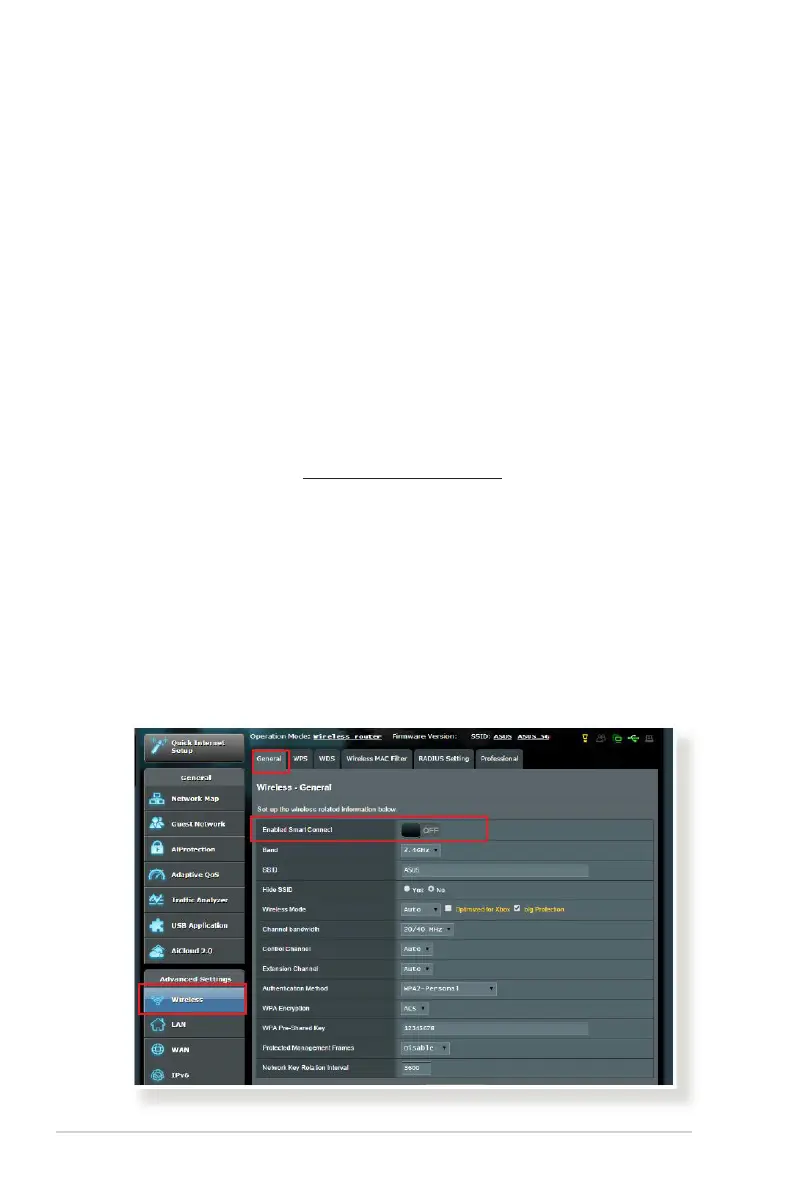
3. From the navigation panel, go to Advanced Settings >
Wireless > General tab.
4. Move the slider to ON in the Enable Smart Connect field. This
function automatically connect the clients in your network to
the appropriate band for optimal speed.


 To Next Page