23
3.1.3 Monitoring your USB device
The ASUS Wireless Router provides a USB 3.0 port for connecting
USB devices to allow you to share files and printer with clients in
your network.
NOTE: To use this feature, you need to plug a USB storage device,
such as a USB hard disk or USB ash drive, to the USB 3.0 port on the
rear panel of your wireless router. Ensure that the USB storage device
is formatted and partitioned properly. Refer to the Plug-n-Share Disk
Support List at http://event.asus.com/networks/disksupport
IMPORTANT! You rst need to create a share account and its
permission /access rights to allow other network clients to access the
USB device via an FTP site/third-party FTP client utility, Servers Center,
Samba, or AiCloud. For more details, refer to the section 3.5.Using the
USB Application in this user manual.
To monitor your USB device:
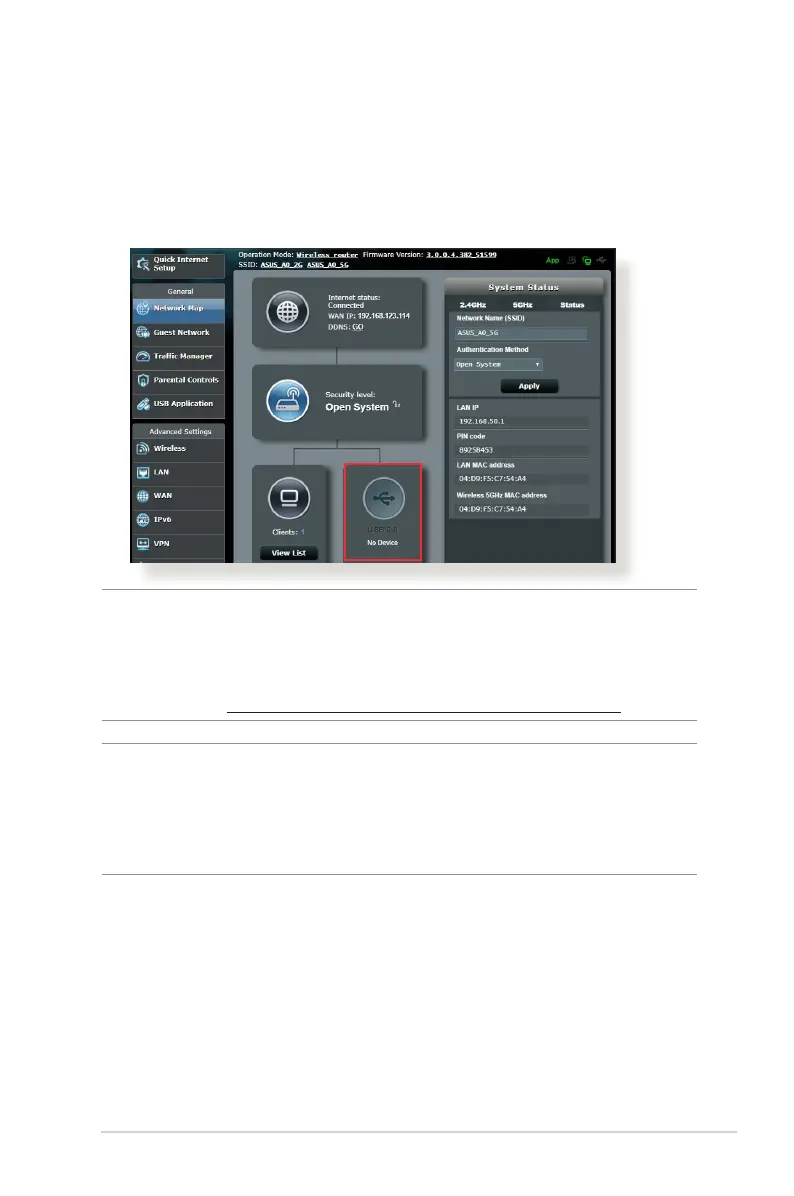
1. From the navigation panel, go to General > Network Map.
2. On the Network Map screen, select the USB Disk Status icon to
display your USB device’s information.
3. On the AiDisk Wizard field, click GO to set up an FTP server for
Internet file sharing.



 To Next Page