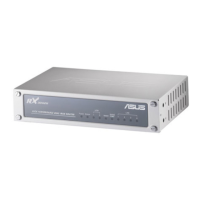
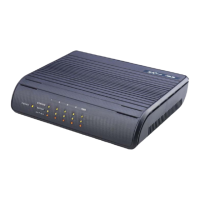
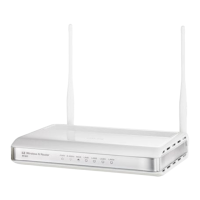
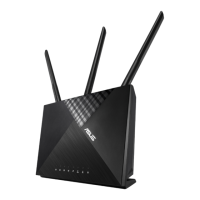
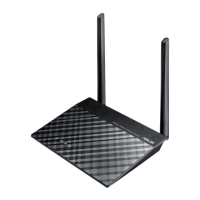
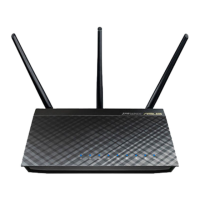
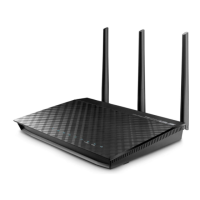
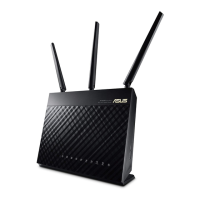
The ASUS RX3041 & SL200 are devices designed to facilitate Internet connectivity, primarily functioning as routers. This manual provides a comprehensive guide for configuring these devices for various Internet connection types and offers troubleshooting tips for common issues.
Function Description
The ASUS RX3041 & SL200 routers enable users to establish and manage an Internet connection for their local network. They act as a central hub, allowing multiple devices (computers, smartphones, etc.) to share a single Internet connection. The devices support a range of Internet connection types, making them versatile for different Internet Service Providers (ISPs) and regional requirements. Key functions include:
- Internet Connection Management: Establishing and maintaining connections with various ISPs using different protocols.
- Network Address Translation (NAT): Allowing multiple devices on a private network to share a single public IP address.
- Dynamic Host Configuration Protocol (DHCP): Automatically assigning IP addresses to devices within the local network.
- Firewall: Providing basic network security to protect connected devices from unauthorized access.
- Routing: Directing network traffic between the local network and the Internet.
- Universal Plug and Play (UPnP): Facilitating automatic discovery and configuration of network devices and services.
- Dynamic Domain Name System (DDNS): Allowing access to the router or devices on the local network using a domain name, even if the public IP address changes dynamically.
Important Technical Specifications
While specific hardware specifications like processor speed, RAM, or Wi-Fi standards are not detailed in this document, the manual highlights crucial software and connectivity specifications:
- Supported Internet Connection Types:
- Dynamic IP: Automatically obtains an IP address from the ISP. This is the default setting and is suitable for ISPs supporting DHCP.
- Static IP: Requires a fixed IP address, subnet mask, and gateway IP address provided by the ISP.
- PPPoE (Point-to-Point Protocol over Ethernet): Commonly used by DSL-based ISPs. Requires a username and password from the ISP.
- PPTP (Point-to-Point Tunneling Protocol): Often used in some European countries. Requires an IP address, subnet mask, default gateway, username, and password from the ISP.
- L2TP (Layer 2 Tunneling Protocol): Similar to PPTP in its application and required information.
- BigPond: A specific service used in Australia, requiring setup information from the ISP.
- Default IP Address: The router's default Web-based configuration page is accessible at
http://192.168.1.1.
- Default Login Credentials: The default username and password for accessing the configuration page are both
admin.
- MTU (Maximum Transmission Unit) Settings: The manual shows configurable MTU ranges for different connection types (e.g., 576-1500 for Dynamic IP, 546-1492 for PPPoE, 546-1460 for PPTP/L2TP). This parameter is crucial for optimizing data packet transmission.
- MAC Cloning: An optional feature that allows the router to clone the MAC address of a connected PC. This is necessary if the ISP authenticates based on the computer's MAC address.
- Idle Time Settings: For PPPoE, PPTP, and L2TP connections, there are configurable maximum idle time settings (e.g., 60-3600 seconds) to manage connection persistence.
- Connection Mode: Options like "keep-alive" for PPPoE and "auto-connect" for PPTP/L2TP are available to maintain the Internet connection.
- Firmware Version: The example status page shows a Runtime Code Version of V2.1.2.112, indicating the software version running on the device.
Usage Features
The ASUS RX3041 & SL200 are designed for straightforward setup and management through a Web-based interface.
- Web-based Configuration: All settings are managed via a standard web browser, eliminating the need for specialized software. Users access the interface by typing the router's IP address (default
http://192.168.1.1) into the browser.
- Intuitive Interface: The configuration interface is organized into logical sections (Wizard, Status, System, WAN, LAN, NAT, Firewall, Routing, UPnP, DDNS, Logout), making it relatively easy to navigate.
- Quick Setup Wizard: Although not detailed in this specific guide, the manual mentions a "Quick Setup" option, suggesting a simplified initial configuration process for new users.
- Detailed Status Monitoring: The "Status" page provides a comprehensive overview of the router's operational state, including WAN/LAN connection status, IP addresses, subnet masks, gateway information, DNS servers, system uptime, and the number of connected clients.
- Flexible WAN Connection Modes: The ability to configure Dynamic IP, Static IP, PPPoE, PPTP, L2TP, and BigPond connections ensures compatibility with a wide range of ISPs globally.
- MAC Address Cloning: This feature simplifies setup for ISPs that require MAC address authentication, allowing the router to mimic the MAC address of a registered computer.
- Multiple IP Addresses (Static IP): For users with Static IP connections, the router supports configuring additional IP addresses if provided by the ISP.
Maintenance Features
The manual provides essential tips for maintaining a stable and functional network connection, focusing on basic troubleshooting and verification.
- Network Restart Sequence: A critical troubleshooting step involves restarting network components (modem, router, computer) in a specific order with timed intervals to ensure proper initialization and connection establishment.
- Turn off modem, router, and computer.
- Turn on modem, wait two minutes.
- Turn on router, wait one minute.
- Turn on computer.
- Cable Verification: Emphasizes ensuring all network cables are securely plugged in. The WAN indicator on the router should light up if the modem and router are properly connected and powered on. Similarly, LAN port status indicators confirm connections to individual computers.
- Network Settings Verification: Advises checking the computer's network settings for correctness.
- MAC Address Authentication: Highlights the importance of MAC cloning if the ISP authenticates based on the computer's MAC address. The manual provides clear instructions on how to find the computer's physical address (MAC address) using the
ipconfig /all command in Windows and how to clone it within the router's web interface.
- Configuration Saving: After making any changes in the web interface, users must click "OK" to save and apply the settings, followed by "Continue" to return to the configuration page. This ensures that changes are permanently stored and activated.
- Status Page for Verification: The "Status" page serves as a primary tool for verifying that the WAN interface has successfully obtained an IP address and related connection information after configuration changes.
In summary, the ASUS RX3041 & SL200 are robust routers designed to provide reliable Internet connectivity across various service provider types, with a user-friendly web interface and practical troubleshooting guidance for common network issues.

 Need help?
 General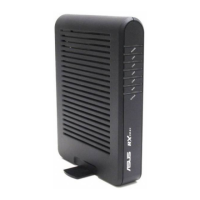

 To Next Page