34
Using the Quick settings Notication Panel
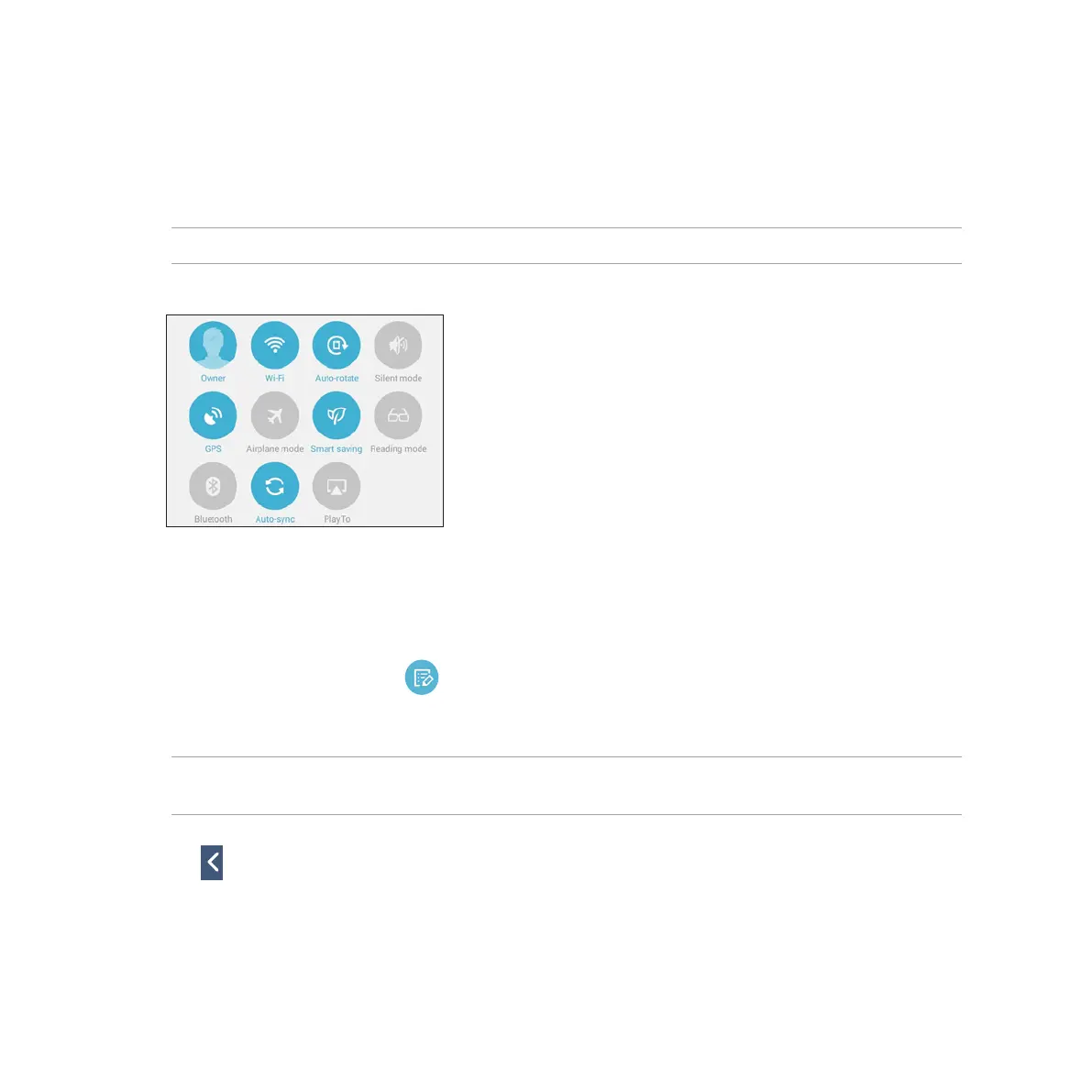
The Quick settings Notication Panel provides a one-tap access to some of the wireless features and settings
of your ASUS Tablet. Each of these features are represented by a button.
NOTE: A blue button indicates that the feature is currently enabled while a gray button indicates a disabled feature.
Adding or removing buttons
To add or remove existing buttons from the ASUS Quick Settings notication panel:
1. Launch Quick settings then tap .
2. Tap the box beside the feature to add or remove it from the ASUS Quick Setting Notication Panel.
NOTE: A checked box indicates that the feature's button is accessible via the ASUS Quick Settings Notication Panel
while an unchecked box means the opposite.
3. Tap to go back and view the current ASUS Quick Settings notication panel





 To Next Page