Need help?
Do you have a question about the Asus VZ279 Series and is the answer not in the manual?
Step-by-step instructions on how to assemble the monitor.
Instructions and diagrams for connecting various cables to the monitor.
Steps for activating and modifying OSD menu settings.
Details the eight preset display modes for optimal viewing.
Adjusts blue light levels to reduce eye strain.
Options to adjust Brightness, Contrast, Saturation, Color Temp, Skin Tone.
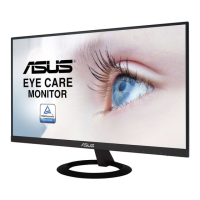
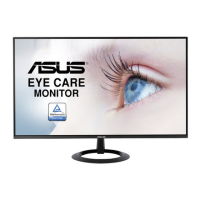
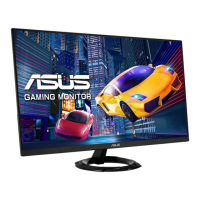
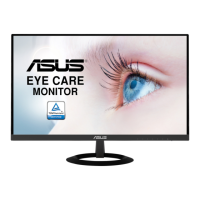
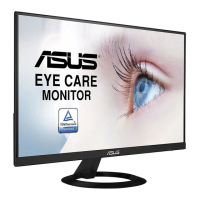
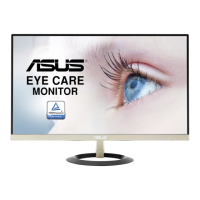
This document serves as a user guide for the ASUS VZ279 Series LCD Monitor, a widescreen display designed to offer a crisp, broad, and bright viewing experience with a range of features.
The ASUS VZ279 Series LCD Monitor is a display device that connects to a computer or other video sources to present visual information. It supports various input signals, including VGA, DVI (on VZ279N), HDMI (on VZ279H and VZ279Q), and DisplayPort (on VZ279Q), allowing for flexible connectivity with different systems. The monitor is designed to be user-friendly, with controls located on the back for adjusting image settings and navigating the On-Screen Display (OSD) menu.
The OSD menu is a central feature for configuring the monitor's performance and appearance. It is divided into several main functions: Splendid, Blue Light Filter, Color, Image, Sound (VZ279Q only), Input Select, System Setup, and Shortcut. Each of these functions provides a set of customizable parameters to tailor the display to individual preferences and specific usage scenarios.
The "Splendid" function offers eight pre-set display modes: Scenery Mode, Standard Mode, Theater Mode, Game Mode, Night View Mode, sRGB Mode, Reading Mode, and Darkroom Mode. These modes are optimized for different types of content, from photo viewing to gaming and document editing, leveraging ASUS's SPLENDID™ Video Intelligence Technology. Users can select the mode that best suits their current activity, and each mode includes a Reset option to revert to its default settings.
The "Blue Light Filter" is a crucial feature for eye care, allowing users to adjust the energy level of blue light emitted from the LED backlight. It offers four levels, with Level 4 being an optimized setting that complies with TUV Low Blue Light Certification, aiming to reduce eye strain during prolonged use.
The "Color" function provides controls for adjusting image color parameters such as Brightness, Contrast, Saturation, Color Temp., and Skin Tone. Color Temp. includes preset modes like Cool, Normal, and Warm, as well as a User Mode for fine-tuning R, G, and B color components. Skin Tone also offers Reddish, Natural, and Yellowish options.
The "Image" function allows for detailed adjustments to the picture quality, including Sharpness, Trace Free (for response time), Aspect Control (Full, 4:3, Overscan), VividPixel (for enhanced visuals), ASCR (dynamic contrast ratio), Adaptive-Sync (for supported graphics sources), Position (VGA only), Focus (VGA only), and Auto Adjust (VGA only). These settings enable users to optimize the display for clarity, motion, and overall visual fidelity.
For the VZ279Q model, a "Sound" function is available to adjust output volume, mute audio, and select the audio source (Line In, HDMI, or DisplayPort). This integrates audio control directly into the monitor's OSD.
The "Input Select" function is straightforward, enabling users to manually switch between the available input sources (VGA, DVI, HDMI-1, HDMI-2, HDMI, DisplayPort) depending on which device is connected.
"System Setup" provides access to general monitor configurations. This includes Splendid Demo Mode, Volume (VZ279H only), GamePlus, ECO Mode, OSD Setup, Language, Key Lock, and All Reset. GamePlus is a unique toolkit for gamers, offering features like Crosshair, Timer, and Display Alignment to enhance the gaming experience. ECO Mode is designed for power saving. OSD Setup allows adjustments to OSD Timeout, DDC/CI, and Transparency. Language selection supports multiple languages, and Key Lock disables physical buttons to prevent accidental changes. All Reset reverts all settings to factory defaults.
Finally, the "Shortcut" function allows users to assign frequently used OSD functions to two dedicated shortcut keys on the monitor, providing quick access to settings like Blue Light Filter, Splendid modes, Brightness, Contrast, Color Temp., Volume, or GamePlus.
The ASUS VZ279 Series LCD Monitor is designed with user convenience in mind, offering several features that enhance the overall experience. The physical design allows for easy assembly, with a base that attaches securely to the arm using a screw that can be tightened by hand. The monitor's angle can be adjusted from +20° to -5°, allowing users to find the most comfortable viewing position. It is recommended to hold the stand when adjusting the angle to prevent the monitor from falling.
The control buttons on the back of the monitor provide intuitive access to the OSD menu. The Power Button turns the monitor on/off, and its indicator light changes color (White for ON, Amber for Standby, OFF) to show the monitor's status. The MENU Button activates the OSD, and navigation is done using directional buttons, with a dedicated Close Button to exit the OSD. An Input Select Button allows for quick switching between video sources without entering the full OSD menu.
A standout feature is the "QuickFit Function," accessible via a dedicated hotkey. This function provides three types of patterns: Grid, Paper size, and Photo size. The Grid pattern assists designers in organizing content and layouts for a consistent look. The Paper size patterns (A4, B5, Letter) allow users to view documents at their actual size on the screen, which is beneficial for editing and proofreading. The Photo size patterns (8x10, 5x7, 4x6, 3x5, 2x2) enable photographers to accurately view and edit photos at their real dimensions.
The GamePlus function, found within the System Setup, offers practical tools for gamers. The Crosshair feature provides an on-screen crosshair, useful in first-person shooter games. The Timer helps track game time, and Display Alignment assists in setting up multi-monitor configurations. These tools are designed to give users a competitive edge and improve their gaming environment.
The monitor also includes an Auto Adjust function (for VGA input only) that automatically optimizes the image's position, clock, and phase, simplifying setup for analog connections.
Maintaining the ASUS VZ279 Series LCD Monitor involves simple and safe practices to ensure its longevity and optimal performance. Before any cleaning or repositioning, it is crucial to disconnect all cables and the power cord. When moving the monitor, users should grasp the edges of the display and avoid lifting it by the stand or the cord to prevent damage.
For cleaning the monitor surface, a lint-free, non-abrasive cloth is recommended. Stubborn stains can be removed with a cloth dampened with a mild cleaner. It is important to avoid cleaners containing alcohol or acetone and to use only cleaners specifically intended for LCDs. Spraying cleaner directly onto the screen should be avoided, as liquid could drip inside and cause electrical shock.
The user guide also outlines normal symptoms that do not indicate a fault, such as screen flicker during initial use (which can be resolved by power cycling), slightly uneven brightness depending on the desktop pattern, and temporary afterimages after displaying the same image for extended periods. These are inherent characteristics of fluorescent light and LCD technology.
In case of technical problems, such as the screen becoming black, flashing, or ceasing to function, users are advised to contact their dealer or a service center rather than attempting repairs themselves.
The monitor is designed with ventilation slots on the back or top of the cabinet, which should not be blocked to ensure proper airflow and prevent overheating. It should also be kept away from radiators, heat sources, dust, humidity, and extreme temperatures.
For power management, the monitor should be operated only from the specified power source indicated on its label, and the appropriate power plug for the local standard should be used. Overloading power strips and extension cords should be avoided to prevent fire or electric shock.
The guide also provides safety information regarding the power supply, advising users not to attempt repairs if it is broken and to contact a qualified service technician. It emphasizes the importance of correctly connected and undamaged cables.
For eye health, especially when using the Blue Light Filter, the manual recommends resting eyes for fifteen minutes every two hours, frequent blinking, and positioning the screen 20 to 28 inches (50-70cm) away to alleviate eye strain.
The monitor also carries the TCO Certified label, indicating that it is designed, manufactured, and tested according to strict quality and environmental requirements. This includes features like low energy consumption, restrictions on hazardous substances (RoHS compliance), and preparation for recycling, demonstrating a commitment to environmental responsibility and ease of disposal or recycling at the end of its life cycle.
 General
| Screen Size | 27 inches |
|---|---|
| Resolution | 1920 x 1080 (Full HD) |
| Panel Type | IPS |
| Aspect Ratio | 16:9 |
| Refresh Rate | 60 Hz |
| Response Time | 5 ms (GTG) |
| Brightness | 250 cd/m² |
| Contrast Ratio | 1000:1 |
| Viewing Angles | 178° (H) / 178° (V) |
| Ports | HDMI, VGA |
| VESA Mount | No |
| Color Support | 16.7 million colors |

 To Next Page