24
Recovery process for replacing new SSD only / new SSD and new mainboard
If you are replacing a new SSD on the original mainboard, please follow below steps to install
recovery OS and enable USB boot-up for running RMA shim flow.
If you purchased both new SSD and new mainboard, please replace the SSD first and install
recovery OS, then proceed to run RMA shim flow. After completion, if the defect still exists, replace
mainboard and run RMA shim directly.
1. Preparation
1) Get another Chromebox / Chromebook, or a Windows / Mac computer with Chrome
installed to create RMA shim USB drive.
2) A USB flash drive with a capacity of at least 8 GB and make sure it can be emptied. If your
Chromebox has a SD card slot, you can also use a SD card instead.
3) Remove all external devices on the Chromebox which needs to be restored but you can
keep the power connected.
4) Recovery will permanently erase everything on your Chromebox 's hard drive, including files
you've downloaded. If possible, back up your files before restoring your Chromebook.
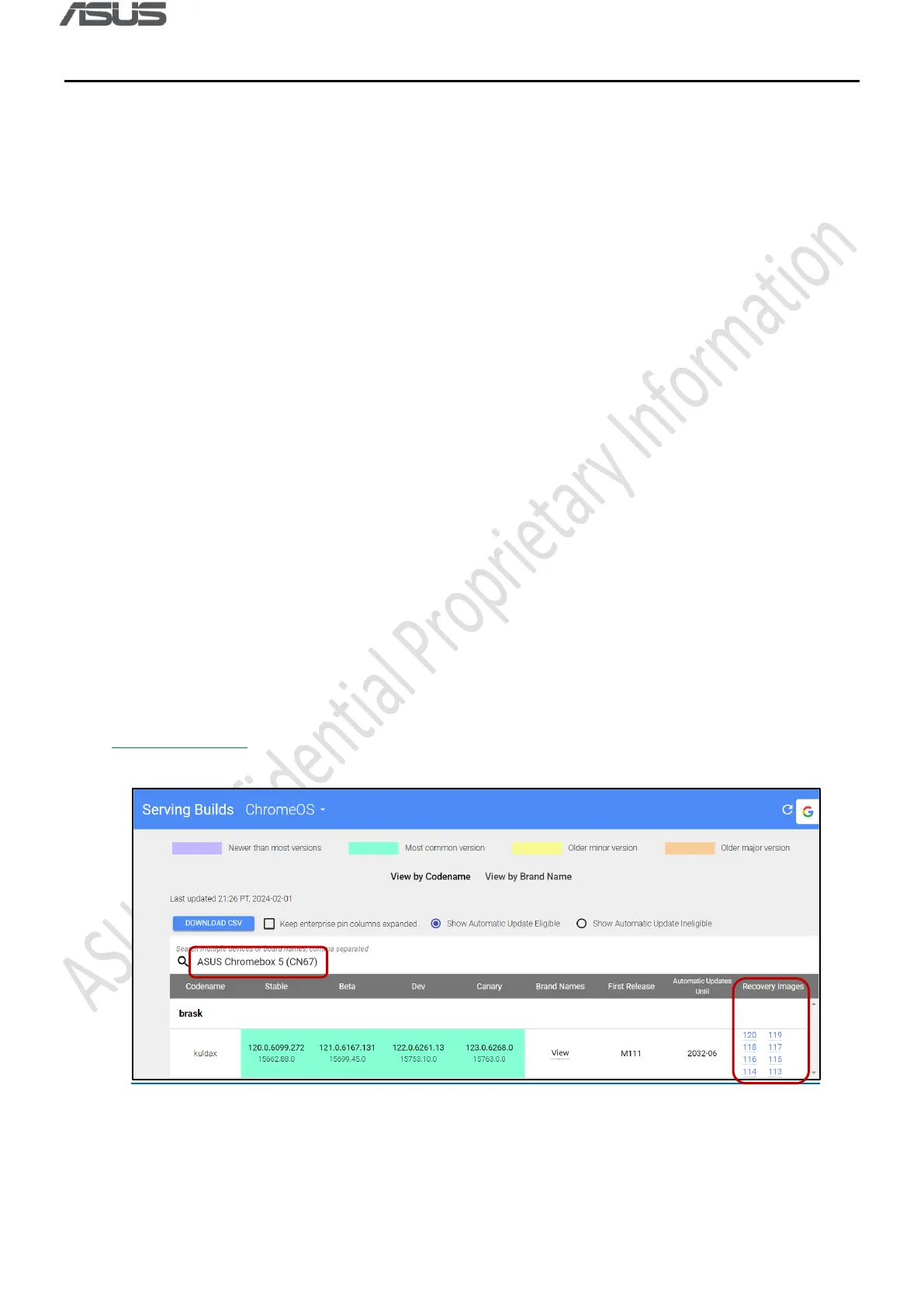
2. Download device Recovery image
1) Search device name and download the latest version of Recovery image from Google
Chromium Dash.



 To Next Page