Changing Switcher Settings
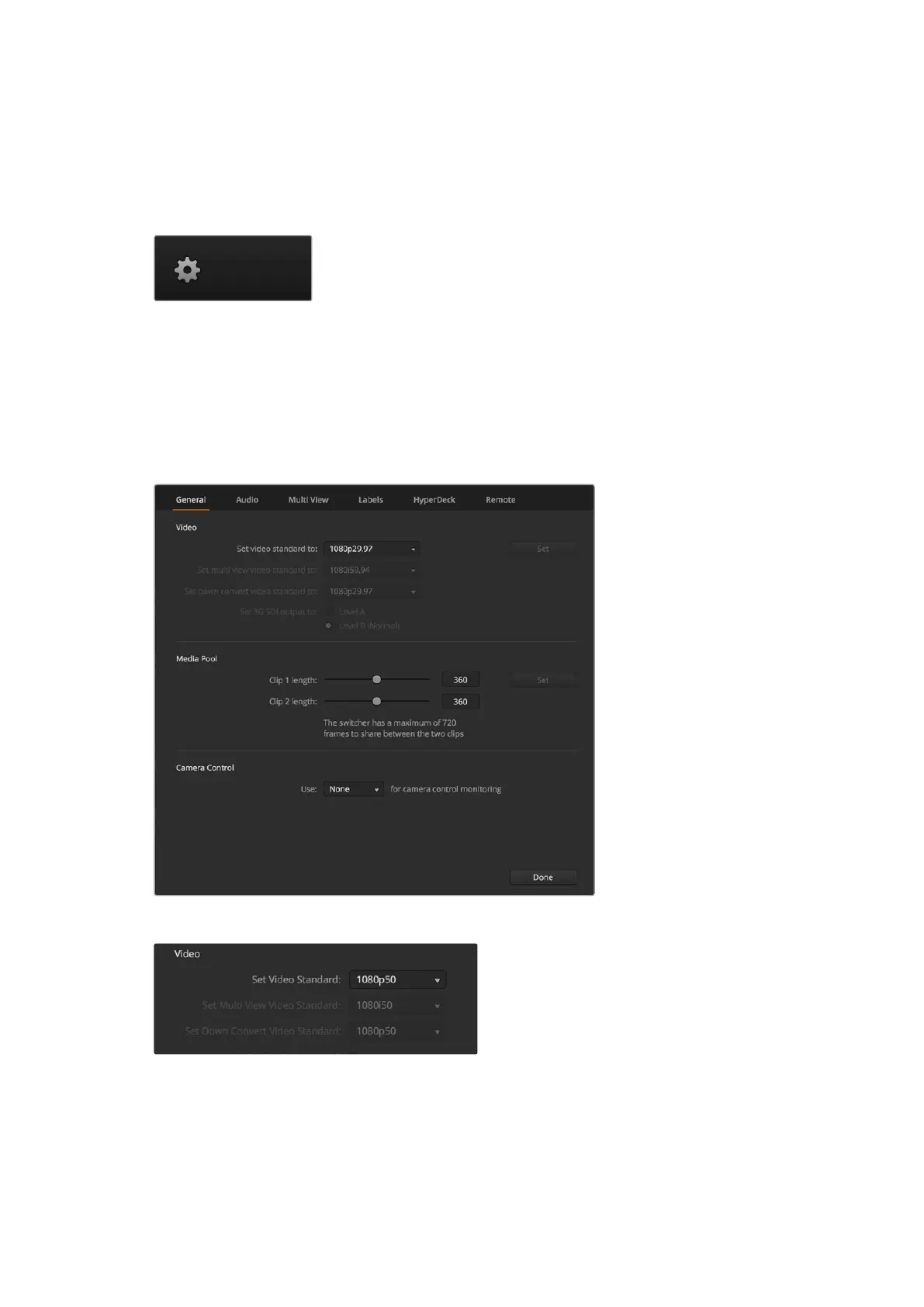
Clicking on the switcher settings ‘gear’ icon will open the settings window where you can
change general switcher settings, Multi View, label, HyperDeck and remote settings. These
settings are divided into tabs.
General Settings
Setting the Switcher Video Standard
The video setting is used to select the operating video standard of the ATEM switcher and this
must be set to the same video standard as the video sources you are plugging into the ATEM
switcher. If they don’t match, the inputs won’t appear correctly and will most likely remain black.
A good way to work out the video standard you should use is to check cameras and and then
set the switcher video standard to the same format.
Change switcher settings
Set video standard
64Using ATEM Software Control



 To Next Page