Multiview Settings
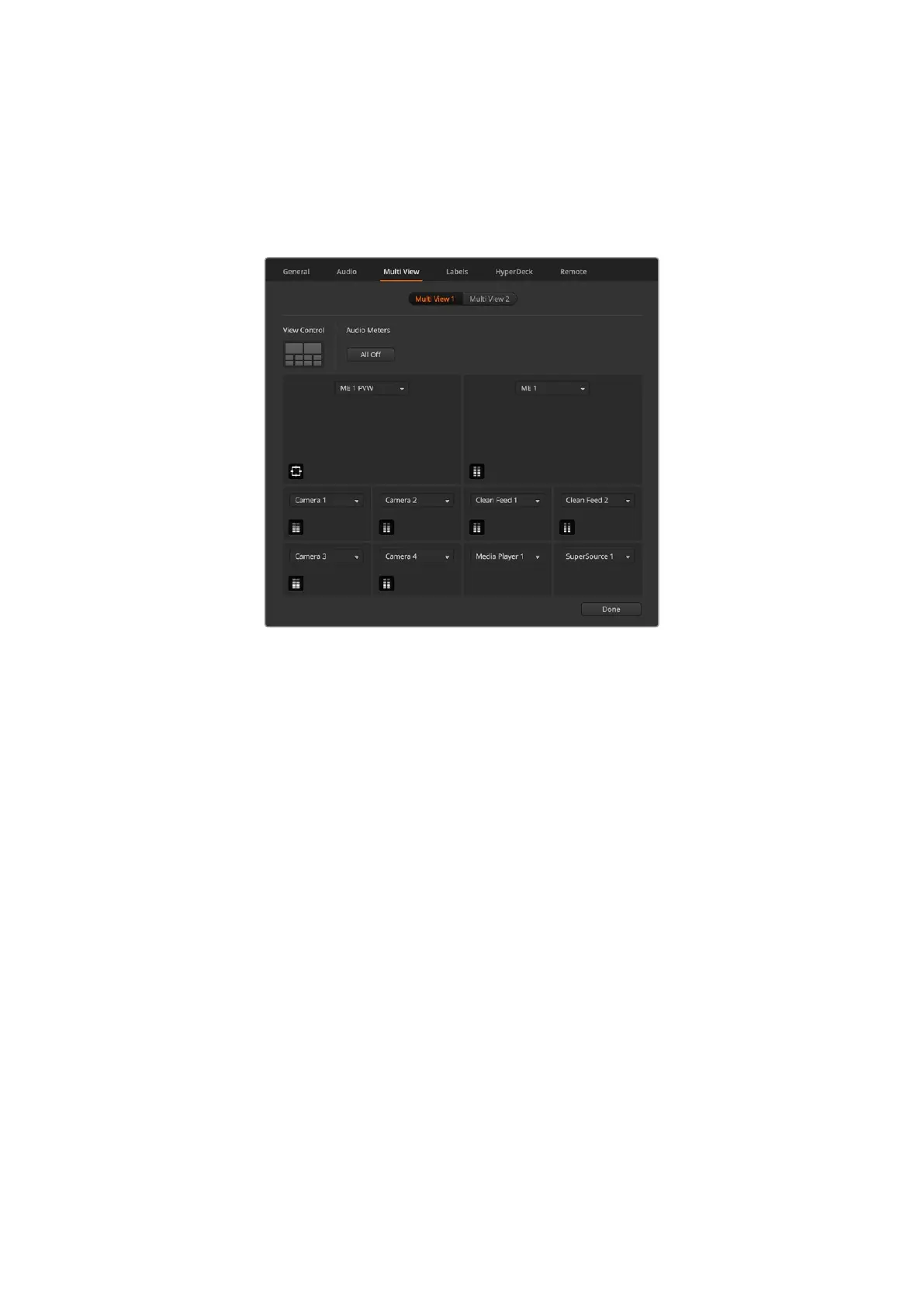
The multiview settings allow you to set the multiview orientation. The default view features two
large windows at the top and eight smaller windows beneath, however each quadrant of the
multiview can be set to either one large view or four smaller views so you can configure 4, 7, 10,
13 or 16 views. Click on each quadrant in the ‘view control’ to toggle between 1 and 4 views.
Configure the two multiviews on ATEM 2 M/E Constellation HD
Audio meters can be turned on or off for all the switcher sources and program view by enabling
the ‘All On’ button in the multiview settings, or you can turn them on or off individually by
clicking the audio meter icon in each view.
When viewing a preview output on the multiview you can turn on safe area markers to make
sure your program will look great on any monitor. In HD, the outer border represents the 16:9
graphics safe area and the inner border represents the 4:3 graphics safe area.
The multiview will also display tally, so if any of the sources in the multiview are used in a layer
on the program or preview outputs, the border will be highlighted red or green. A red border
indicates the source is used on the program output and a green border indicates a source
is selected on the preview output. A white border means your source is not currently on the
preview output, or on air on the program output.
Labels Settings
The labels tab can be used to change labels for the switchers inputs, outputs and media
players. Each input and output will have a long name and a short name.
The long name supports up to 20 characters in length and are displayed in various source
selection boxes on the software control panel, the multiview windows on screen labels and
on the advanced panel. The short 4 character name is used to identify the input buttons on
software control panel.
To change an input name, click in the text field, enter the text and select set. The input name will
be updated on the multiview, software control panel and advanced panel if one is connected. It’s
a very good idea to change both the short and long labels at the same time, so they match. For
example Camera 1 would be entered in as a long label and CAM1 as the short label.
26ATEM Software Control


 To Next Page
 Loading...
