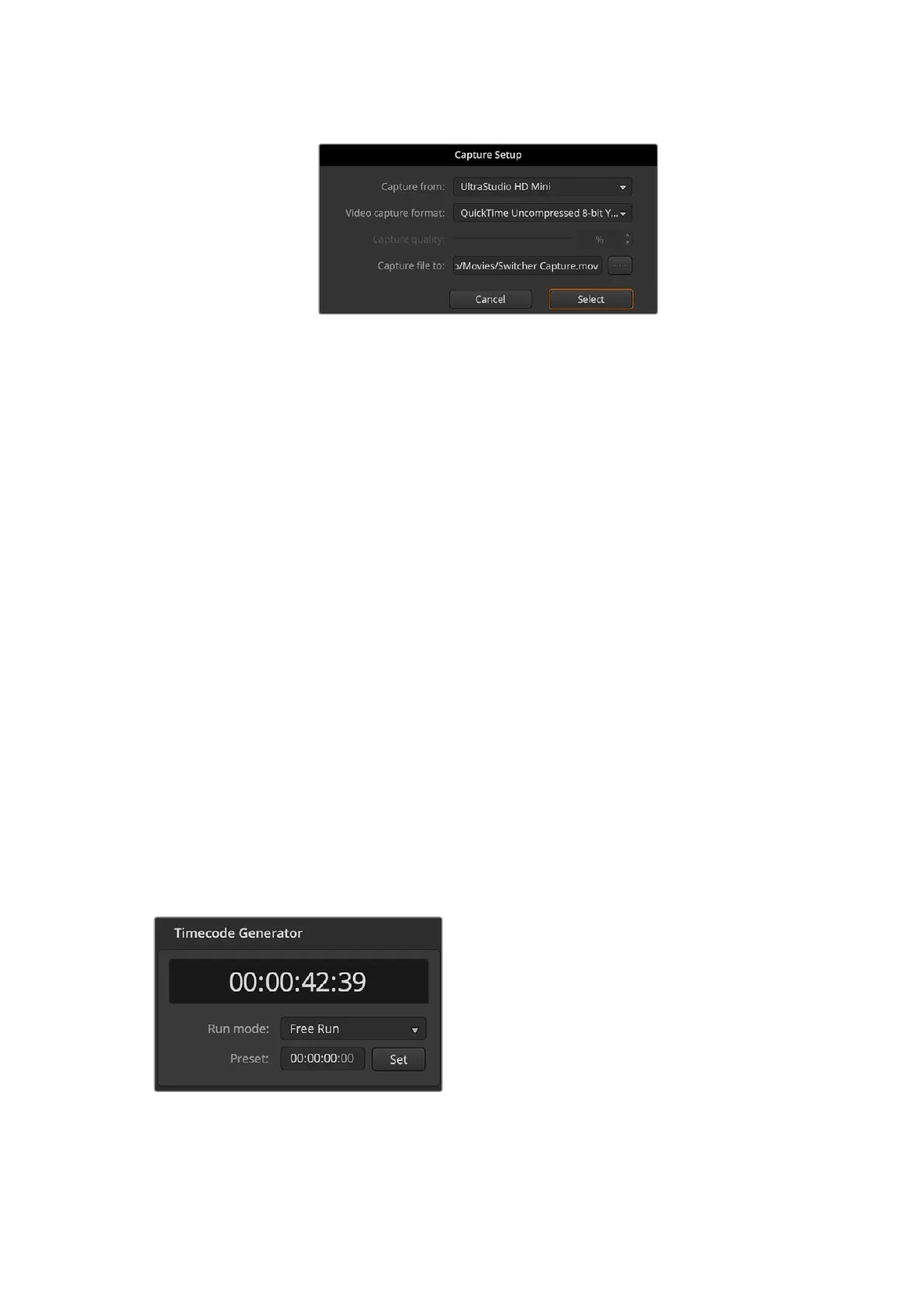
2 Select the desktop video device, the capture format and save location from the options.
Press Select.
3 In the ‘capture video’ window, press the lock icon. This will lock desktop video output to
ATEM Software Control, making sure that other software, eg Blackmagic Media Express,
cannot control the device.
4 Press the record icon to being recording, it will turn red. Press again to finish recording.
Once your recording is complete, navigate to the location set earlier to find the video.
Capture Still
If you need to capture a still image from your broadcast simply click on the ‘capture still’ button.
This acts like a still store which lets you add capture files to the media pool. You can then
immediately load a still into the media player and use it in your broadcast, or save the media
pool to your computer.
To save the media pool:
1 Go to the menu bar at the top of your screen and click on ‘file/save as’.
2 Choose the location you want to save to.
3 Click ‘save’.
Now that your media pool is saved on your computer, you can access the captured stills and
use them in your graphics software.
Timecode Generator
The timecode generator automatically runs time of day timecode from the moment you launch
ATEM Software Control. However, you can reset the counter to zero, or manually enter a new
timecode value to start from.
The timecode generator can be set to time of day,
or free run timecode where you can set a manual
preset timecode
To manually set a preset timecode value:
1 Click in the ‘run mode’ menu and select
‘free run’.
2 In the smaller timecode counter, type in a
defined timecode value. As you type, the
new values will appear green.
3 To confirm the change and set the
timecode running, click ‘set’.
36ATEM Software Control


 To Next Page
 Loading...
