Audio Level
Drag the audio level fader to set the gain on the audio level for each camera and audio source.
The orange number under each audio level meter shows the maximum audio level set by
the fader.
The number above the audio meter shows the peak audio level reached by the audio source.
Agreen number represents low to medium audio levels. If the audio meter is regularly showing
red, and the red number above it is not changing, then you should reduce the audio level to
avoid audio distortion. After adjusting the audio level, you may wish to reset the red number by
clicking on it once. Observe the new number to make sure it changes for a while and does not
immediately shoot up and become stuck on a red number. If it does, you may need to reduce
the audio level even further.
Audio Balance
The audio mixer supports stereo audio from each audio source. If you wish to change the left/
right audio channel balance for a camera or other audio source, adjust the knob to the desired
balance point.
ON
Selecting the direct mix to ON allows an audio input to be permanently mixed into the program
output, even when the associated video source is not on air. The red tally light will always be lit
because the audio is always on air. Selecting this option automatically disables AFV.
AFV
Audio-follow-video (AFV) allows audio to crossfade when inputs change. Theaudio will only be
sent to the program output when the input is on air, lighting the red tally light above. When off air,
the tally light is lit dull yellow. Selecting this option automatically disables the direct mix ON setting.
Master Audio Level Output
The master fader on the right side of the audio mixer is used to set the gain on the audio level
on the SDI program outputs and has its own audio level meter. Select the AFV button on the
master audio output fader to enable the AFV fade to black feature. This lets you fade your
master audio when you click on the Fade to Black button.
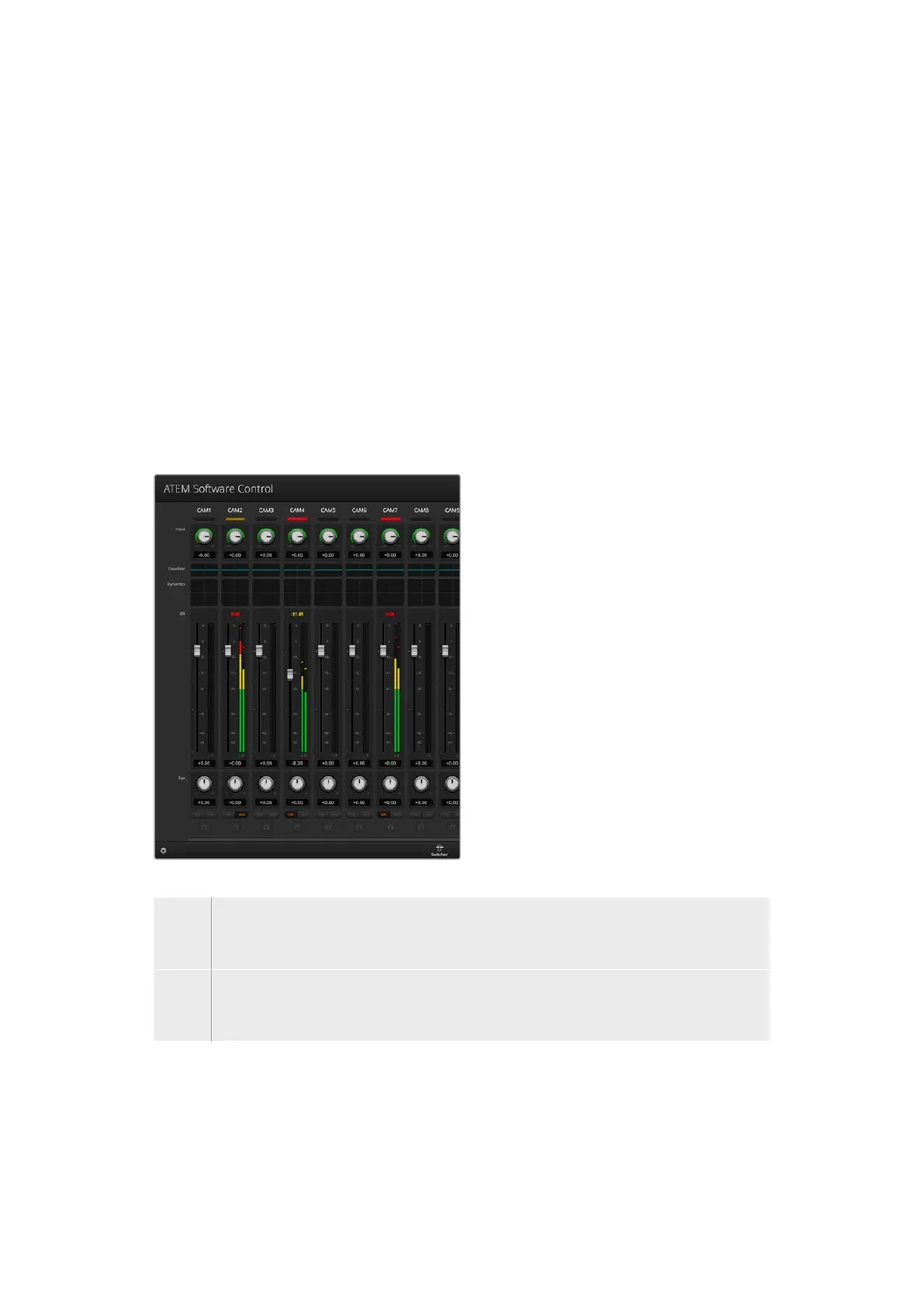
The audio meter for Cam1 is shown in gray
to indicate that its audio will not be used
as neither of its ON or AFV buttons are
enabled. Cam2 has AFV selected but its
audio is not currently being used as the
camera is not on air as is indicated by its dull
yellow tally light. Cam4 and Cam7 have their
direct mix set to ON so their mixed audio is
always used, and their tally lights remain lit,
even if another camera is currently on air.
The audio level meters for Cam3, Cam5,
Cam6 and Cam8 show that no audio is
present on these cameras.
Audio Source Selection
Below each audio level meter, you will find
the ON and AFV buttons that select which
audio sources are sent to the program
output of the switcher.
41ATEM Software Control


 To Next Page
 Loading...
