EasyManua.ls Logo

ATEN KH1508Ai - User Manual

ATEN KH1508Ai
222 pages
Print Icon
To Next Page IconTo Next Page
Loading...
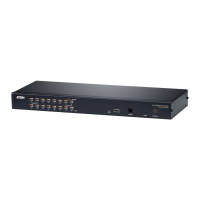
KH1508Ai / KH1516Ai
ϴϭϲͲWŽƌƚDƵůƟͲ/ŶƚĞƌĨĂĐĞĂƚϱ
<sDŽǀĞƌ/W^ǁŝƚĐŚ;&Ƶůů,Ϳ
hƐĞƌDĂŶƵĂů

Table of Contents

Other manuals for ATEN KH1508Ai

Questions and Answers

  • R
    ruthtaylorAug 19, 2025
    What to do if the remote mouse pointer is out of sync on ATEN KH1508Ai?
    • A
      Anita SolomonAug 20, 2025
      First, try using the AutoSync feature to synchronize the local and remote monitors. If the problem persists, use the Adjust Mouse feature to bring them back in sync. As a last resort, use the Toggle Mouse Display function.
  • S
    Sarah RobbinsAug 21, 2025
    How to fix Java Client when it won't connect to ATEN Switch KH1508Ai / KH1516Ai?
    • G
      Gregory PayneAug 21, 2025
      First, ensure that Java JRE 6 update 3 or higher is installed on your computer. Second, verify that you are including the correct name of the web page when specifying the IP address of the KH1508Ai / KH1516Ai. Finally, close the Java Client, reopen it, and try connecting again.
  • A
    alexishurleyAug 25, 2025
    What to do if ATEN Switch KH1508Ai / KH1516Ai still uses the old firmware version after upgrading?
    • G
      gmatthewsAug 25, 2025
      Clear your browser cache, delete all temporary Internet files and cookies, close your Internet browser, and then open a new instance of the browser.
  • F
    Felicia McphersonAug 26, 2025
    How to configure a fixed IP address on ATEN Switch KH1508Ai / KH1516Ai when the default is DHCP?
    • M
      Michelle SantiagoAug 26, 2025
      Use the local console OSD’s F4 function to assign a fixed IP address to the KH1508Ai / KH1516Ai.
  • Q
    qdennisAug 27, 2025
    What to do if part of the remote window is off my monitor using ATEN KH1508Ai Switch?
    • S
      Shirley WhitakerAug 28, 2025
      Use the AutoSync feature to synchronize the local and remote monitors.
  • J
    John ThompsonAug 29, 2025
    How to resolve blurred or overly sharp video on ATEN KH1508Ai?
    • X
      xbanksAug 30, 2025
      Try changing the Cat5e/6 cable length setting.
  • E
    Edward JimenezAug 31, 2025
    What does mouse pointer confusion mean on ATEN Switch?
    • A
      Alexandria LopezSep 1, 2025
      If the display of two mouse pointers (local and remote) is confusing, use the Toggle Mouse Display function to shrink the non-functioning pointer.
  • P
    Patricia SmithSep 2, 2025
    What to do if Java Client performance deteriorates on ATEN KH1508Ai Switch?
    • K
      Kelly HarrisSep 3, 2025
      Exit the program and start it again.
  • R
    Randy WoodsSep 4, 2025
    How to fix video display problems with HDB-15 interface systems on ATEN Switch?
    • R
      rdaviesSep 5, 2025
      The display resolution should be set to 1024 x 768.
  • H
    Holly RivasSep 6, 2025
    How to resolve video display problems with 13W3 interface systems on ATEN Switch?
    • R
      Rebekah ZimmermanSep 6, 2025
      The display resolution should be set to 1024 x 768.

Summary

Chapter 2: Hardware Setup

Before You Begin Setup

Important preliminary steps before starting hardware setup.

Single-Station Installation

Detailed instructions for a basic, single-unit setup.

Daisy Chaining Setup

Steps for connecting multiple switches in a chain.

Chapter 3: Basic Operation

Port Selection Methods

Explains three ways to access connected computers: Manual, OSD, Hotkey.

Keyboard Hotkeys

Using keyboard shortcuts for KVM focus.

Chapter 4: OSD Operation

OSD Overview

Introduces the On Screen Display for control and switching.

OSD Functions

Details on F1-F8 functions for OSD control and configuration.

Hotkey Port Control Features

Using hotkeys for port selection, scan, skip, and resets.

Chapter 5: Logging In

Laptop USB Console Login

Steps to log in using a laptop connected via USB.

Browser Login

Steps to log in using a web browser.

Windows Client AP Login

Procedure to log in using the Windows Client application.

Chapter 6: The User Interface

Chapter 7: Port Access

Chapter 8: User Management

Chapter 9: Device Management

Operating Mode Settings

Sets parameters like grayscale, client list, keyboard language, resolution.

Network Settings

Specifies network parameters like IP, DNS, and service ports.

Security Settings

Configures policies for login failures, IP/MAC filtering, and account policies.

Chapter 10: Log

Chapter 11: Maintenance

Device IP Card Firmware Upgrade

Steps to download and install new firmware for the IP card.

Mainboard and KVM Adapter Cable Firmware Upgrade

Process for upgrading mainboard and KVM adapter cable firmware.

Chapter 13: Port Operation

Connecting to a Port

Detailed steps to establish a connection to a selected port.

Chapter 14: The Log Server

ATEN KH1508Ai Specifications

General IconGeneral
Device TypeKVM Switch
Ports8
Audio SupportYes
Dimensions17.3 x 7.0 x 1.7 in
Weight4.4 lbs
Number of local users1
Number of remote users1
Daisy ChainYes
On-Screen Display (OSD)Yes
Power over Ethernet (PoE)No
LED IndicatorsYes
USB Ports2
Operating Temperature0 - 50 °C
Storage Temperature-20 - 60 °C
Humidity0% to 80% RH

Related product manuals