EasyManua.ls Logo

ATEN KL1508Ai - User Manual

ATEN KL1508Ai
235 pages
Print Icon
To Next Page IconTo Next Page
Loading...
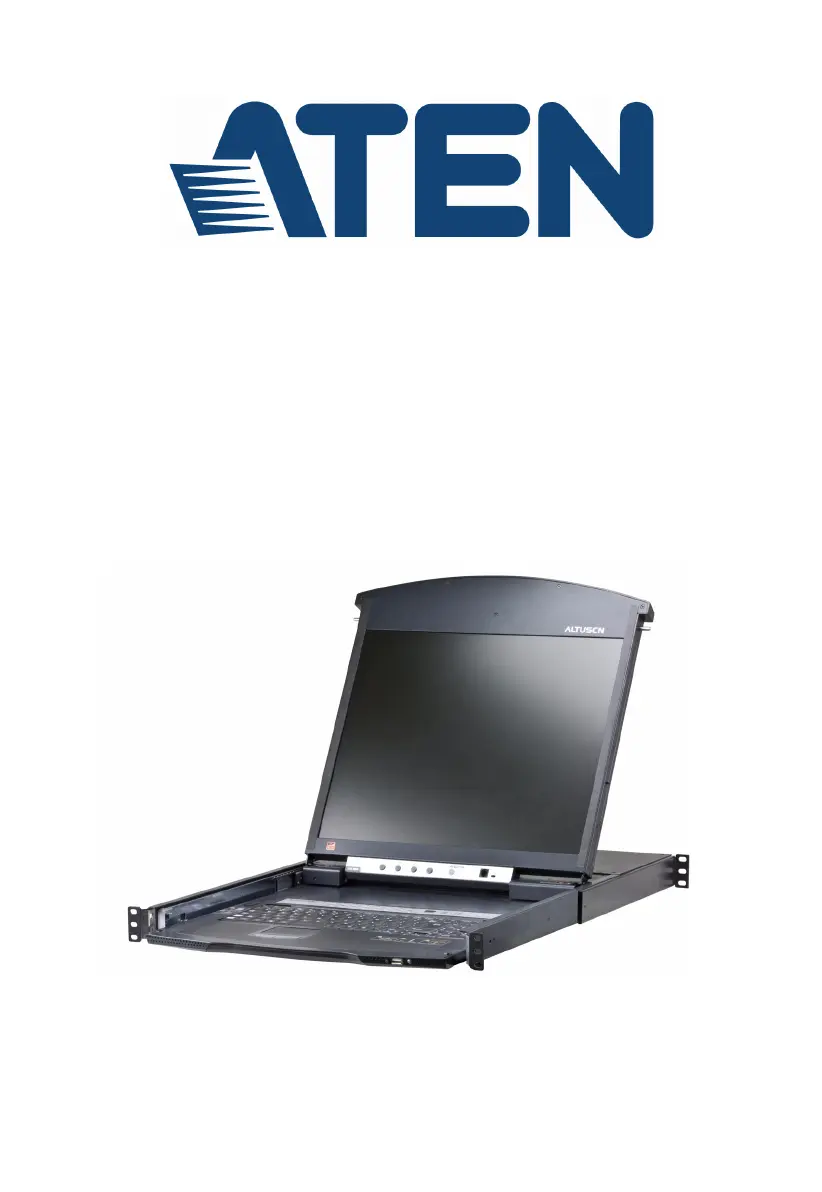
Dual Rail LCD KVM Switch
KL1508Ai / KL1516Ai
User Manual
www.aten.com

Table of Contents

Questions and Answers

  • D
    doris02Aug 20, 2025
    What to do if ATEN Switch KL1508Ai / KL1516Ai still appears to be using the old firmware version after upgrading?
    • D
      Dr. Christina Riddle MDAug 20, 2025
      If the KL1508Ai / KL1516Ai still shows the old firmware version after an upgrade, clear your browser cache, delete all temporary Internet files and cookies, close the Internet browser, and then open a new instance of the browser.
  • I
    Isaac HoustonAug 22, 2025
    How to fix ghost images on the external monitor of ATEN Switch?
    • R
      Russell Watson PhDAug 22, 2025
      If you're seeing ghost images on the external monitor, it's likely because the distance between the external console and the KL1508Ai / KL1516Ai is too great. The maximum VGA cable distance should not exceed 20m and may need to be shorter in some cases. Try replacing the VGA cable with one of an appropriately short length.
  • M
    masonthompsonAug 25, 2025
    What to do if I can’t go into OK Mode when I emulate the Sun keyboard on ATEN Switch?
    • V
      vwilliamsAug 25, 2025
      To enter OK Mode when emulating the Sun keyboard, use the following key sequence: 1. Press and release [Ctrl]. 2. Press and hold [T]. 3. Press and hold [A]. 4. Release [T] and [A] together.
  • N
    Nicole MullinsAug 27, 2025
    How to fix mouse and/or keyboard not responding due to improper reset on ATEN KL1508Ai?
    • M
      Megan BryantAug 27, 2025
      If the mouse and/or keyboard are not responding due to an improper reset, unplug the cable(s) from the console port(s), then plug it back in again.
  • L
    Lisa LeeAug 27, 2025
    What to do if the default network setting is DHCP but the network uses fixed IP addresses with ATEN Switch?
    • J
      John FordAug 28, 2025
      If the default network setting for the KL1508Ai / KL1516Ai is DHCP, but your network uses fixed IP addresses and doesn’t have a DHCP server, use the local console OSD’s F4 function to give the KL1508Ai / KL1516Ai a fixed IP address.
  • P
    Peggy WilliamsAug 30, 2025
    Why Java Client won't connect to the KL1508Ai / KL1516Ai ATEN Switch?
    • M
      Matthew RamirezAug 30, 2025
      If the Java Client won't connect to the KL1508Ai / KL1516Ai: 1. Ensure that Java JRE 6 update 3 or higher is installed on your computer. 2. Make sure you are including the correct name of the web page when you specify the KL1508Ai / KL1516Ai's IP address. 3. Try closing the Java Client, reopening it, and trying again.
  • S
    Sue MendozaAug 31, 2025
    Why some characters that are keyed in don’t display on the remote system of ATEN KL1508Ai?
    • B
      Betty RichardsAug 31, 2025
      The issue of some characters not displaying on the remote system is usually because the local OS keyboard language and the remote OS keyboard language are different. Make sure that the keyboard language for both systems are the same.
  • D
    david91Sep 2, 2025
    What to do if my antivirus program reports a trojan after accessing ATEN Switch?
    • J
      Jonathan RandallSep 2, 2025
      If your antivirus program reports a trojan after accessing the KL1508Ai / KL1516Ai and opening the Windows Client Viewer, it's likely due to the Windows Client Viewer using an ActiveX plug-in (windows.ocx) that some antivirus programs mistakenly identify as a virus or trojan. You can add the plug-in to your antivirus program’s White List to safely use the Viewer.
  • J
    Judith BakerSep 4, 2025
    Why National language characters do not appear on ATEN Switch?
    • J
      Jonathon CoxSep 4, 2025
      If national language characters do not appear when your local keyboard is set to a non-English national language layout, you must set the remote computer's keyboard layout to English.
  • M
    Melissa MccoySep 6, 2025
    What to do if Java Client performance deteriorates on ATEN KL1508Ai Switch?
    • D
      David CollierSep 6, 2025
      If Java Client performance deteriorates, exit the program and start it again.

Summary

Chapter 1. Introduction

Features

Details the hardware and management capabilities of the KVM switch.

Chapter 2. Hardware Setup

Standard Rack Mounting

Instructions for mounting the KVM switch into a standard rack.

Single Stage Installation

Step-by-step guide for setting up a single-stage KVM installation.

Chapter 3. Basic Operation

LCD OSD Configuration

Explains how to use the LCD buttons for OSD setup and adjustment settings.

Chapter 4. OSD Operation

OSD Overview

Introduces the On Screen Display (OSD) as a menu-driven control method.

OSD Functions

Details the specific functions available within the OSD, like GOTO, LIST, SET, etc.

Chapter 5. Hotkey Operation

Hotkey Port Control

Describes features for controlling KVM ports directly from the keyboard.

Chapter 7. Logging In

Browser Login

Details how to access the KVM switch using an internet browser.

Windows Client AP Login

Instructions for logging in using the Windows Client Application.

Chapter 8. The User Interface

Chapter 9. Port Access

Chapter 10. User Management

Chapter 11. Device Management

Chapter 13. Maintenance

Device Firmware Upgrade

Instructions for upgrading the KVM switch's main firmware.

Adapter Firmware Upgrade

Steps for upgrading the firmware of connected KVM adapter cables.

Chapter 14. The Firmware Upgrade Utility

Performing the Upgrade

Detailed steps on how to execute a firmware upgrade.

ATEN KL1508Ai Specifications

General IconGeneral
Device TypeKVM Switch
Number of Ports8
USB Ports2
Audio SupportYes
Console Ports1
KVM Ports8
IP AccessYes
Daisy ChainYes
On-Screen Display (OSD)Yes
SecurityPassword Protection
Power over Ethernet (PoE)No
MountingRackmount
Input Voltage100-240 VAC, 50/60 Hz
CertificationsCE, FCC, RoHS
Video Resolution1920 x 1200
Form FactorRackmount
Power SupplyExternal
Computer Connections8
Display Resolution1920x1200@60Hz
Maximum Daisy Chain31
Operating Temperature0°C to 40°C
Storage Temperature-20 to 60 °C
Humidity0 to 80% RH

Related product manuals