Qualcomm Atheros, Inc. • xxxix
COMPANY CONFIDENTIAL January 2012
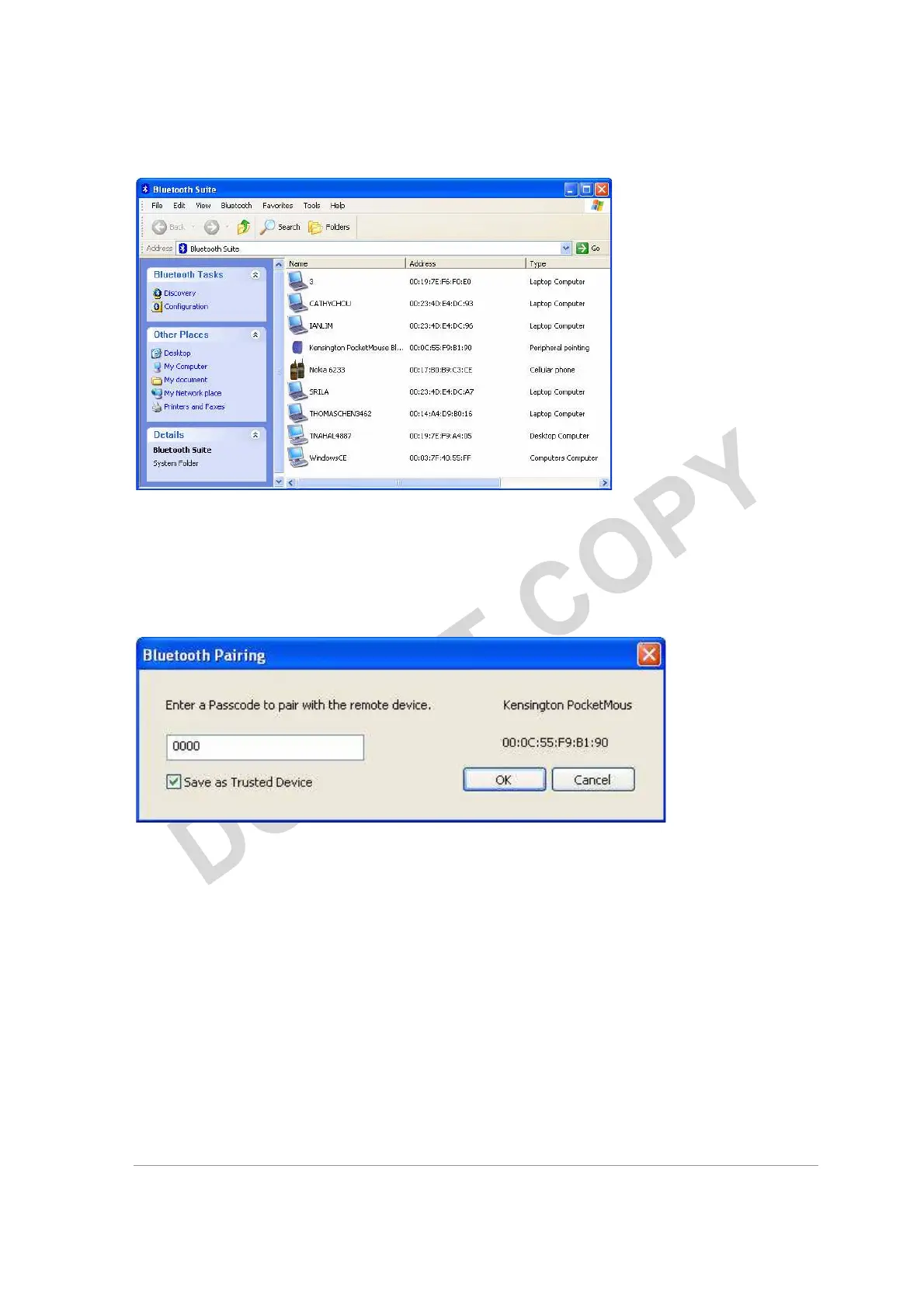
Figure 4-1. Bluetooth Places Screen
4. Make sure the device that you wish to pair or connect is
powered up and in discoverable mode. If it is in range and has
previously been paired, turning on the device will
automatically pair it.
5. Right click on the mouse and choose Pair. It displays the
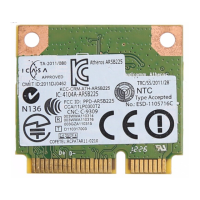
Bluetooth Pairing Passcode screen. See Figure 4-2.
Figure 4-2. Entering Bluetooth Pairing Passcode
6. Enter a passcode to pair with the remote device and click OK.
NOTE:
The default code shown is 0000. Refer to the documentation of your mouse
to find out the passcode of your device and how to change it.
7. Highlight the mouse device under Peripheral Devices in the
left panel and choose Service Discovery. Highlight the device.
Using your laptop pointing device, right click on the Human
Interface Device service and choose the Connect option to
connect to the mouse.


 To Next Page