3-5
3.2.2.1. FIRST MENU SET
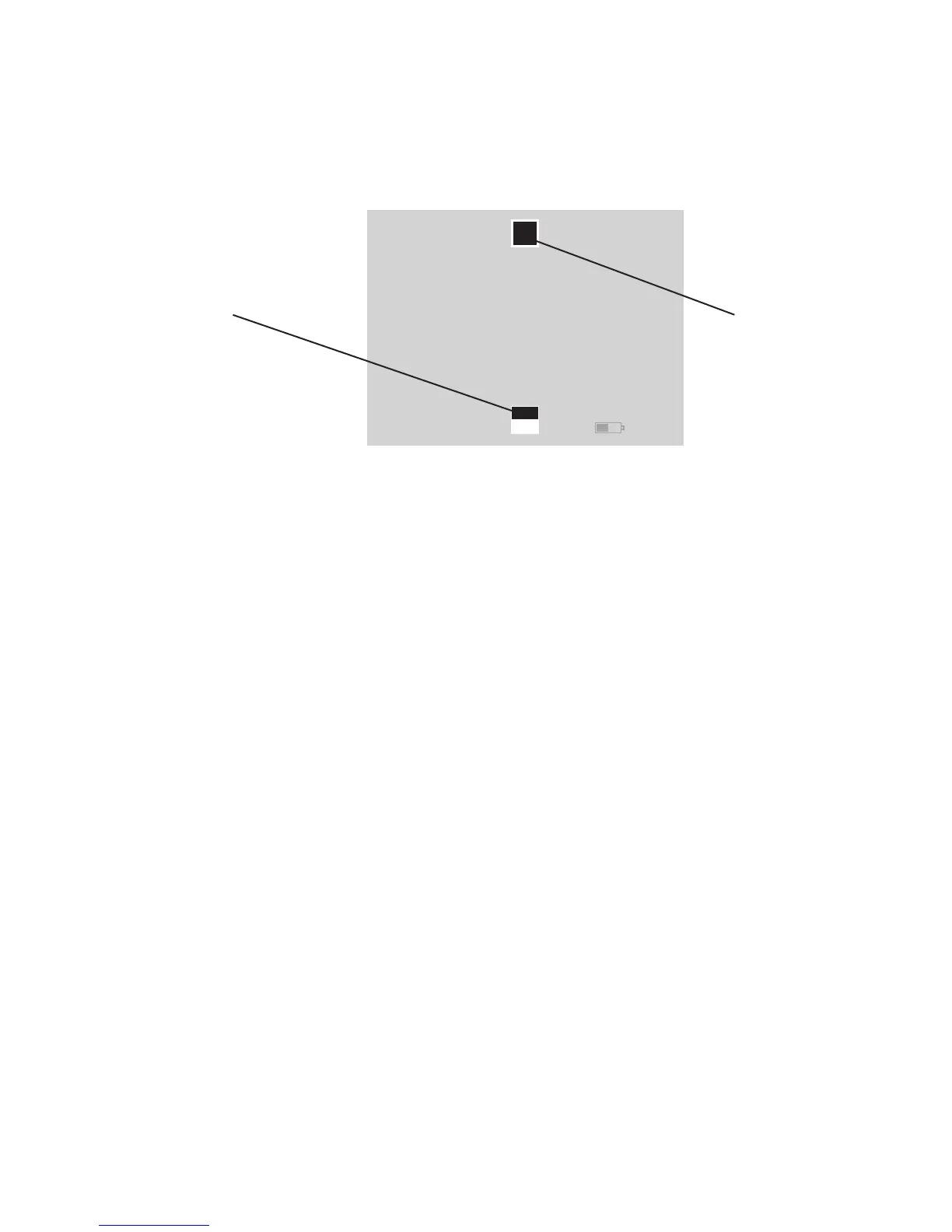
The two icons on the screen are Zoom (on top) accessed by
UP button and White Hot/Black Hot (on the bottom) accessed
by DOWN button.
Zoom – UP button will allow the user to cycle through all the
zoom options.The icon will change based on the Electronic
Zoom level that you have selected. (Note: The Electronic Zoom
[E-Zoom] is not the same as overall system magnification. To
calculate system magnification you must multiply E-Zoom by
Optical Magnification. Example: Odin 32 has an optical mag-
nification on 2X. When used in 1X E-Zoom mode your system
overall magnification is 2X [2 x 1=2]. However, when E-Zoom-
ing to 2X your system magnification will be 4X [2 x 2=4] and
when E-Zooming to 4X your system magnification will be 8X [2
x 4=8].)
White Hot/Black Hot – DOWN button will allow the user to
cycle between White Hot Polarity and Black Hot Polarity. When
in White Hot mode, the hotter the object the whiter it will appear
on the display. In Black Hot the opposite will be true – the hotter
the object the darker it will appear. We recommend you try both
modes in various environments/situations to determine the opti-
mal mode.
1X
Zoom Icon
White Hot /Black Hot Icon
FIGURE 3.3. SCREEN OF FIRST MENU SET


 To Next Page