16 17
1918
Description of ATTOP GO drone WIFI Version
How to connect the WIFI Signal
This version of drone comes with the WIFI Live Stream Camera.
1, Download the app “ATTOP CLUB ” from App Store / Google Play.
2, Power on the drone.
3, Go to the WIFI setting on phone/device, choose the WIFI signal
of the drone (X-PACK 18+No.) , and connect it.
4, Now open the app of the drone, and Slip to Select The Drone
“X-PACK 18” then enjoy to play it.
SCAN,AND DOWNLOAD APP
Attention: When the drone is at the statue of low battery, it might
unable to be connected successfully.
pic 1
1
Enter to the Interface of this drone after selection.
2
Media Folder : After taking photos and videos, you can review
them from this folder.
After connecting the WIFI signal between the drone and mobile
device, and open the APP, we can Slip to Select The Drone
“X-PACK 18” see the screen as image above.
Ready to fly
After connecting the WIFI signal and enter into the operation
interface, press the “”ON/OFF button” to open the sticks.
Wait for 2 seconds till the lights of the drone stop flashing
then press the “Calibration button” to calibrate the drone if first
time play.
Push the Left Control Stick to the top and then release. Now the
rotors of the drone start rotating, that activate the motors.
(see pic 1)
Press the “One Key Take Off ” to fly up the drone (or push up the
Left Contol Stick slowly), to take off. Press the “One Key Landing”
(or keep pushing down the Left Control Stick directly) to land the
drone.
2
1
3
4
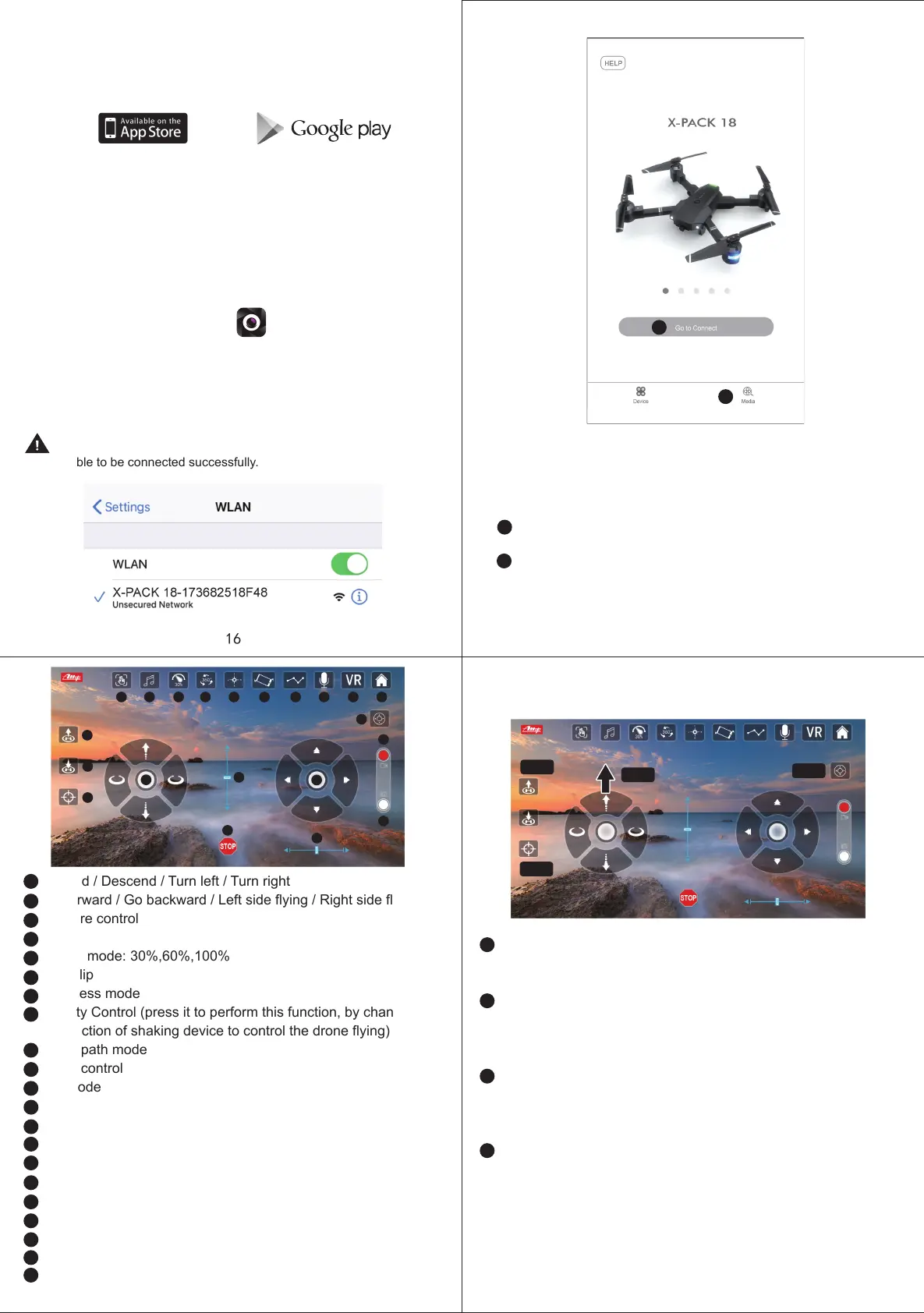
Ascend / Descend / Turn left / Turn right
Go forward / Go backward / Left side flying / Right side flying
Gesture control
Music
Speed mode: 30%,60%,100%
360° flip
Headless mode
Gravity Control (press it to perform this function, by changing
your action of shaking device to control the drone flying)
Flight path mode
Voice control
VR mode
Return home page
On/Off for control interface
Switch to take video
Switch to take photo
Go Forward / Backward trimmer
Left / Right side flying trimmer
EMERGENCY STOP !!!
One key take off
One key landing
Calibration
1
2
3
4
5
6
7
8
9
10
11
12
13
14
15
16
17
18
19
20
21
1
2
1
2
3 4 5 6 7 8 9
10 11
12
13
14
15
16
17
18
19
20
21
Step 1
Step 2
Step 3
Step 4


 To Next Page