Making Changes to a Profile
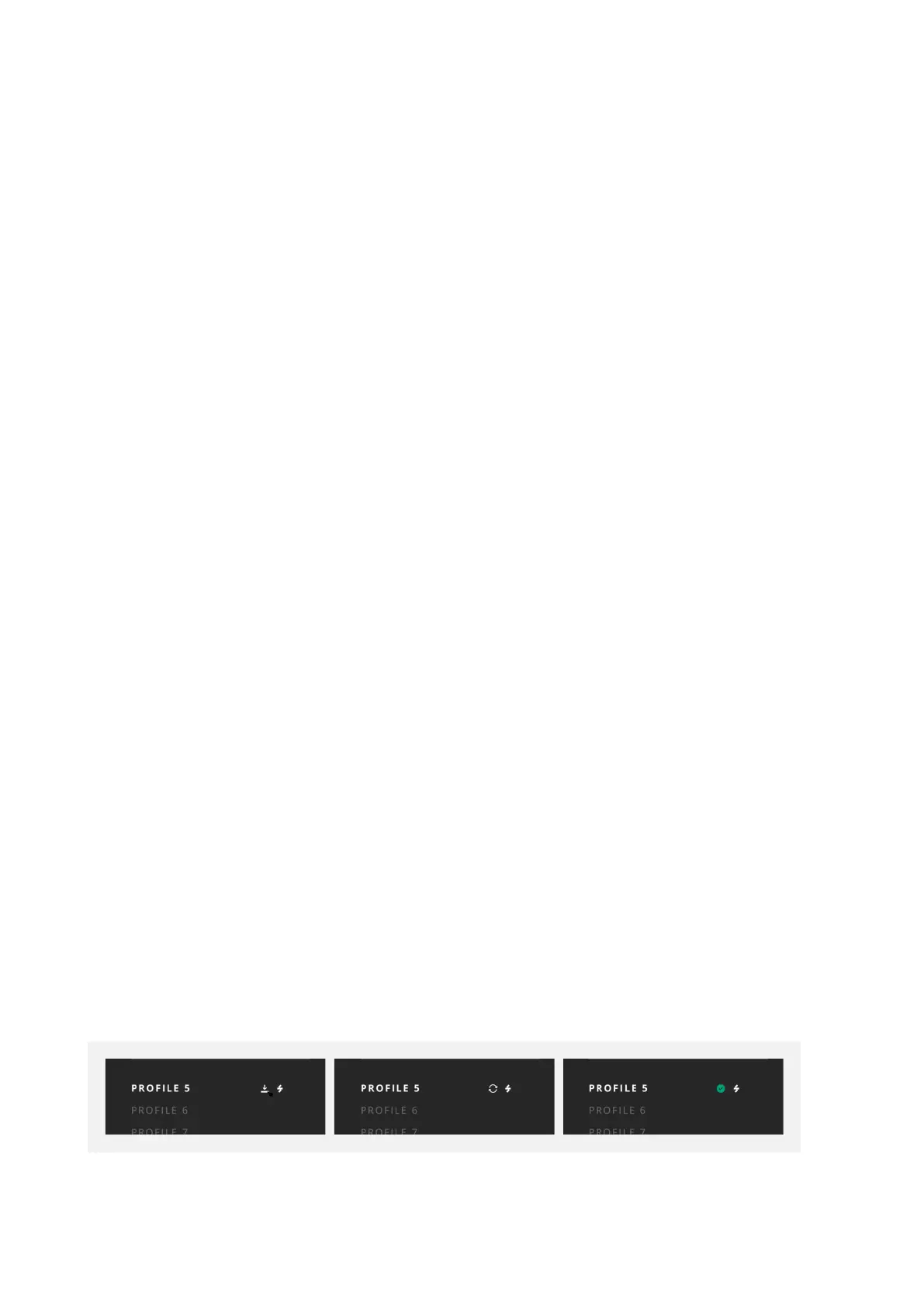
If changes are made to an active Profile then you will see a small ‘Save’ icon appear
next to the Profile in the list. To Save the Profile, simply click this icon and wait a few
moments for the Profile to be stored and loaded onto your ORIA. A green tick will
appear when this is complete.
Selecting a Profile
To use a Profile, you can simply click on it from the Profile list. This is now your inactive
Profiles. This Profile will be highlighted with white text while the other inactive will be
greyed out.
You can also select Profiles using the Profile Button on the front panel of the unit by
either tapping it to cycle through your designated favourite Profiles or pressing and
holding to select from the full list of Profiles.
Profiles may be reordered at any time, simply by holding down the left mouse button
on the chosen profile and dragging it to the chosen location. When reordering profiles,
the following logic applies:
Favourite -> Favourite: The two Profiles will swap locations.
Favourite -> Non-Favourite: The Favourite Profile will be dropped where the user
intended. The top Non-Favourite Profile is moved up to the Favourite section.
Non-Favourite -> Non-Favourite: The Profile will drop where the user intended, and all
Profiles below will shue down.
Non-Favourite -> Favourite: The Non-Favorite Profile will replace the location of the
original Favourite Profile. The original Favourite Profile will now be placed at the top of
the Non-Favourite list, and every other profile will shue down.



 To Next Page