10
Input Gain Offset: You may experience some
devices playing consistently louder than others (for
example, a CD player may always play louder than
a turntable). In this event, the Input Gain Offset can
be engaged to balance the overall volume between
the differing inputs, alleviating the need to adjust
the master volume when changing between inputs.
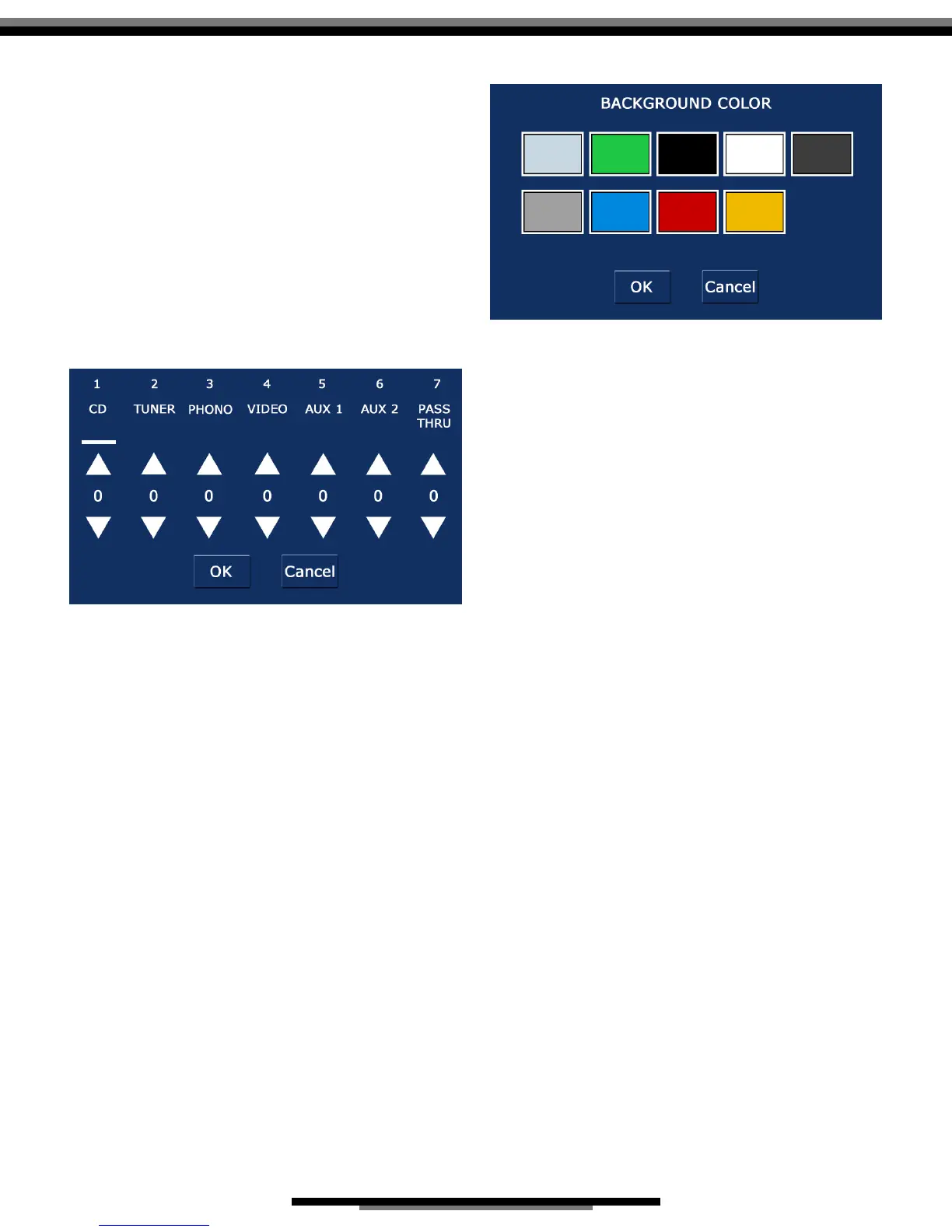
The Input Gain Offset screen is designed so you can
make adjustments easily to each input in real time.
For best results, play all devices connected to the
Reference 10 simultaneously, and from the Input
Gain Offset page, change inputs by touching the
input bar. If an input is louder or softer than another,
use the up and down arrows to adjust accordingly
(g 9).
Hours Meter: The Hours Meter displays the total
number of hours the Reference 10 has been running.
This is useful to gauge tube life and prepare for
eventual replacement. The hours meter may
be reset after the tubes have been changed by
touching the ‘Reset’ button located in the bottom
right of the screen.
Foreground/Background Color: The Reference 10
has ten color options for both screen background
and text. Selecting either one of these options from
the settings menu will allow you choose a new color
to customize the display on your Reference 10.
Please note that the currently selected color is not
displayed in the choices shown, nor do you have
the option to choose the same color for both the
background and foreground (g. 10).
Display Intensity: Display Intensity adjusts the
backlight for the screen and its overall brightness.
There are six levels plus ‘off’, with ‘6’ being the
brightest. When ‘off’ is selected, the display will
remain on for 8 seconds and then shut off. To
return illumination to the screen, simply touch it or
press a button on the remote. When adjusting the
brightness, the words ‘Display Intensity’ will reect
the overall setting seleted. The display intensity can
also be adjusted from the remote using the ‘DSP UP’
and ‘DSP DN’ buttons.
About: Touching the ‘About’ button displays a screen
with the current software version of the Reference
10. This information can be useful in the event the
Reference 10 needs troubleshooting. In the bottom
right of the About screen is a ‘Defaults’ button.
Selecting the defaults button will return all settings
in the Reference 10 as they were shipped from the
factory. Please note that resetting the Reference
10 back to factory settings does NOT reset the hours
meter.
Troubleshooting
It is possible for a static discharge to temporarily
disable the microprocessor that allows the controls
to function. If this should occur, depress the ‘Mute’
button, then turn off the preamp and unplug the
preamp from the A.C. receptacle for 60 seconds.
Reconnect the A.C. plug and turn the preamp back
on, along with other components. The controls
should resume normal operation. If the problem
persists, contact your dealer or Audio Research
Customer Service at 763-577-9700.
g. 9
g. 10


 To Next Page