14
Operation
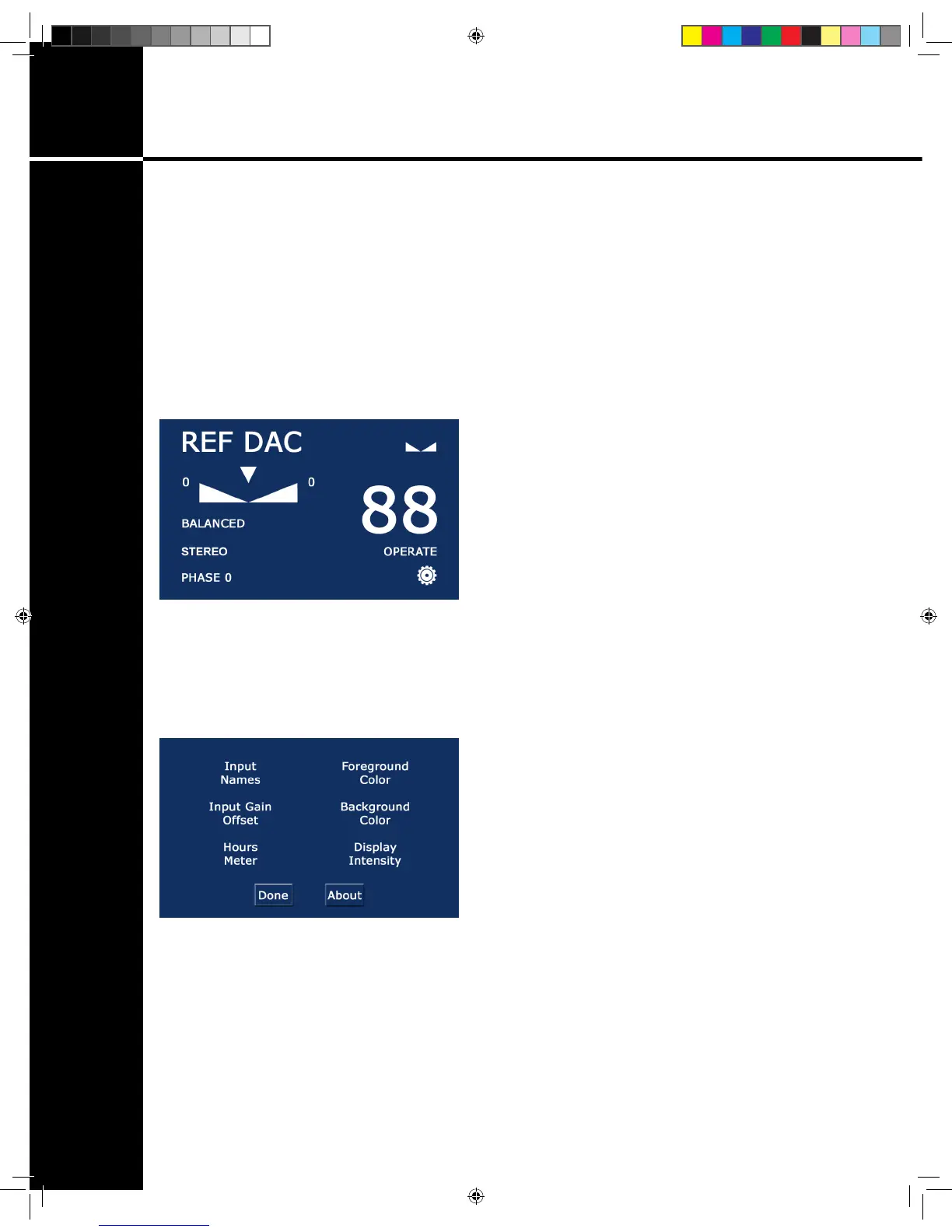
Balance: Touch the balance icon located in the top right position of the
screen (it appears as a double ramp). The balance slider will appear beneath
the input name. Using the rotary control, adjust the balance as needed
to right or left channels. When the balance is not at center, a ‘+’ sign
will appear to the right or left side of the balance icon indicating to which
channel the balance is offset. To re-center balance, either use the rotary
control to bring the balance back to center or touch the inverted triangle
above the balance slider (g. 7).
SETTINGS MENU
Touching the settings icon located in the bottom right of the screen (it
appears as a gear) brings you to a submenu with different options related
to the setup and functionality of the Reference 10 (g. 8).
Input Names: Selecting Input Names will allow you to customize the
names of each input on the Reference 10. Once selected, the input bar will
appear at the top of the screen with an alphanumeric keyboard below it. To
change the name of any input, simply touch the input until it is highlighted
and type in the new name. When input naming is complete, select ‘DONE’
to go back to the settings menu.
g. 7
g. 8
Ref 10.indd 14 4/17/13 1:21 PM


 To Next Page