English
-15-
-14-
5.8.1.4.6 Setup
To set up the photo slide show options,
press “2”. Highlight Slide Show Time to
choose between Off or display time between
1 and 9 seconds. Highlight Slide Show
Repeat to choose between Off/On to
automatically rerun the slide show when all
photos have been shown.
Highlight “Save” and press <OK> to save
the changes, or “Cancel” and press <OK>
to discard the changes and return to the
preview screen.
5.8.1.4.7 Multiview
Press “3” to view all photos for the current
folder in a tiled display. Press <EXIT> to
return to the preview screen.
5.8.1.4.8 Exit
Press <EXIT> to step up through the folders
and return to the Media Player main menu.
If Favourites or Play List have been changed,
a pop up window will appear asking to
confirm save of the play list to USB disk.
Highlight “Yes” and press <OK> to save the
changes, or press <◄ > or < ►> to highlight
No and press <OK> to cancel the operation.
Continue pressing <EXIT> to return to
normal TV viewing.
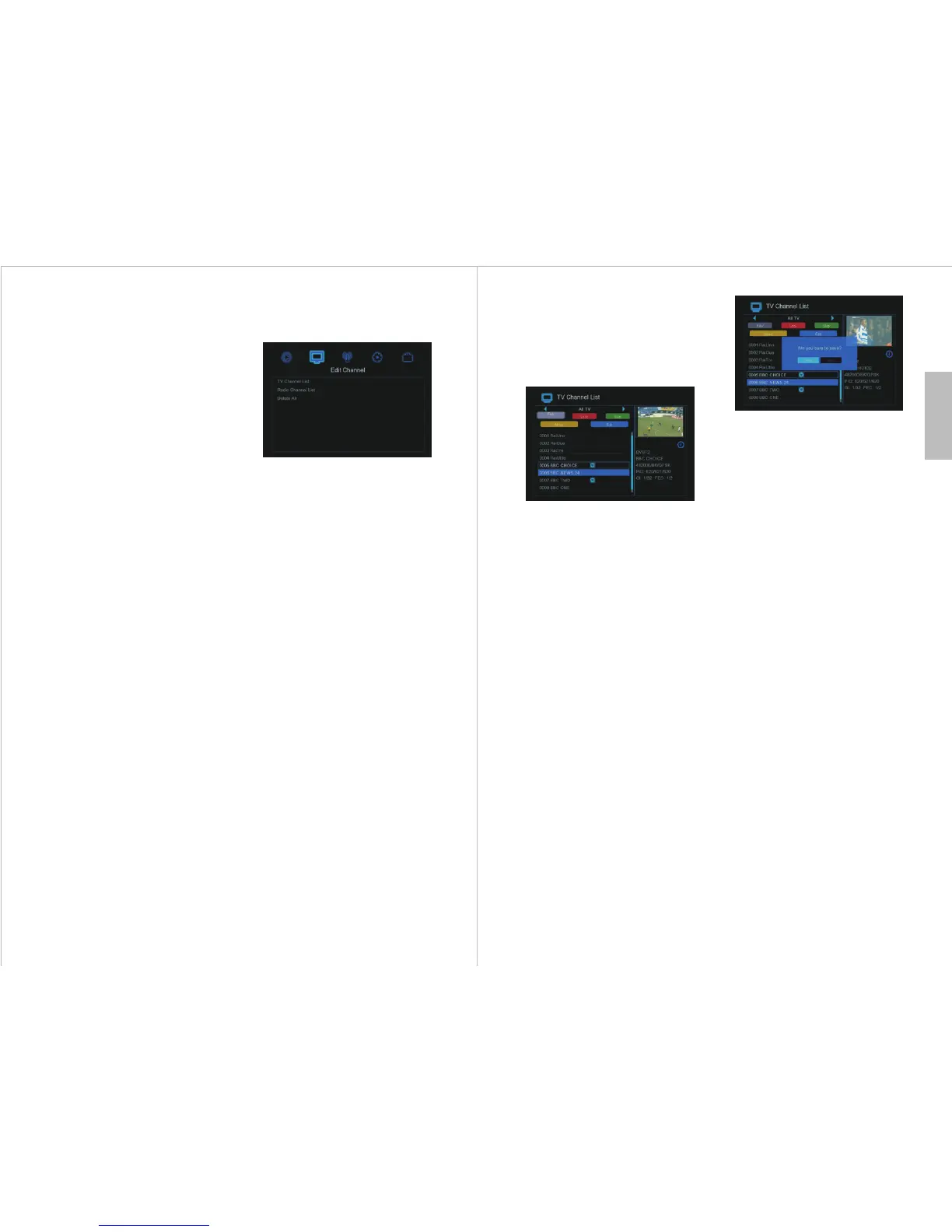
5.8.2 Edit Channel
Edit Channel enables the user to manage the
TV and Radio channel lists. To access the
Edit Channel functions press <MENU>
whilst receiving a TV or Radio channel,
then press <◄ > or < ►> to highlight the
5.8.2.1 TV and Radio Channel List
To manage the TV channels, highlight the
TV Channel List option and press <OK>.
To manage the Radio channels, highlight
the Radio Channel List option and press
<OK>. To switch between TV and Radio
whilst managing the channel lists, press the
<TV/RADIO> button.
5.8.2.1.1 Favourite
To save channels into favourite groups press
the <FAV> button and the FAV icon at the
top of the screen is highlighted. Highlight
the channel to put into a favourite group,
then press <OK> and a pop up window will
show with the eight favourite groups.
Highlight a group to make the channel a
favourite in, and press <OK>. A favourite
blue heart icon will be shown next to the
favourite group. To remove a channel from
a favourite group, highlight the group
marked as favourite and press <OK> again.
A channel can be stored in multiple
favourite groups by highlighting another
group and pressing <OK>.
Press <EXIT> to return to the TV channel
list and press <EXIT> again to return to the
Program options. If changes have been made
5.8.2.1.2 Lock
Locking a channel requires a password to
be entered in order to watch that channel.
Press the <RED> Lock button and the
Lock icon at the top of the screen is
highlighted. Highlight the channel to lock
then press <OK> and a pop up window for
the password appears. Enter the password
to lock the channel. The system default
password is “0000”.
To remove a lock from a channel, highlight
a locked channel and press <OK>. The
password will not be required if it has been
entered before whilst still in the Lock
function.
Press <EXIT> to return to the channel list
and press <EXIT> again to return to the
Program options. If changes have been
made a pop up window saying “Are you
sure to save?” will ask to confirm the
changes. Highlight “Yes” and press <OK>
to save the changes, or “No” and press
<OK> to discard the changes.
5.8.2.1.3 Skip
Skipped channels are not found whilst
browsing up and down channels. To skip
or unskip a channel press the <GREEN>
Skip button and the Skip icon at the top of
the screen is highlighted. Highlight the
channel to skip then press <OK> and skip
channel arrow icon appears on the channel
line.
To un-skip a channel, highlight the channel
marked with the skip icon and press <OK>
again.
Press <EXIT> to return to the channel list
and press <EXIT> again to return to the
Program options. If changes have been
made a pop up window saying “Are you
sure to save?” will ask to confirm the
changes. Highlight “Yes” and press <OK>
to save the changes, or “No” and press
<OK> to discard the changes.
Edit Channel menu item and press <OK>
or <▼>.
a pop up window saying “Are you sure to
save?” will ask to confirm the changes.
Highlight “Yes” and press <OK> to save the
changes, or “No” and press <OK> to discard
the changes.
5.8.2.1.4 Move
To change the position of a channel in the
list press the <YELLOW> Move button
and the Move icon at the top of the screen
is highlighted. Highlight the channel to
move then press <OK> and the move double
arrow icon appears on the channel line.
Press <▲> or <▼> to move the channel
to the desired position in the list, and press
the <OK> to set it there.


 To Next Page