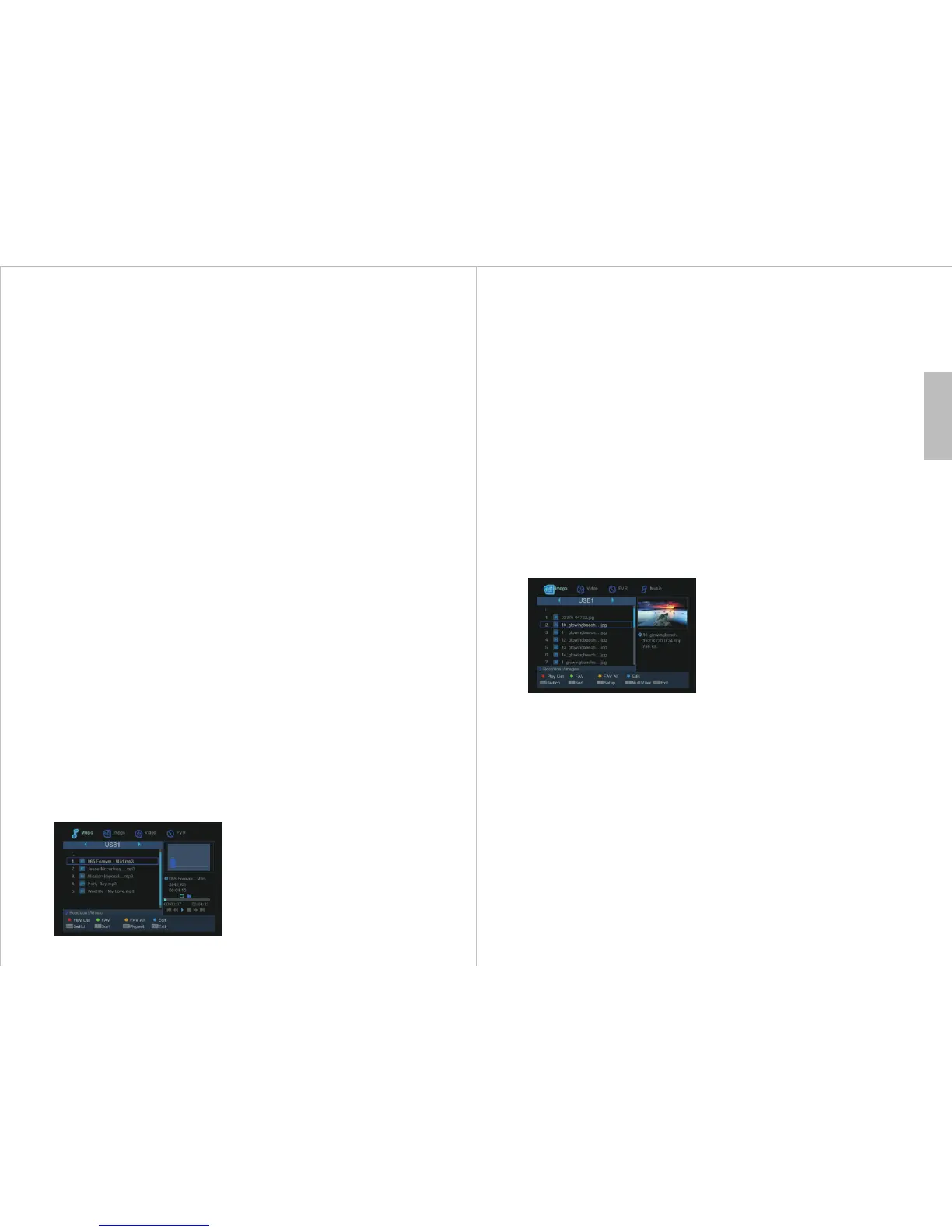
5.8.1.3.2 Favourite
Highlight a music file and press <GREEN>
to mark it as a Favourite. Highlight the music
file and press <GREEN> again to unmark it
as a Favourite.
5.8.1.3.3 Favourite All
Press <YELLOW> to mark all files in a
folder as Favourite. Press <YELLOW>
again to clear the Favourite mark from all
files in the folder.
5.8.1.3.4 Edit
Press <BLUE> to enter the edit functions.
Refer to Section 5.8.1.2 for details. Press
<MENU> to return to the Music Player
screen.
5.8.1.3.5 Sort
To sort the files according to Name / Time /
Size / Favourite, press “1” then highlight the
option and press <OK>.
5.8.1.3.6 Repeat
Pressing the <REPEAT> button to cycle
through the options of Play file repeatedly,
Play all files in folder repeatedly.
5.8.1.3.7 Exit
Press <EXIT> to step up through the folders
and return to the Media Player main menu.
If Favourites or Play List have been changed,
a pop up window will appear asking to
confirm save of the play list to USB disk.
Highlight “Yes” and press <OK> to save the
changes, or press <◄ > or < ►> to highlight
No and press <OK> to cancel the operation.
English
-13-
<OK>. Press <EXIT> to exit the slide show
and return to the preview screen.
To delete a photo from the Play List,
highlight it and press the <GREEN> delete
button.
To delete all photos from the Play List,
press the <YELLOW> Delete All button.
A confirmation window will pop up asking
“Are you sure to delete all items in
playlist?”, default Yes. Press <OK> to
delete all photos from the Play List and
return to the preview screen, or press
<◄ > or < ►> to highlight No and press
<OK> to cancel the operation.
5.8.1.4.2 Favourite
Highlight a photo and press <GREEN> to
mark it as a Favourite. Highlight the photo
and press <GREEN> again to unmark it as
a Favourite.
5.8.1.4.3 Favourite All
Press <YELLOW> to mark all photos in a
folder as Favourite. Press <YELLOW>
again to clear the Favourite mark from all
photos in the folder.
5.8.1.4.4 Edit
Press <BLUE> to enter the edit functions.
Refer to Section 5.8.1.2 for details. Press
<MENU> to return to the photo preview
screen.
5.8.1.4.5 Sort
To sort the photos according to Name /
Time / Size / Favourite, press “1” then
highlight the option and press <OK>.
-12-
Continue pressing <EXIT> to return to
normal TV viewing.
5.8.1.4 Image / Photo Player
Highlight “Image” and press <OK> to show
the Image menu. Press <▲> or <▼> and
<OK> to navigate through the folders and
highlight the file to view, then press <OK>.
The photos in the folder will be shown in
sequence with random transition effects.
Press <◄ > or < ►> to rotate the photo 90°
left or right respectively.
Press <||> to pause the slide show, and
press <||> again or <►> to resume. When
paused press <▲> or <▼> to step through
the photos. Press <EXIT> to stop the slide
show and return to the preview screen.
5.8.1.3.1 Play List
Press <RED> to play all music in the Play
List. To add a music file to the Play List
mark it as a Favourite.
5.8.1.4.1 Play List
Press <RED> to show all the photos in the
Play List. To add a photo to the Play List,
mark it as a Favourite (see below).
To change the order that photos show,
highlight a photo and press the <RED>
move button then press <▲> or <▼> to
move the photo to the desired position in
the list, and press the <RED> move button
again.
When the photos are in the desired order
highlight the first photo to show and press
navigate through the folders and press
<GREEN> again. A pop up window will ask
for confirmation.
5.8.1.2.3 Delete
Highlight a file and press <YELLOW> to
mark it for deletion. A “X” symbol will
appear next to the file. To cancel the deletion
mark highlight the file, then press
<YELLOW> again. To delete the file move
to another folder either by highlighting the
folder and pressing <OK>, or pressing
<EXIT> to move up folder and a window
will pop up to confirm the delete of the
marked files.
5.8.1.2.4 New Folder
To create a new folder, press <BLUE> then
give the folder a name in the pop up window
using the number keys and referring to the
table in Section 5.8.1.1.
5.8.1.3 Music Player
Highlight “Music” and press <OK> to show
the Music menu. Press <▲> or <▼> and
<OK> to navigate through the folders and
highlight the file to play, then press <OK>.
5.8.1.2.1 Rename
Highlight a file and press <RED> to rename
it. See Section 5.8.1.1 for details.
5.8.1.2.2 Copy
Highlight a file and press <GREEN> to copy
it. Press <▲> or <▼> and <OK> to


 To Next Page