-10-
-11-
5.7 Schedule
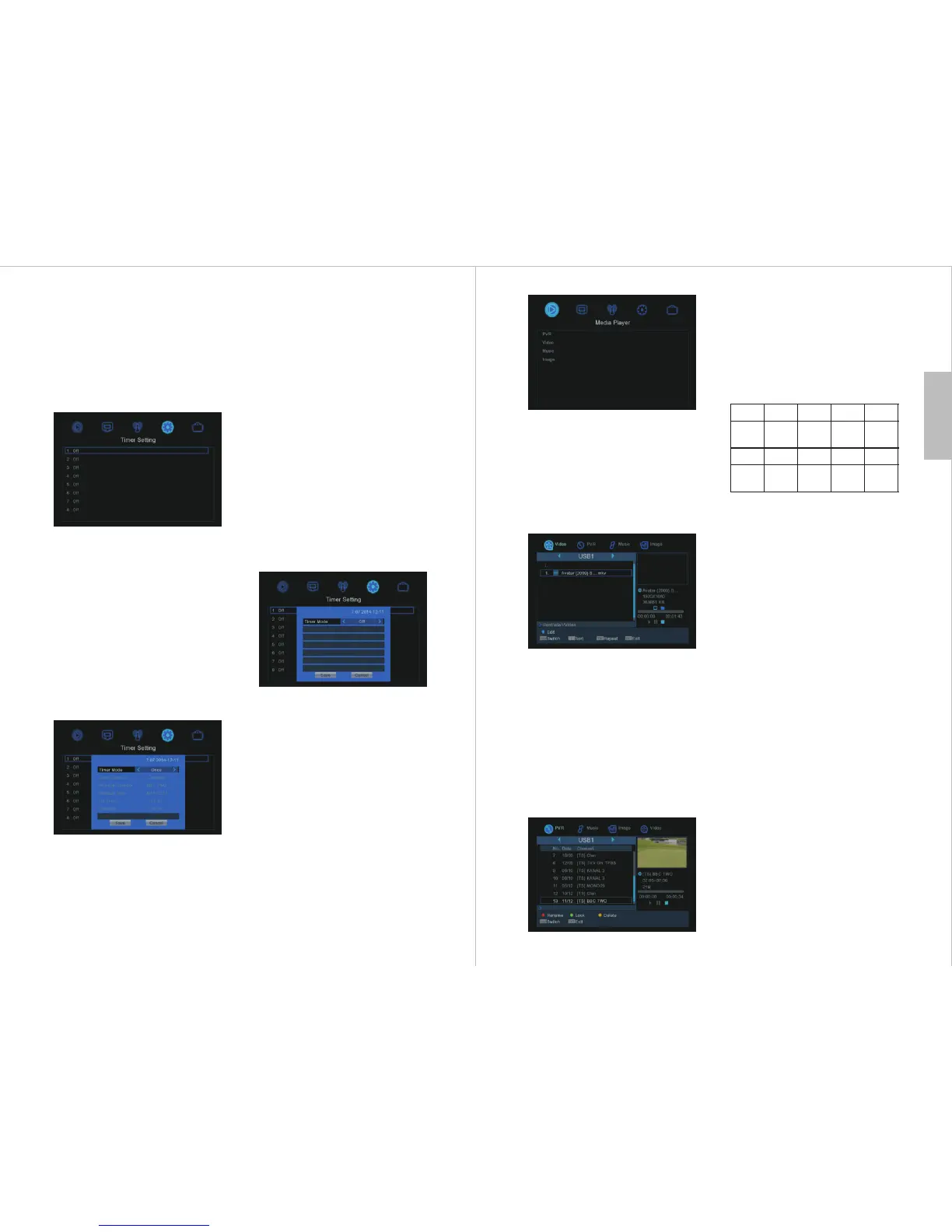
Press <TIMER > in TV mode to enter the
Timer Setting. This function supports
scheduled viewing or scheduled recording
of Programs. The options are off, schedule
a recording once, or record at the same time
daily.
5.7.1 Add Event
To add an event, highlight one of the empty
timer memories and press <OK>.
Press <▲> or <▼> to select an item, press
<◄ > or < ►> to change the settings. Press
the number keys and <◄ > or < ►> to set
date, time and duration, then highlight
[Save] and press<OK> to confirm, or
highlight [Cancel] and press <OK> or press
<EXIT> to exit without saving.
5.7.2 Edit Event
To edit an event, highlight one of the timer
memories with an event set and press <OK>.
Press <▲> or <▼> to select an item, press
English
the number keys and <◄ > or < ►>to set
date, time and duration, then highlight
[Save] and press<OK> to confirm, or
highlight [Cancel] and press <OK> or press
<EXIT> to exit without editing.
<◄ > or < ►> to change the settings. Use
5.7.3 Delete Event
To delete an event, highlight the timer
memory with the event and press <OK>.
Highlight Timer Mode and press <◄ > or
< ►> to change the setting to “Off” , then
highlight [Save] and press <OK> to confirm
the delete, or highlight [Cancel] and press
<OK> or press <EXIT> to exit without
deleting.
Press <RED> to rename the file. A pop up
screen will allow editing of the name. Use
the following table and press the number on
the remote control to cycle through until the
desired character is displayed:
5.8.1.2 Video Player
Highlight “Video” and press <OK> to show
the Video menu. Press <▲> or <▼> and
<OK> to navigate through the folders and
highlight the file to play, then press <OK>
to play in full screen.
Press <||> to pause playback, <►> to
resume, and <■> to stop playback and
return to selection preview screen.
Press <◄◄> repeatedly to rewind at x2,
x4, x8, x16, x24 speed, press <►►>
repeatedly to fast forward at x2, x4, x8,
x16, x24 speed. Press <|◄◄> to move to
the previous file, and <►►|> to move to
the next file when not in single file repeat
mode.
In the preview screen pressing the
<REPEAT> button to cycle through the
options of Play file once, Play file
repeatedly, Play all files in folder repeatedly.
Press <BLUE> to show the edit options.
0 1 2 3 4
5 6 7 8 9
<space>
_ - 0
1 . ,
* ? ! @
a b c 2 d e f 3
g h i 4
j k l 5
m n o 6
p q r s 7
t u v 8
w x y z 9
5.8 Main Menu
Press <MENU> to enter the main menu,
press <EXIT> to exit the menu.
In the main menu, press <◄> or <►> to
select between the Media Player, Edit
Channel, Installation, System Setup and
Tools submenus. Press <OK> to enter a
submenu or press <EXIT> to exit the main
menu.
In a submenu, press <▲> or <▼> to select an
item, then press <OK> or press <◄> or <►>
to change the settings. Press <EXIT> to save
the settings and go back to the previous menu.
5.8.1 Media Player
When you first enter a Media Player sub
menu, the USB/HDD device is highlighted.
Press the [Down] key to move the highlight
to folders and files. You can switch between
Music/Image/Video/PVR by pressing the
[SWAP] key.
5.8.1.1 PVR
Highlight “PVR” and press <OK> to show
the PVR menu. Press <▲ or <▼ to
select an item and press <OK> to play in
full screen. Press <■ to stop playback and
return to selection preview screen.
Press play <►> to play in the preview
screen, <||> to pause, and < > to stop
playback.
> >
>
■


 To Next Page