1.Before using the WIFI function, For Android smart
phone, please go to Google Play and search "Venari"
to download and install it. For IOS smart phone,
please go to Apple Store and search "Venari" to
download and install it.
2.Mobile phone scan the QR code download the APP
“Venari”.
WIFI APP connection
Note:Before using the APP, make sure the phone's Bluetooth and WiFi
functions are turned on.
Android/ IOS
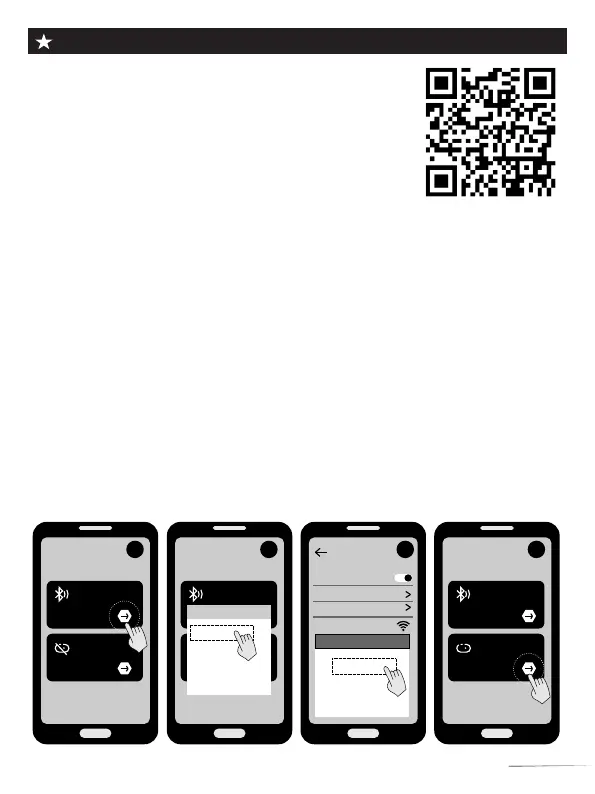
3.Turn on the WiFi connection to the camera in three steps on mobile:
Step 1:Be sure your camera is in the ON or TEST mode.
Step 2:Open your App on your phone. Then, select “Bluetooth turns on Wi-Fi”.
You will see a Bluetooth List. Select the “Hownic”.
Step 3:For Android phone,the Wi-Fi Connection window will be popped up
automatically on your phone. But for IOS smart phone you should open the Wi-
Fi Connection window manually.Find the Wi-Fi Hotline named “TCJ48K1W”,
then choose it and enter the password “12345678” to connect.Return to the App
interface to operate all functions.
Diagram of connection steps:
WLAN
WLAN
View help
Network acceleration
ON
More settings
TJ48K1W
CONNECT
FORGET
CONCEL
Hunting Cam Pro
Connect device Wi-Fi
No device connected
Bluttooth turns on
Wi-Fi
Hunting Cam Pro
Connect device Wi-Fi
No device connected
Bluttooth turns on
Wi-Fi
Bluetooth List
Hownic
Hunting Cam Pro
Connect device Wi-Fi
No device connected
Bluttooth turns on
Wi-Fi
TJ48K1W
1 2
4
3
06



 To Next Page