71
6 Update
Software Update
The XP400 Pro software can be updated via the key programming
tablet and a windows-based computer. This section describes two ways
to update the software of the XP400 Pro.
Update via Autel’s Tablet
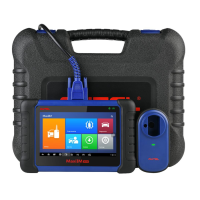
This function allows you to update the XP400 Pro software via Autel’s
IMMO & Key Programming tablet.
1. Connect the XP400 Pro to Autel’s IMMO & Key Programming
tablet via the supplied USB cable.
2. Verify the power LED light on the front panel is lit solid green.
3. Tap the “Programmer” application on the tablet’s main screen.
4. The tablet will automatically detect the software version
information and download the software update if available.
Update via a Windows PC
This function allows you to update the XP400 Pro software via a
Windows PC. The computer must be connected to the Internet to
update the software on the XP400 Pro.
1. Connect the XP400 Pro to a PC with the supplied USB cable.
2. Verify the power LED on the front panel is lit solid green.
3. Open the PC software. If a firmware update is available for the
XP400 Pro, a message will display to prompt you to update the
software. Otherwise, no message displays.
4. After the update is complete, click the “About” button in the lower
left corner of the PC software to view the current XP400 Pro
firmware, hardware and PC software versions.



 To Next Page